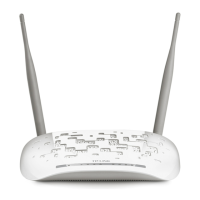
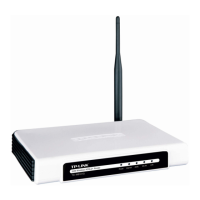
TD-8811/8811B External ADSL2+ ROUTER
4
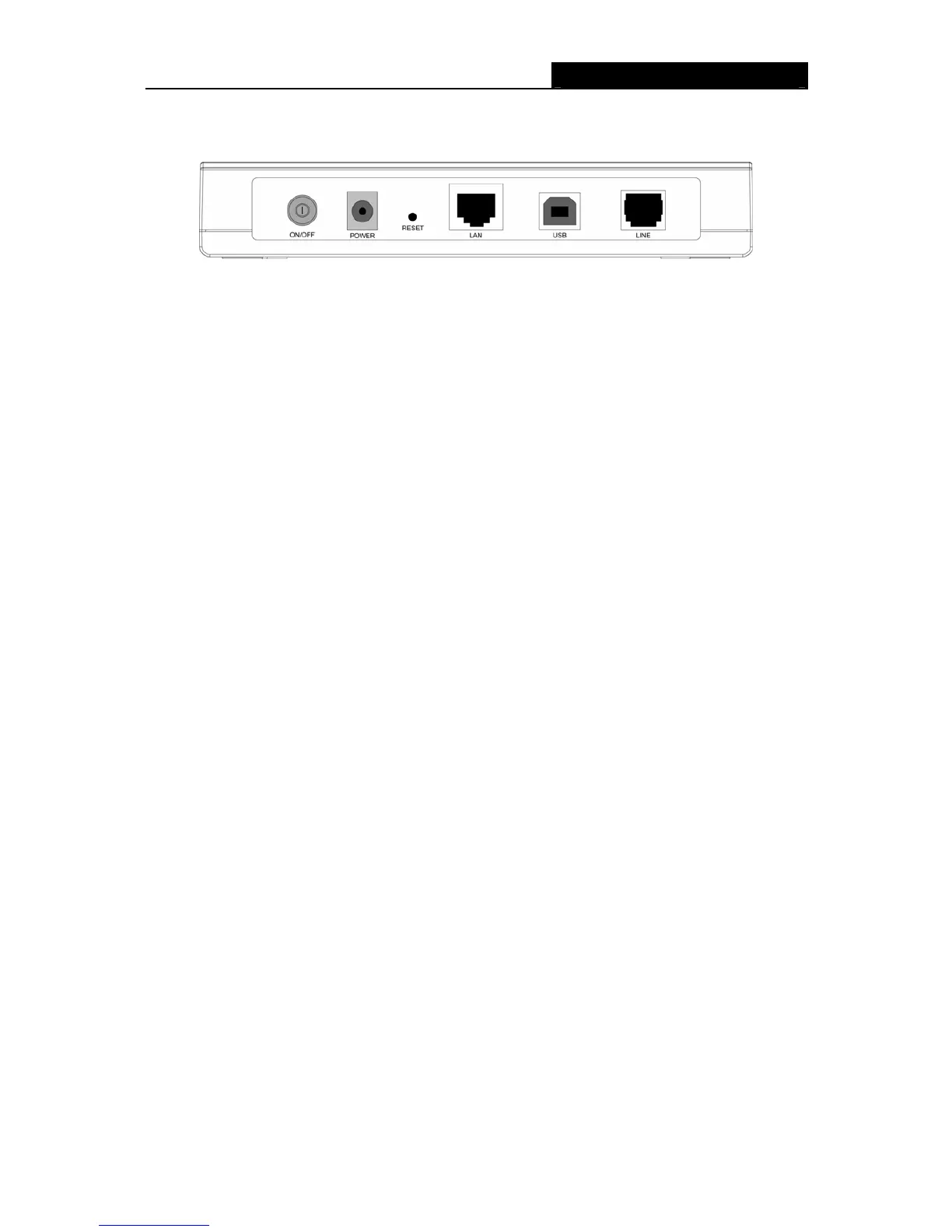
2.3 Rear-panel
¾ ON/OFF: Turn on/off the ADSL2+ Router’s power.
¾ POWER (9VAC/0.8A input): please do not use any unknown power adapter, otherwise your
ADSL2+ Router may be damaged.
¾ RESET (reset default): Press the reset button, then turn on the Router's power (keep the
button pressed) for at least three seconds, it will restore the settings to the default factory
configuration.
¾ LAN: Connect with your computer’s NIC.
¾ USB: Connect with your computer’s USB interface
¾ LINE (WAN): Connect to the MODEM Port of Splitter or connect the telephone line.
2.4 Hardware installation procedures
The procedure to install the Router can be described in the following steps:
First Step: Connect the MODEM port of Splitter with the LINE port of the TD-8811/TD-8811B
ADSL2+ ROUTER by telephone line.
Second Step: Connect category 5 cable with RJ45 jacks to ADSL2+ Router’s LAN port and your
computer’s NIC. Or connect USB cable to ADSL2+ Router’s USB port and your computer’s USB
interface.
Third Step: Plug one end of the AC Power Adapter into the Power jack on the Ethernet ADSL2+
Router and the other end to a standard electrical outlet.
Last Step: Check the line connection to see if everything is ready. Power up finally.



 To Next Page