Quick Start Guide
*Images may dier from actual products.
©2024 TP-Link 7106511052 REV1.20.0
Set up with videos:
Scan the QR code or visit
https://www.tp-link.com/support/setup-video/#vigi-network-camera
to search for the setup video of your product.
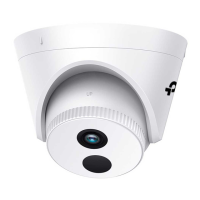
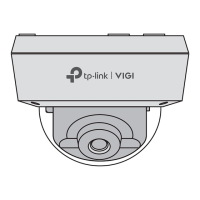
Dome Network Camera
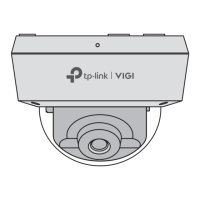
Appearance
Power Supply Interface
(12V DC)*
Microphone
RJ45 Ethernet Port
(supports PoE)
IR LED
Top Cover
Side Screws
Package Contents
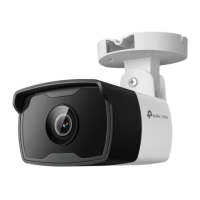
Network Camera
Quick Start Guide
Anchors & Screws
Quick
Start
Guide
•
Make sure your power supply matches your camera.
The camera’s standard power supply is 12V DC or
PoE (802.3af/at). The power source should comply
with Power Source Class 2 ( PS2) or Limited Power
Source(LPS) of IEC 62368-1.
• Make sure that the wall is strong enough to
withstand 4 times the weight of the camera and
mounting bracket.
• If you are uncertain or uncomfortable performing the
installation, consult a qualied electrician.
Safety First:
Mounting Template
2. Decide how to route the cable through the ceiling/wall. 4. Rotate the lens base or the dome to adjust the angle of the
lens as desired. Tighten the side screws to secure the cover.
1. Loosen the screws on the side of the camera to remove
the top cover.
3. Stick the mounting template to the desired mounting place,
and mount the camera. Pay attention to the cable direction.
Mounting Template
Anchor
Reinstall the top cover
Adjust lens angle
Mount the camera
Remove the top cover
Ceiling or Wall
Route the cable through the
bottom of the camera
Knock out the cable hole on the side
and route the cable from the side
Loosen to remove the top cover.
Self-tapping Screw
*Some models do not have the power supply interface. You can check the
detailed specications on the product page at https://www.tp-link.com/.
Camera
Ceiling or Wall
Waterproof Cable
Attachments
Installing Waterproof Cable Attachments
Install the waterproof cable attachments for the network interface when the
camera is installed outdoors.
Note: Make sure each part is securely attached and the waterproof rings are
ush to keep out water.
Done! The network interface is now waterproof.
Fix Nut
Waterproof
Ring
O-ring
Network
Interface
Waterproof
Jacket
1. Route the network cable through the following components in order: x
nut, waterproof ring, and then the waterproof jacket.
2. Fix the O-ring to the network interface of the camera and connect the
network cables.
3. Attach the network interface with the waterproof jacket, then twist to
lock.
4. Insert the waterproof ring into the waterproof jacket. Rotate the x nut
to secure it to the waterproof jacket.
Φ6 mm Φ3.5 mm
Anchor
When installing with anchors
Φ = 6 mm (15/64 in.)
When installing with screws only
Φ = 3 mm (1/8 in.)
Appropriate drilling size (Φ)

 Need help?
 General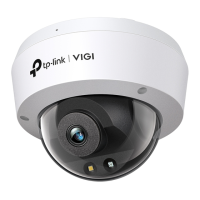


 To Next Page