Quick Installation Guide
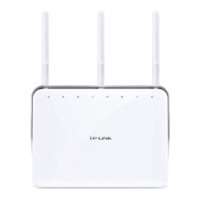
Wireless VDSL/ADSL Modem Router
1. Connect the Hardware
2. Configure the Modem Router
You'll usually need an internet service username and password, given to you by your internet service provider (ISP) when you first signed up with them. If you are unsure, please check with your ISP.
Phone Cable
Phone Jack
Phone Cable
DSL Splitter
Phone (Optional)
1
* Images may dier from actual products.
Verify that the following LEDs turn stable
before continuing with the conguration.
3
PHONE
LINE
MODEM
If you don’t need the phone service, just directly connect the modem router to the phone jack with the provided phone cable.
Modem Router
Power Adapter
2
WPS�Reset
USB LAN1 LAN2 LAN3
LAN4�WAN
Power
On
Wi-Fi
On
DSL
On
Notes:
1. The DSL LED takes about 1 to 2 minutes to
stabilize.
2. If the DSL LED does not turn on, please refer to
Q2 of Need Help? in this guide.
Method 1: Via a Web Browser
1. Connect your device to the router (wired or wireless).
Turn off the Wi-Fi on your computer and connect it to the router via an Ethernet cable.
Note: If the login page does not appear, please refer to Q1 of Need Help? in this guide.
2. Launch a web browser and type in http://tplinkmodem.net or 192.168.1.1. Create a
password and get started.
3. Follow the step-by-step instructions to set up an internet connection and register
the TP-Link Cloud service.
http://tplinkmodem.net
HighMiddleLow
Let’s Get Started
Conrm Password
New Password
Enjoy the internet!
Note: If you don’t have an account, create one rst.
Method 2: Via TP-Link Tether App
1. Download the TP-Link Tether app.
2. Open the Tether app and log in with your TP-Link ID.
3. Tap the button in the Tether app and select Router > DSL Modem Router.
Follow the steps to complete the setup and connect to the internet.
or
Scan for Tether Tether
Enjoy the internet!
QR
Code
Tip: If you are using a smartphone or tablet, you can also
scan the QR code to join the preset 2.4 GHz network directly.
Wired
Find the product label at the bottom of the
router.
Use the default network names (SSIDs) and
password to join the network.
Wireless
A.
B.

 Need help?
 General



 To Next Page