EasyManua.ls Logo

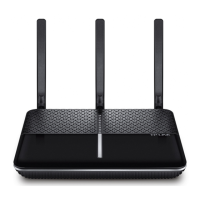
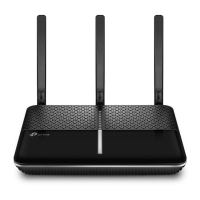
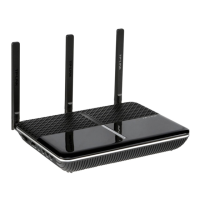
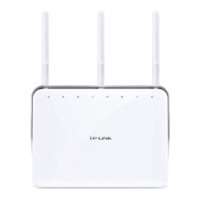
TP-Link Archer VR2600 - User Manual

TP-Link Archer VR2600
112 pages
Print Icon
To Next Page IconTo Next Page
Loading...
REV1.1.0 1910011856
Archer VR2600
User Guide
AC2600 Wireless Gigabit VDSL/
ADSL Modem Router

Table of Contents

Questions and Answers

  • J
    Janet BerryAug 10, 2025
    What to do if I forgot my TP-Link Network Router password?
    • J
      jennifer58Aug 10, 2025
      If you've forgotten your password for your TP-Link Network Router, you can restore the router to its factory default settings and then set a new password. Alternatively, the default Wireless Password/PIN is printed on the product label. If you changed the default password, log into the router’s web management page and go to Basic > Wireless to retrieve or reset it.
  • P
    Philip MathewsAug 16, 2025
    Why can't I access the internet with my TP-Link Network Router?
    • S
      Shannon NortonAug 16, 2025
      If you cannot access the Internet with your TP-Link Network Router, first check that all connectors, including the telephone line, Ethernet cables, and power adapter, are well connected. Next, check if you can log in to the web management page of the router. Verify with your ISP that your VLAN ID (VDSL), VPI/VCI (ADSL), Connection Type, account username, and password are correct. If problems persist, restore your router to its factory default settings and reconfigure it using the Quick Setup Wizard.
  • C
    Crystal ChaseAug 22, 2025
    What to do if I can't log in to my TP-Link Network Router?
    • H
      housedavidAug 22, 2025
      If you're unable to log in to your TP-Link Network Router's web management page, ensure the router is correctly connected to your computer and that the LED indicators light up. Verify that your computer's IP address is configured to obtain an IP address and DNS server address automatically. Double-check that you're correctly entering the default access address: http://tplinkmodem.net or http://192.168.1.1. If the issue persists, try resetting the router to its factory default settings or using a different web browser or computer.
  • M
    Mitchell PowellAug 28, 2025
    Why can't I find or connect to my TP-Link Network Router's Wi-Fi?
    • M
      Mr. Eric MorganAug 28, 2025
      If you cannot find or connect to your TP-Link Network Router's wireless network, make sure the wireless function is enabled on your device and that the wireless adapter driver is properly installed and enabled. Check the Wi-Fi LED indicator on the router. Ensure your device is within range of the router. On the Basic > Wireless page, verify the Wireless Name (SSID) is not hidden. If you have trouble with the PIN, select “Connecting using a security key instead” and enter your Network Security Key/Wireless Password. If the network security key mismatches, confirm the wireless password on your router. For weak signals, move closer to the router. Try changing the wireless channel to 1, 6, or 11 to reduce interference.
  • P
    Paul MartinSep 3, 2025
    How to reset TP-Link Network Router to factory settings?
    • S
      sheenatorresSep 3, 2025
      To restore your TP-Link Network Router to its factory default settings: You can use the Reset button, referring to its description for details. Alternatively, use the Backup & Restore page, following the instructions in 'To reset the modem router to factory default settings'.

TP-Link Archer VR2600 Specifications

General IconGeneral
CategoryNetwork Router
ModelArcher VR2600
Wireless StandardsIEEE 802.11ac/n/a 5 GHz, IEEE 802.11b/g/n 2.4 GHz
USB Ports1 x USB 3.0, 1 x USB 2.0
Frequency Bands2.4 GHz and 5 GHz
Ethernet Ports4 x Gigabit LAN, 1 x Gigabit WAN
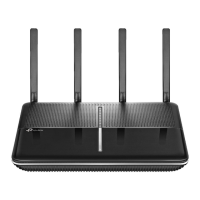
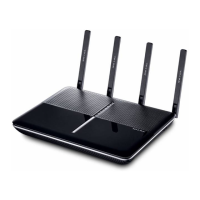
Antennas4 external antennas
SecurityWPA/WPA2
Processor1 GHz Dual-Core Processor
Memory128 MB Flash, 256 MB RAM
ModemVDSL/ADSL2+ modem
Ports4 x LAN, 1 x WAN, 1 x USB 3.0, 1 x USB 2.0
Wireless SpeedAC2600: 800 Mbps on 2.4 GHz + 1733 Mbps on 5 GHz

Related product manuals