EasyManua.ls Logo

TP-Link Archer VR600 - User Manual

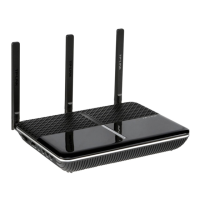
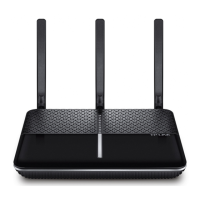
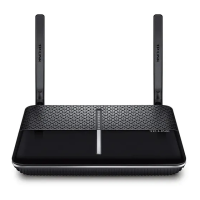
TP-Link Archer VR600
121 pages
Print Icon
To Next Page IconTo Next Page
Loading...
REV2.0.0 1910011977
User Guide
AC1600 Wireless Gigabit VDSL/ADSL Modem Router
Archer VR600

Table of Contents

Other manuals for TP-Link Archer VR600

Questions and Answers

  • A
    Ashley WeeksJul 27, 2025
    What to do if I forgot my TP-Link Network Router password?
    • R
      Regina EdwardsJul 27, 2025
      If you've forgotten your password, here are a few options: If you use a TP-Link ID, click 'Forgot password' on the login page and follow the instructions. Alternatively, reset the router and then visit http://tplinkmodem.net to create a new login password. The default Wireless Password/PIN is on the product label. If you changed the default password, log in to the web management page and go to Basic > Wireless to retrieve or reset it.
  • E
    Elaine TaylorAug 2, 2025
    Why can't I access the internet with my TP-Link Archer VR600?
    • E
      erinwarrenAug 2, 2025
      If you cannot access the internet, make sure all connections (telephone lines, Ethernet cables, and power adapters) are secure. Check if you can log in to the web management page of the modem router. Verify with your ISP that the VPI/VCI, Connection Type, account username, and password are correct. You can also restore your modem router to its factory default settings and reconfigure it using the Quick Setup Wizard. If the problem persists, consider contacting Technical Support.
  • H
    Haley HoltAug 8, 2025
    What to do if I cannot log in to TP-Link Network Router web management page?
    • C
      Christopher RodgersAug 8, 2025
      If you cannot log in to the web management page, ensure the modem router is correctly connected to the computer and the LEDs are lit. Verify that your computer's IP address and DNS server address are set to obtain automatically. Double-check the default access information you're entering. You may need to check your computer’s settings. Try using a different web browser or computer. As a last resort, reset the modem router to its factory default settings.
  • K
    Katrina WebbAug 14, 2025
    Why can't I find or connect to my TP-Link Network Router wireless network?
    • A
      aliciaboydAug 14, 2025
      If you can't find or connect to your wireless network, ensure the wireless function is enabled on your device and that the wireless adapter driver is properly installed and enabled. Check the Wi-Fi LED indicator on your router. Make sure your device is within range of the router. On the Basic > Wireless page, check that your Wireless Name (SSID) is not hidden. If there's a network security key mismatch, verify the wireless password. If the signal is weak, move the router closer. Try changing the wireless channel to 1, 6, or 11. Re-install or update the driver for your wireless adapter.
  • R
    rtaylorAug 20, 2025
    How to restore TP-Link Archer VR600 Network Router to factory default settings?
    • A
      Angela GilbertAug 20, 2025
      To restore your modem router to its factory default settings, power on the modem router, then press and hold the Reset button on the side panel for 8 seconds until all LEDs turn on momentarily. Release the button.

Summary

Get to Know Your TP-Link Archer VR600 Router

Connecting Your Modem Router Hardware

Positioning and Connecting the Modem Router

Guides on optimal router placement and the initial hardware connection steps.

Connecting Your Computer to the Router

Details methods for wired, wireless, and WPS connections to the modem router.

Logging into Your Modem Router

Accessing the Web Management Page

Provides instructions on how to access and log into the router's web interface.

Setting Up Internet Connections

Quick Setup and Manual Internet Configuration

Guides on using the Quick Setup wizard and manually configuring internet connections.

Testing Internet Connectivity

Instructions for testing internet connectivity and troubleshooting connection issues.

IPv6 Internet Connection Setup

Steps to configure an IPv6 connection if provided by your ISP.

Parental Controls Configuration

Quality of Service (QoS) Settings

Network Security Features

Firewall and DoS Protection

Configuring SPI Firewall and Denial of Service protection against cyber attacks.

NAT Forwarding Configuration

VPN Server Setup

OpenVPN, PPTP, and IPSec VPN Configuration

Guides on setting up OpenVPN, PPTP, and IPSec VPN servers for secure remote access.

Specifying Network Settings

Wireless Network Settings

Customizing wireless network name, password, security, and advanced settings.

Administrating Your Network

Troubleshooting Common Issues

Password Recovery and Login Issues

Steps to recover forgotten passwords and resolve login problems for the web interface.

Internet Access and Connectivity Problems

Guides on resolving issues with internet access, MAC cloning, and IP address settings.

Wireless Network Connection Issues

Troubleshooting steps for finding and connecting to wireless networks, and resolving key mismatches.

TP-Link Archer VR600 Specifications

General IconGeneral
Ethernet WANYes
SIM card slotNo
WAN connection typeRJ-45
Wi-Fi bandDual-band (2.4 GHz / 5 GHz)
Wi-Fi standards802.11a, Wi-Fi 5 (802.11ac), 802.11b, 802.11g, Wi-Fi 4 (802.11n)
Top Wi-Fi standardWi-Fi 5 (802.11ac)
WLAN data transfer rate (max)1300 Mbit/s
WLAN data transfer rate (second band)300 Mbit/s
Output current2 A
Output voltage12 V
Power source typeAC
Antennas quantity3
Antenna gain level (max)23 dBi
VPN supportPPTP, L2TP, IPSec Passthrough
Cabling technology10/100/1000Base-T(X)
Networking standardsIEEE 802.3, IEEE 802.3ab, IEEE 802.3u
VPN tunnels quantity10
Ethernet LAN data rates10, 100, 1000 Mbit/s
Ethernet LAN interface typeGigabit Ethernet
Security algorithms64-bit WEP, 128-bit WEP, WPA, WPA-PSK, WPA2
Supported network protocolsIPv4, IPv6
RJ-11 ports quantity1
USB 2.0 ports quantityUSB 2.0 ports have a data transmission speed of 480 Mbps, and are backwards compatible with USB 1.1 ports. You can connect all kinds of peripheral devices to them.
Ethernet LAN (RJ-45) ports4
Product typeTabletop router
Product colorBlack, Silver
LED indicatorsLAN, Power, WLAN
Storage temperature (T-T)-40 - 70 °C
Operating temperature (T-T)0 - 40 °C
Storage relative humidity (H-H)5 - 90 %
Operating relative humidity (H-H)10 - 90 %
Cables includedLAN (RJ-45), Phone (RJ-11)
CertificationCE, FCC, RCM, RoHS
Package depth240 mm
Package width318 mm
Package height71 mm
Package weight1160 g
Harmonized System (HS) code85176990
Weight and Dimensions IconWeight and Dimensions
Depth163.8 mm
Width215.8 mm
Height37.3 mm

Related product manuals