© Copyright 2018 TRENDnet. All Rights Reserved.
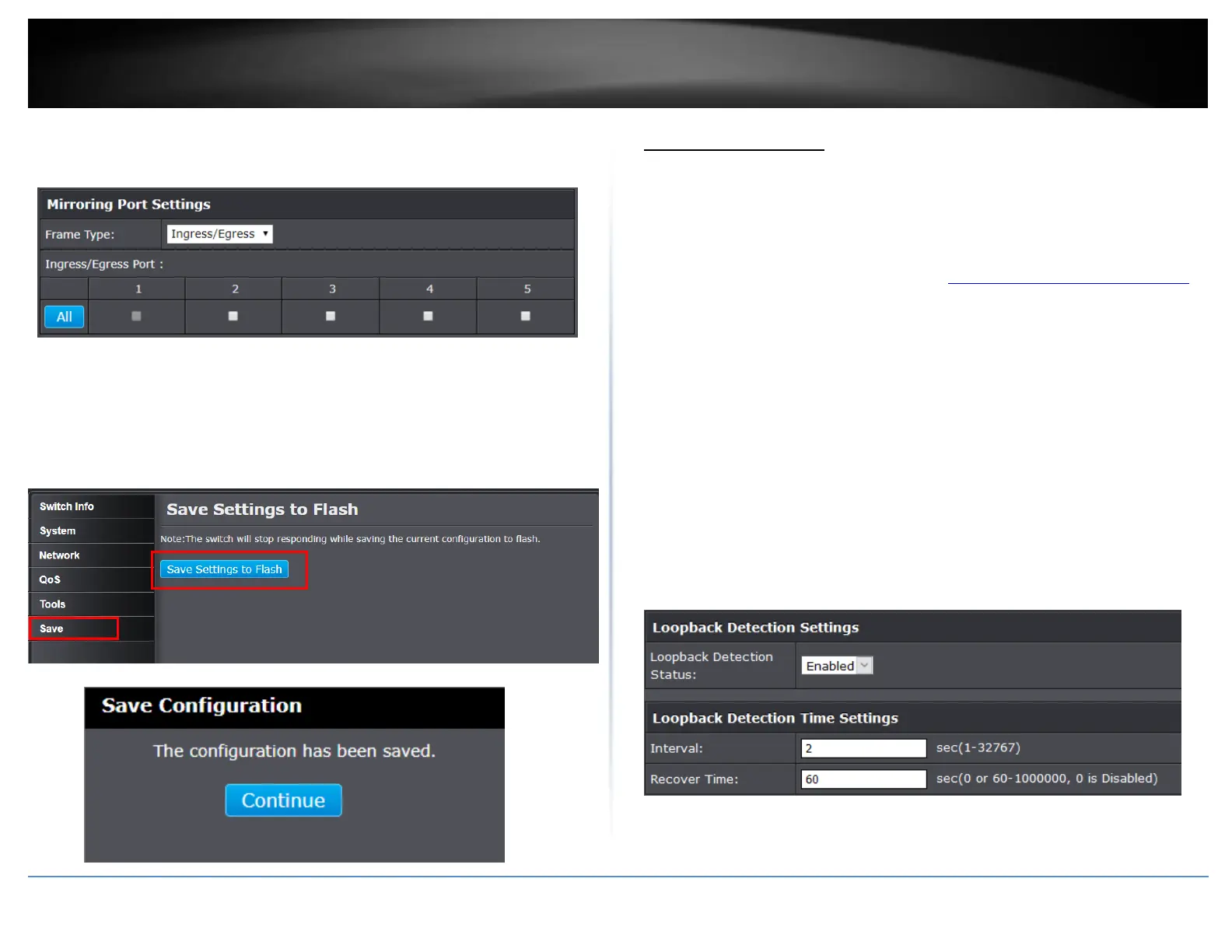
To copy both trasmitted and received data, select Ingress/Egress as the Frame Type and
check the port number(s) under the section or you could click All to copy data received
on all ports.
NOTE: The configured settings are only applied to the switch’s temporary memory and
will be lost upon the next power-cycle. Please follow these next steps to save the
configurations to the switch’s NV-RAM to ensure the settings will remain throughout
power-cycles and reboots:
1. From the menu on the left: click on Save, then click the blue button Save
Settings to Flash.
2. Click Continue to return to the Web Configuration of your switch.
Loopback Detection
Enable loopback detection
Network > Loopback Detection
The loopback detection feature allows the switch to detect and prevent disruption from
loops that occur on uplink or downlink switches directly connected to your switch.
1. Log into your switch management page (see “Access your switch management page”
on page 7).
2. Click on Network and click on Loopback Detection.
3. Review the settings.
Loopback Detection Status – Select Enabled to enable the loopback detection
feature. Select Disabled to disable the loopback detection feature.
Interval – Defines the interval your switch will check for loops.
Recover Time – Defines the time period when connectivity will be restored to a
port where a loop was previously detected and blocked.
Click Apply to save changes.


 To Next Page