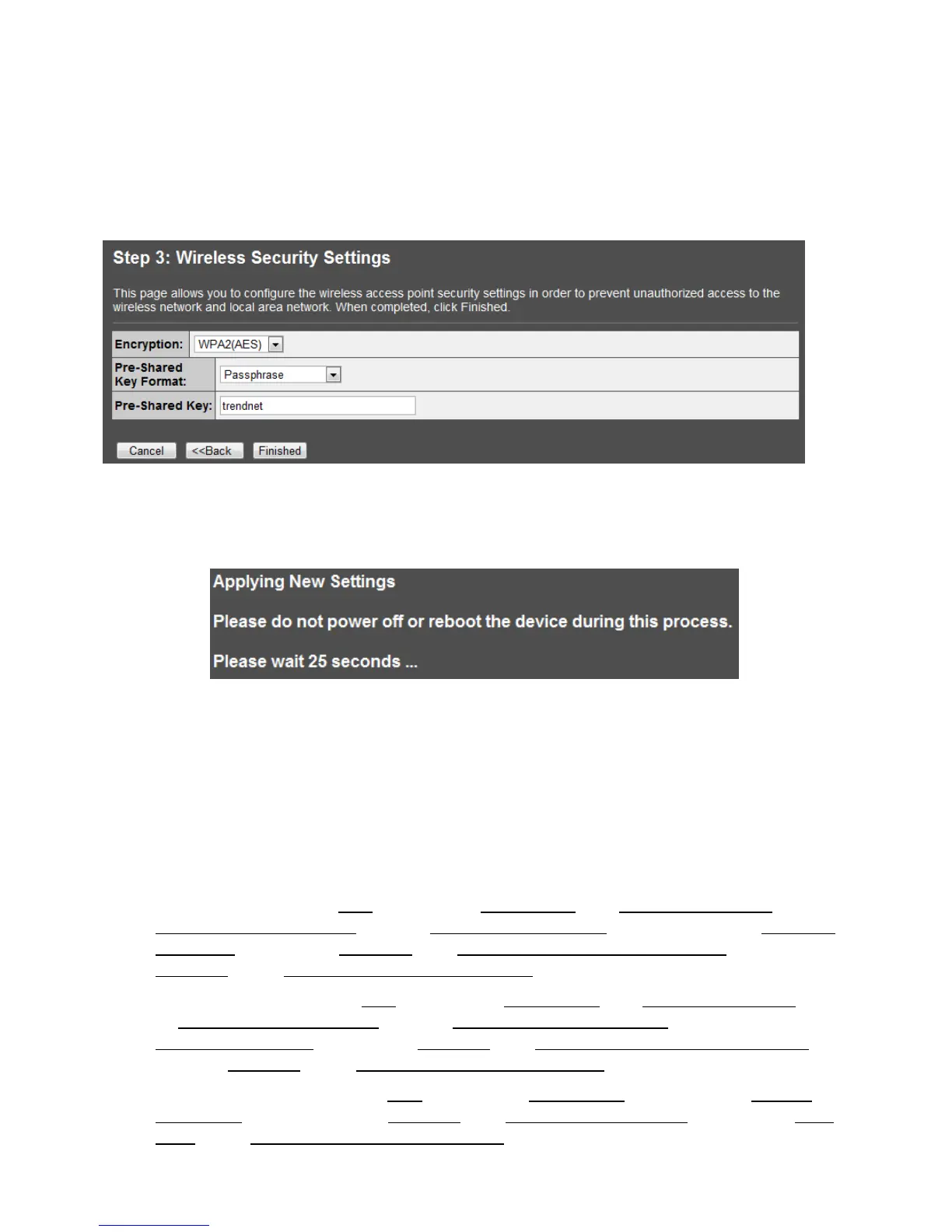
13. In the box next to Pre-Shared Key, manually enter your wireless security key (8 – 63 characters).
Click Finished.
Note: This will be the key required to enter for your wireless computers or devices when con-
necting wirelessly. If needed, write down your wireless security settings and security key for
reference when configuring your other wireless devices.
14. Please wait 25 seconds while the TPL-310AP applies the changes and reboots.
15. If you are finished configuring the TPL-310AP wireless settings, after the changes are applied
and the TPL-310AP has rebooted, disconnect the network cable from the TPL-310AP Ethernet
network port, and unplug the TPL-310AP from the power outlet and skip over to the Powerline
section (Chapter 4) for creating a powerline network. If you would like to configure any addi-
tional wireless parameters, continue to Chapter 3 for any additional wireless settings.
16. Change your computer’s network adapter settings back to obtain an IP address automatically.
Windows 7: Click on the Start Button, select Control Panel, click Network and Internet, click on
Network and Sharing Center, and click Change Adapter Settings. Then, right-click the Local Area
Connection icon and click Properties. Click Internet Protocol Version 4 (TCP/IPv4) and then click
Properties. Select Obtain an IP address automatically.
Windows Vista: Click on the Start Button, select Control Panel, click Network and Internet, click
on Network and Sharing Center, and click Manage Network Connections. Then, right-click the
Local Area Connection icon and click Properties. Click Internet Protocol Version 4 (TCP/IPv4) and
then click Properties. Select Obtain an IP address automatically.
Windows XP/2000: Click on the Start Button, select Control Panel, double-click the Network
Connections icon, and then click Properties. Click Internet Protocol (TCP/IP) and then click Prop-
erties. Select Obtain an IP address automatically.



 To Next Page