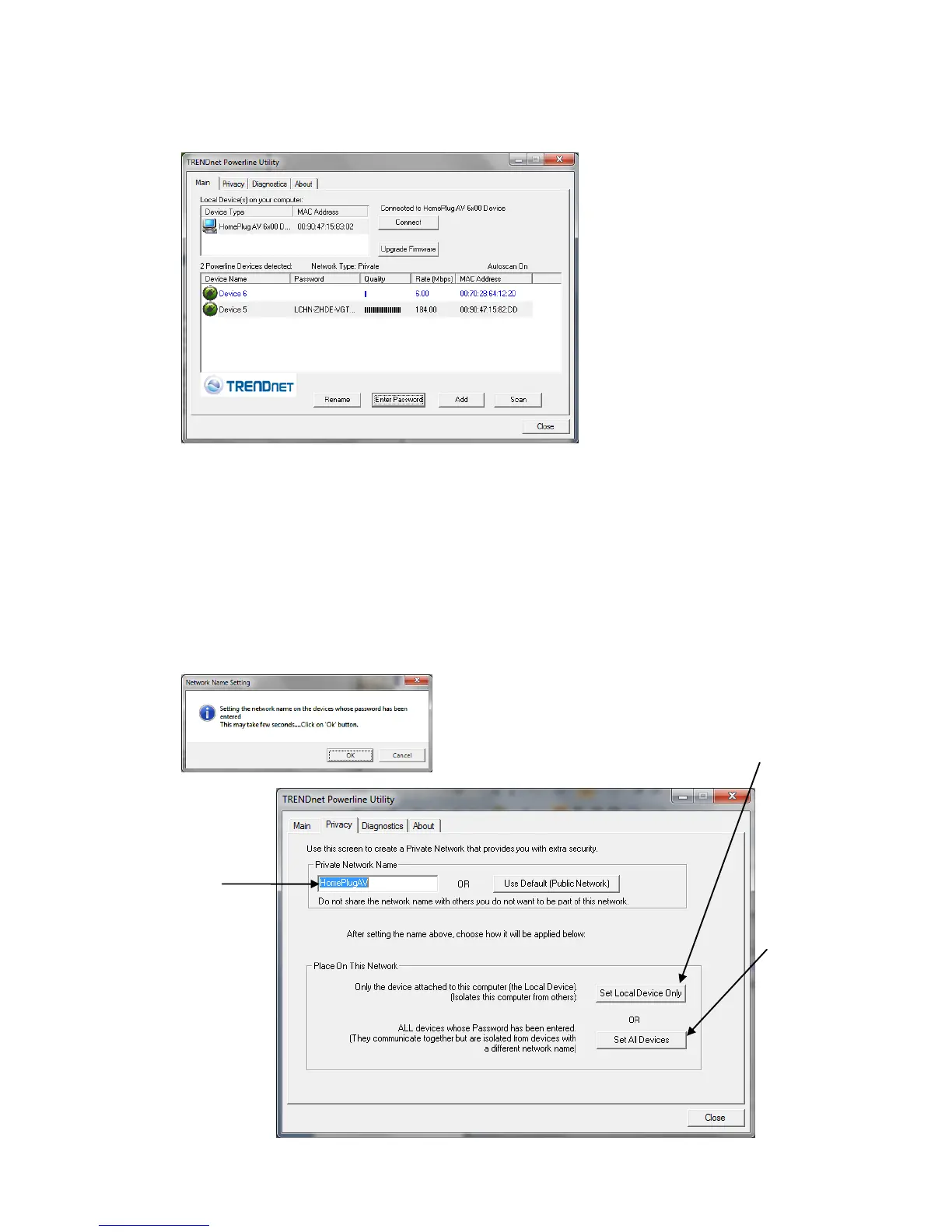
4. If successful, the Remote Device will have the Device Password listed next to the
device under Password.
Note: If the incorrect Device Password is entered, you will receive an error message. Click Enter
Password and try entering the password again.
5. Repeat steps 1-4 for any remaining Remote Devices.
6. Once all of the Device Passwords (DPW) are entered into the utility, changes can be
applied to the Remote Devices using the utility.
Change the Network Name/Security Key for multiple adapters using the utility
1. Click the Privacy tab.
2. Under Private Network Name, enter the desired network name/security key and click
Set All Devices.
3. At the Network Name Setting prompt window, click OK.



 To Next Page