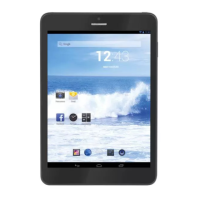
TAB 5 English
23
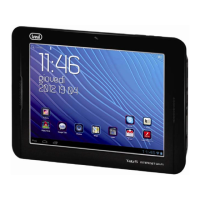
II. YOUR HOME SCREEN
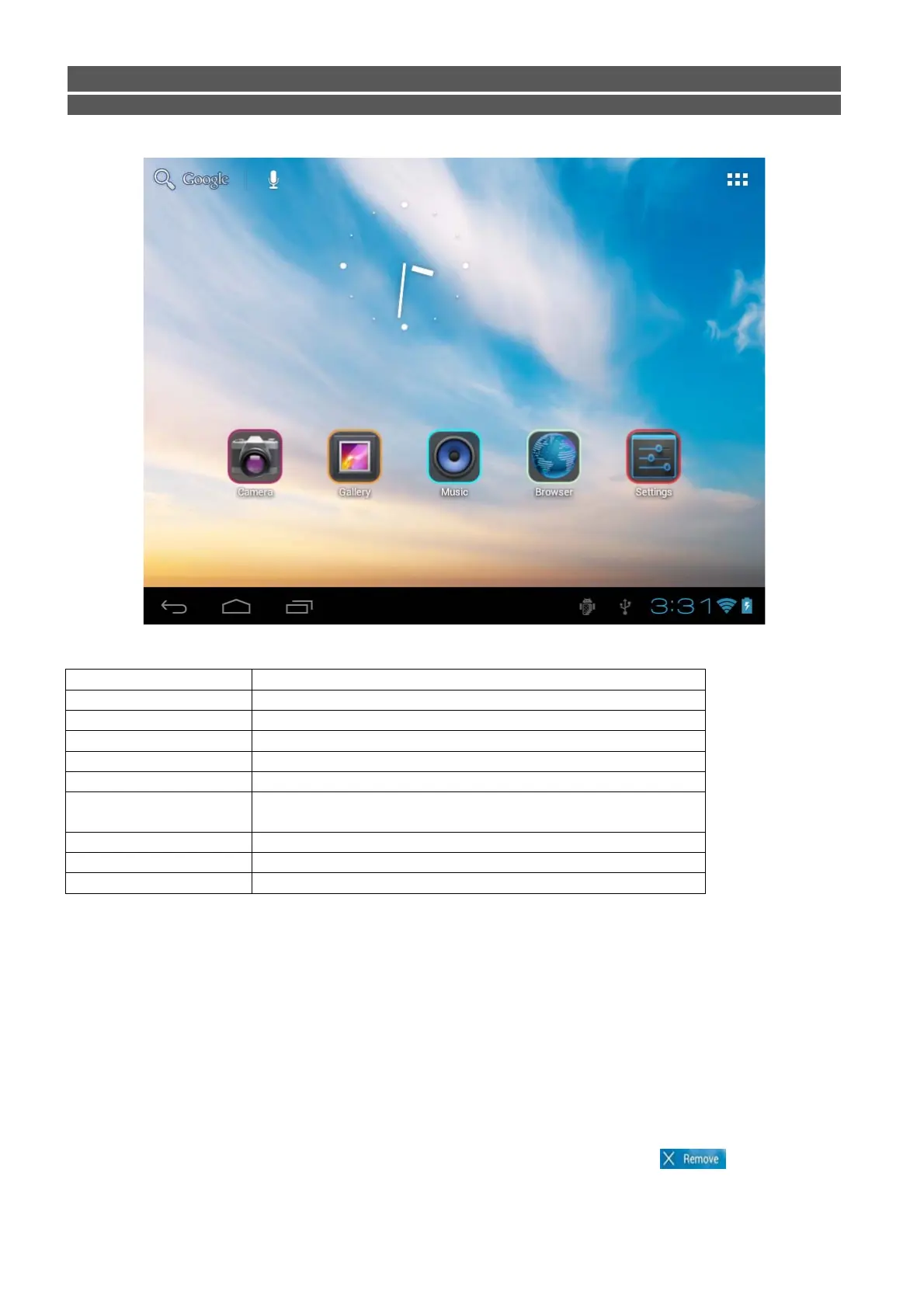
a. Google search Tap to enter Google search page
b. Voice search Tap to open voice search
c. All apps Launcher Tap to show all the applications installed
d. ESC key Tap to return to the previous screen/ page.
e. Home Tap to return to your home page
f. Recent operations Tap to show your recent operations
g. Connect to PC
When connect to PC, this icon will show here. Slide to
choose connected as a media device or camera
h. System time Show the system current time
i. Wi-Fi Wi-Fi signal show here if connected with Wi-Fi
j. Battery status Show battery status
2.1 Change wallpaper for home screen:
Tab and hold your finger in any blank space of the home screen, you will see a pop-up options; you can choose
wallpaper from Gallery, live Wallpapers or Wallpapers.
2.2 Add/delete applications on home screen:
There are several apps in the home screen, you can also add more frequently-used app icons in this home page
and delete some less frequently-used ones.
Tab the app launcher in the top right corner to go to all apps panel, tap and move the app you want to the home
screen.
To delete an app from home screen, tap and hold it, and them movie it to the remove
icon.
a b
c
d e f
h i


 To Next Page