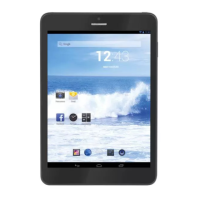
TAB 5 English
25
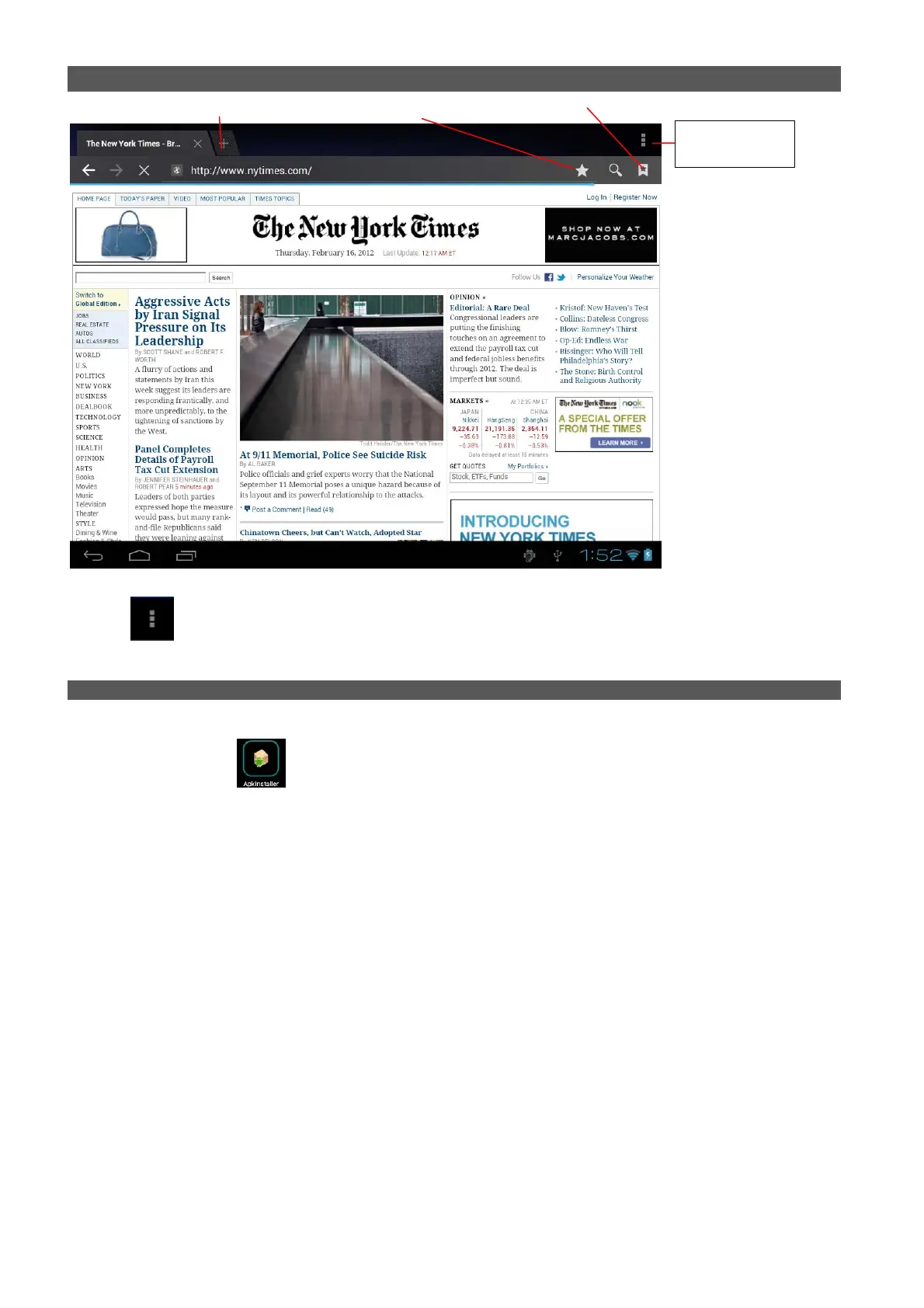
New tab bookmark this page Open bookmarks
Tab the
icon in the top corner of the browser page to open the submenu.
V. INSTALL AND MANAGE APPS
5.1 Install Apps
Go to the “ApkInstaller” to install and manage your apps. To install an application, follow below steps:
1. Tap to open the ‘APKInstaller’ → ‘Install’ → then tap “Internal Memory” or “TF Card”. Available .apk files will
appear at the right side. Touch the required one to install it.
Note:
Make sure the .apk file is workable on android 4.0, and the suffix is .apk. e.g. “angrybirds.apk”.
In some cases, there may be no icon on in the App Panel after an .apk file is installed. Possible reasons may be
that this app is not compatible with your OS or the downloaded .apk file is a broken one so you may need to
download a full version.
5.2 Manage Apps
Tap to open the ‘APKInstaller’ → ‘Manage’. Tab the app and then you can launch, export, and uninstall it.
Submenu


 To Next Page