EasyManua.ls Logo

Tripp Lite B022-002-KT-R - User Manual

Tripp Lite B022-002-KT-R
36 pages
Print Icon
To Next Page IconTo Next Page
Loading...
1. Features 2
2. System Requirements 3
3. Components 4
3.1 Front View 4
3.2 Rear View 4
4. Installation 5
5. Operation 6
5.1 Manual Port Selection 6
5.2 Hotkey Port Selection 6
5.3 Auto Scan Mode 7
5.4 Skip Mode (B022-004-R only) 8
5.5 Hotkey Summary Table (for B022-004-R only) 9
5.6 LED Display 9
6. Specifications 10
7. Troubleshooting 11
8. Warranty 12
User’s Manual
Copyright © 2010 Tripp Lite. All rights reserved. All trademarks are the property of their respective
owners. Technical specifications are subject to change without notice.
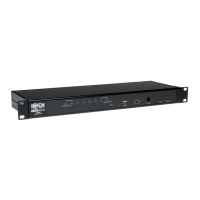
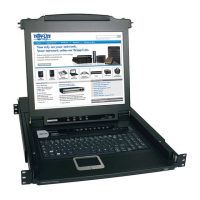
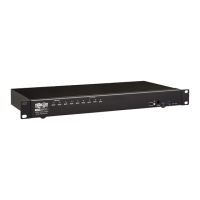
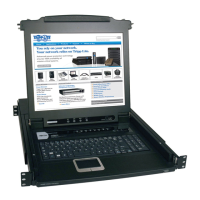
2- & 4-Port KVM Switches
Model #’s: B022-002-KT-R & B022-004-R
1111 W. 35th Street, Chicago, IL 60609 USA
www.tripplite.com/support
Note: Follow these installation and operating procedures to ensure correct performance and to
prevent damage to this unit or to its connected devices.
Warranty
Registration:
register online today for a
chance to win a FREE Tripp Lite
product—
www.tripplite.com/warrant
y
Español 13
Français 25
201003195 93-2181.indb 1 4/23/2010 2:24:23 PM

Questions and Answers

  • C
    Carolyn CarrAug 12, 2025
    What to do if the keyboard is not responding on my Tripp Lite B022-002-KT-R?
    • X
      Xavier SmithAug 12, 2025
      If the keyboard is not responding when connected to the Tripp Lite Switch, there are several potential solutions: * Try unplugging the keyboard from the Switch and then plugging it back in to reset it. * Try turning off the PCs connected to the Switch, waiting 5 seconds, and then turning them back on to reset the Switch. * If the Switch is in Auto Scan Mode, press the [Spacebar] on a 4-port model or any manual port selection switch on a 2-port model to exit this mode. * If you switched between PCs during the boot-up procedure, shut down the PC and reboot without switching.
  • G
    Gloria PetersonAug 17, 2025
    How to fix video problems with my Tripp Lite B022-002-KT-R?
    • T
      Traci JohnsonAug 17, 2025
      Video problems with your Tripp Lite Switch can arise from a few sources. Ensure that the resolution and bandwidth settings are within the supported range; the Switch supports VGA, SVGA, Multisync, and XGA (interlaced) monitors with resolutions up to 2048 x 1536 Hz. Also, electromagnetic interference from nearby power sources or poorly insulated devices can cause issues. Try moving the interfering device or repositioning the KVM switch and its cables.
  • S
    Samantha DennisAug 25, 2025
    Why am I having video problems with my Tripp Lite B022-002-KT-R?
    • P
      Peter YorkAug 25, 2025
      If you are experiencing video problems with your Tripp Lite Switch, it may be due to electromagnetic interference from a nearby power source or poorly insulated device. To resolve this, try moving the interfering device away from the KVM switch and its cables, or move the KVM switch and/or its cables away from the source of interference.
  • F
    felicia60Aug 30, 2025
    Why is my Tripp Lite Switch mouse not responding?
    • J
      jbarrettAug 30, 2025
      Your Tripp Lite Switch mouse might not be responding for several reasons. It could be that the mouse needs to be reset by unplugging it from the Switch and plugging it back in. Alternatively, the Switch itself may need a reset: turn off the PCs, wait 5 seconds, and then turn them back on. Ensure you are using a compatible PS/2 mouse, as a serial mouse with an adapter may not work unless it's a combo-mouse set up for PS/2 mode with its original adapter. Also, verify that each PC uses the correct mouse driver for the connected mouse. Some newer mice with unique drivers may not be supported; try a regular mouse with a generic driver.
  • U
    ujonesSep 5, 2025
    What to do if my Tripp Lite Switch keyboard is not responding?
    • P
      Patricia AlexanderSep 5, 2025
      If your Tripp Lite Switch keyboard is not responding, there are a few potential causes. First, try resetting the keyboard by unplugging it from the Switch and plugging it back in. If that doesn't work, try resetting the Switch by turning off the PCs, waiting 5 seconds, and then turning them back on. Also, check if the Switch is in Auto Scan Mode; if it is, press the [Spacebar] on a 4-port switch or any manual port selection switch on a 2-port switch to exit this mode. Finally, avoid switching between PCs during the boot-up procedure; shut down the PC and reboot without switching.

Tripp Lite B022-002-KT-R Specifications

General IconGeneral
Device TypeKVM Switch
Number of Ports2
USB Ports2
Audio SupportYes
Hotkey SupportYes
PC Connections2
Console Connections1
Number of Monitors Supported1
CompatibilityWindows, Mac, Linux
Power SourceUSB powered
Operating System CompatibilityWindows, Mac, Linux
Switching MethodHotkey, Push Button
Port TypeUSB
Cable Length6 ft

Related product manuals