EasyManua.ls Logo

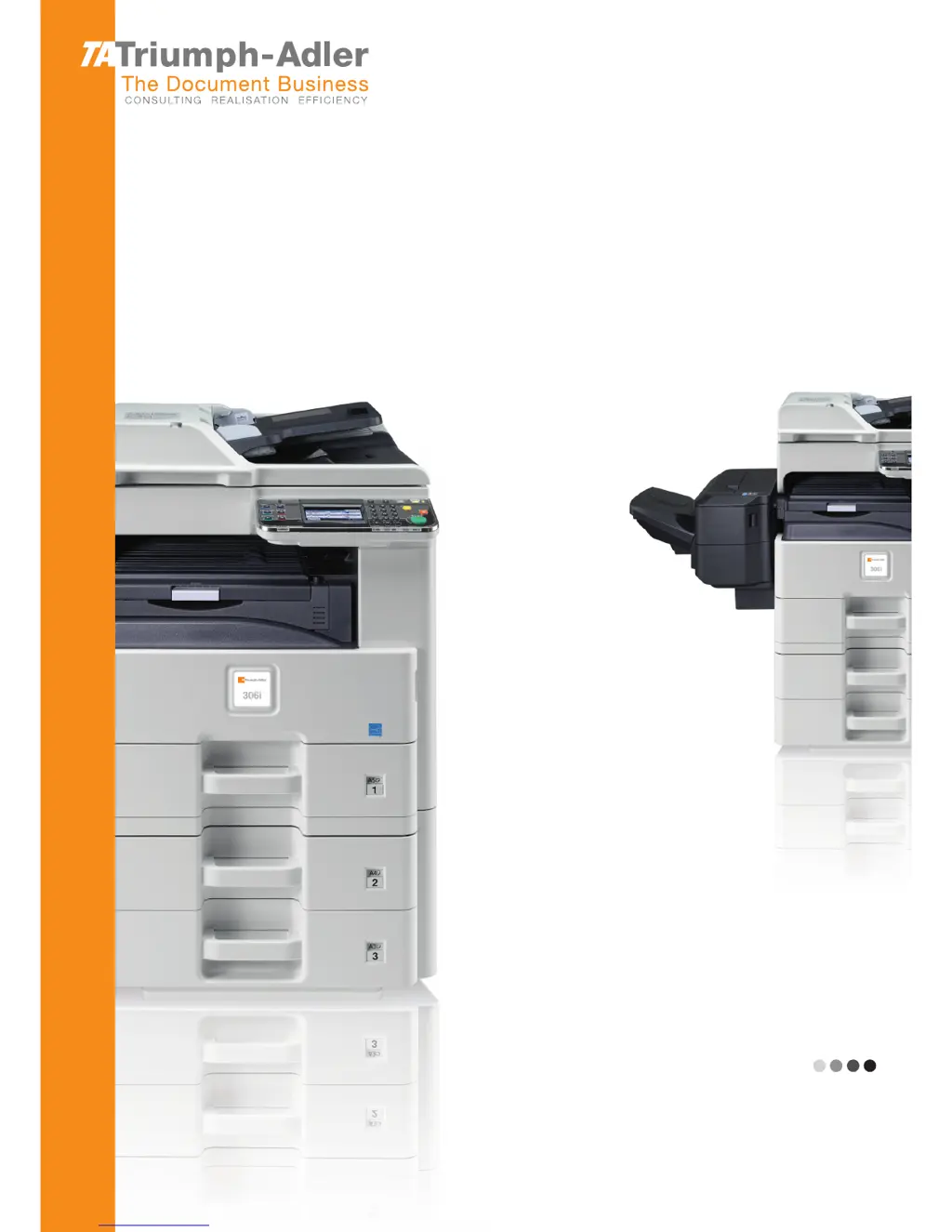
Triumph Adler 256i - User Manual

Triumph Adler 256i
370 pages
Print Icon
To Next Page IconTo Next Page
Loading...
User Manual
256i/306i
256i/306i
Digital Multifunctional System
Copy / Print / Scan / Fax
A3

Table of Contents

Questions and Answers

  • S
    Stephanie LeblancAug 20, 2025
    Why Triumph Adler 256i All in One Printer cannot send fax?
    • E
      Ethan GardnerAug 20, 2025
      There might be several reasons why your Triumph Adler All in One Printer is unable to send a fax. Ensure the modular cord is correctly connected. Verify that the Permitted FAX No. or Permitted ID No. are registered correctly. If a communication error occurred, check the error codes in the TX/RX Result Report and Activity Report, and perform the corresponding procedure if the error code starts with "U" or "E". The destination FAX line might be busy, or the destination FAX machine might not be responding, in which case you should try sending again. If none of these solutions work, contact your Service Representative.
  • R
    Robert MossAug 22, 2025
    What to do if my Triumph Adler 256i All in One Printer cannot send document?
    • M
      megan32Aug 22, 2025
      If your Triumph Adler All in One Printer is unable to send a document, first ensure the modular cord is correctly connected. If a send error is displayed, remedy the cause of the error and try sending again. Also, check if TX (transmission) restriction is activated, and if so, cancel the TX restriction.
  • P
    perezashleyAug 25, 2025
    What to do if Triumph Adler 256i All in One Printer displays 'Add the following paper in cassette 1 (~3)'?
    • E
      elijah39Aug 25, 2025
      This message on your Triumph Adler All in One Printer indicates that the indicated cassette is out of paper. Add paper to the cassette. If a specific reception paper type is required, it will also be displayed. To use a different paper source, press [Paper Selection]. To continue printing with the selected paper, press [Continue]. Alternatively, the cassette might not be securely loaded; remove the cassette and reload it completely. If the type of printing paper specified is unavailable, select another paper source and press [Continue].
  • J
    Julia GrahamAug 26, 2025
    What to do if my Triumph Adler All in One Printer cannot receive document?
    • A
      April HowardAug 26, 2025
      If your Triumph Adler All in One Printer is unable to receive a document, ensure the modular cord is correctly connected. If a communication error is displayed, remedy the cause of the error and ask the sender to retry. Additionally, check if RX (reception) restriction is activated and cancel it if necessary.
  • C
    Christian CarrilloAug 28, 2025
    Why Triumph Adler 256i All in One Printer FAX connection could not be made?
    • M
      Mr. Kevin Gibbs Jr.Aug 28, 2025
      A FAX connection on your Triumph Adler All in One Printer might fail for several reasons. Ensure the fax machine is turned on. Check if an error has occurred on the machine; if so, clear the error and attempt the transmission again. Also, verify that the IP address of the machine is correctly set in the Network FAX driver properties.
  • D
    Dustin EdwardsAug 29, 2025
    What does 'Box limit exceeded' mean on Triumph Adler 256i?
    • E
      eric12Aug 30, 2025
      The 'Box limit exceeded' message on your Triumph Adler All in One Printer means: * The Sub Address Box capacity is full. Press [End] to cancel the job. Try again after printing or deleting data from the Sub Address Box. * The polling box is full. Press [End] to cancel the job. Delete documents from the polling box and repeat the operation.
  • C
    cvargasAug 31, 2025
    What to do if Triumph Adler 256i All in One Printer shows 'Job Accounting restriction exceeded'?
    • P
      Patrick PrinceAug 31, 2025
      If your Triumph Adler All in One Printer displays 'Job Accounting restriction exceeded,' it means the number of pages used has surpassed the preset limit. No further operation is possible. Press [End] to cancel the current job. Try again after resetting the limit for paper use.
  • T
    timothyfowlerSep 2, 2025
    What does 'Machine failure' mean on Triumph Adler 256i All in One Printer?
    • J
      Julie Brown MDSep 2, 2025
      If your Triumph Adler All in One Printer displays 'Machine failure', turn the main power switch off and on, or unplug the power cord and plug it in again. If the message persists, note the error code, turn the main power switch off, unplug the power cord, and call your service representative.
  • S
    snydercrystalSep 4, 2025
    Why Triumph Adler 256i shows 'Only one destination is available for FAX Polling RX. Enter the destination again'?
    • J
      Jessica WhitakerSep 4, 2025
      This message on your Triumph Adler All in One Printer indicates that you specified multiple contacts for polling reception. Only one contact can be specified at a time for polling reception. Specify the contact again.
  • D
    Daniel NelsonSep 6, 2025
    Why Triumph Adler 256i All in One Printer cannot perform encrypted communication?
    • K
      Kyle BradySep 6, 2025
      If your Triumph Adler All in One Printer cannot perform encrypted communication, double-check the registrations both at sender and recipient to ensure they are correct.

Summary

Preface

Safety Conventions in This Guide

Safety warnings meant to protect the user, individuals, and surrounding objects.

Precautions for Use

Important cautions to be observed when handling consumables and operating the machine.

Preparation before Use

Installing Software

Procedures for installing printer drivers and other software on your PC.

Common Operations

Loading Paper

Instructions for loading paper into the cassettes and multi-purpose tray.

Loading Originals

Procedures for placing originals on the platen or in the document processor.

Copying

Printing

Printing from Applications

Basic instructions for printing documents created on your computer.

Sending

Basic Operation

Overview of sending scanned images via E-mail, Folder (SMB/FTP), or TWAIN.

Preparation for Sending a Document to a PC

Steps to set up your computer for receiving documents via shared folders.

Status; Job Cancel

Checking Job Status

How to check the processing and waiting statuses of print, send, and store jobs.

Setup, Registration, and User Management

Troubleshooting

Toner Container Replacement

Step-by-step guide to replace the toner container when it is empty.

Solving Malfunctions

General guidelines and corrective actions for common machine problems.

Responding to Messages

How to interpret and respond to various system messages displayed on the panel.

Clearing Paper Jams

Detailed instructions for locating and removing paper jams from different machine parts.

Triumph Adler 256i Specifications

General IconGeneral
BrandTriumph Adler
Model256i
CategoryAll in One Printer
LanguageEnglish

Related product manuals