EasyManua.ls Logo

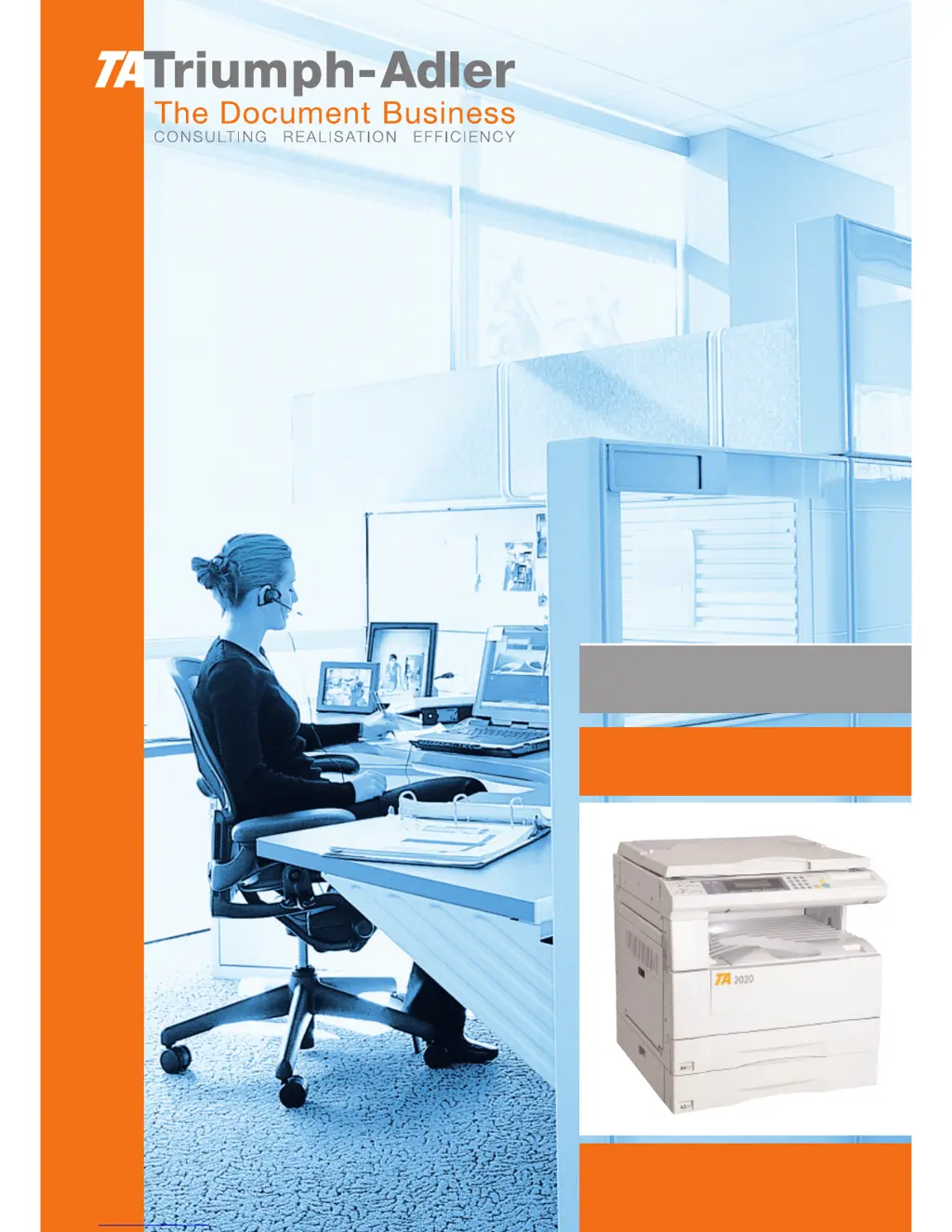
Triumph Adler DC 2020 - User Manual

Triumph Adler DC 2020
177 pages
Print Icon
To Next Page IconTo Next Page
Loading...
Instruction Handbook
DC 2020
Fax system (B)
Digital Multifunctional
System

Table of Contents

Questions and Answers

  • T
    Tina PriceJul 30, 2025
    Why do my Triumph Adler DC 2020 All in One Printer copies come out too light?
    • R
      Ronald Foley IIJul 30, 2025
      If copies from your Triumph Adler All in One Printer are too light, several factors could be the cause. If the copier is in auto exposure mode, perform the auto exposure adjustment. If it's in manual exposure mode, adjust the exposure using the copy exposure adjustment keys. You may also need to perform exposure adjustment for each copy quality mode. If the 'add toner' message is displayed, replace the toner cartridge. Finally, check if the paper is wet; if so, replace it with new paper.
  • A
    Angel SteeleAug 4, 2025
    Why are my Triumph Adler DC 2020 copies too dark?
    • H
      hesterjaneAug 4, 2025
      If your Triumph Adler All in One Printer produces copies that are too dark, this could be due to the exposure settings. If the copier is in auto exposure mode, try performing the auto exposure adjustment. If it is in manual exposure mode, adjust the exposure to the correct degree using the copy exposure adjustment keys. Also, consider performing the exposure adjustment for each copy quality mode.
  • P
    Patricia RodriguezAug 9, 2025
    How to fix dirty copies from Triumph Adler DC 2020 All in One Printer?
    • D
      downsheatherAug 9, 2025
      If the copies from your Triumph Adler All in One Printer are dirty, the platen or the original cover might be dirty. Clean the platen and/or the original cover. Additionally, you can open the front cover and pull and push back in the cleaning shaft.
  • M
    Matthew StewartAug 14, 2025
    What to do if copy image is askew on Triumph Adler DC 2020?
    • E
      Eric RobertsAug 15, 2025
      If the copy image from your Triumph Adler All in One Printer is askew, check the following: When setting originals on the platen, ensure their edges are aligned with the correct original size scale. If using the optional DF, adjust the original insertion guides to the correct size of the originals. Also, make sure the paper is set properly in the drawer. Finally, if the paper is curled, folded, or wrinkled, replace it with new paper.
  • A
    Abigail HillAug 19, 2025
    Why are copies from my Triumph Adler DC 2020 All in One Printer coming out blank?
    • D
      Donna NashAug 20, 2025
      If copies from your Triumph Adler All in One Printer are coming out blank, make sure the originals are set correctly. When setting originals on the platen, place them face-down. When setting originals in the optional DF, place them face-up.
  • C
    Christopher WintersAug 25, 2025
    How to troubleshoot Triumph Adler DC 2020 when nothing lights up?
    • C
      Christine GomezAug 25, 2025
      If nothing lights up on the operation panel of your Triumph Adler All in One Printer when you turn on the main switch, connect the plug to an AC outlet.

Summary

Section 1 Basic Use of this Fax

Names of Parts

Identifies and explains the main physical components and operation panel elements of the fax.

Preparations

Details initial setup steps like phone line type and TTI transmission settings before fax operation.

Sending Documents

Guides on preparing and sending documents via fax, including mode selection.

Receiving Documents

Explains automatic fax reception, status checking, and how to stop the process.

Section 2 Various Functions of this Fax

Duplex Transmission

Enables transmission of both front and back sides of duplex documents.

Broadcast Transmission

Transmits the same documents to multiple destinations in a single operation.

Communication Using the Timer

Allows scheduling fax communications to begin automatically at a designated time.

Manual Fax Transmission

Initiates fax transmission manually after connecting with the destination party.

Section 3 Troubleshooting

Memory Indicator and Error Messages

Explains memory indicators, error status, and general troubleshooting steps for problems.

Error Code Tables

Lists error codes with causes and procedures for correction.

Section 4 Other Features of this Fax

F-Code Based Communication

Facilitates confidential and bulletin board communications with other manufacturers' faxes.

Encrypted Communication

Encrypts documents before transmission to prevent unauthorized viewing.

Restricted Access

Limits fax operation and access to specific users via access codes.

Section 5 Managing Information About Your Fax Communications

Communication Result Display

Displays information for the 10 most recent fax transmissions and receptions.

Printing Management Reports

Allows printing of Activity, Confirmation, and User Setting reports.

Section 6 Various Settings and Registration in this Fax

Turning Dial Confirmation ON;OFF

Prevents accidental dialing by requiring confirmation of the destination.

Selecting the Reception Mode

Chooses the mode for receiving faxes (Auto, Manual, TAD, etc.).

Registering the Management Password

Sets or changes the master password for managing fax settings and security.

Section 7 Optional Equipment

Duplex Unit

Enables duplex reception, printing on both sides of paper.

Adding Additional Memory

Explains how adding memory enhances functionality like Ultra Fine resolution.

Section 8 Reference Information

Specifications

Lists technical details, compatibility, and operational parameters of the fax machine.

Menu Flow Charts

Visual representation of menu navigation paths on the fax operation panel.

Error Code Tables

Lists error codes with causes and procedures for correction.

Triumph Adler DC 2020 Specifications

General IconGeneral
BrandTriumph Adler
ModelDC 2020
CategoryAll in One Printer
LanguageEnglish

Related product manuals