EasyManua.ls Logo

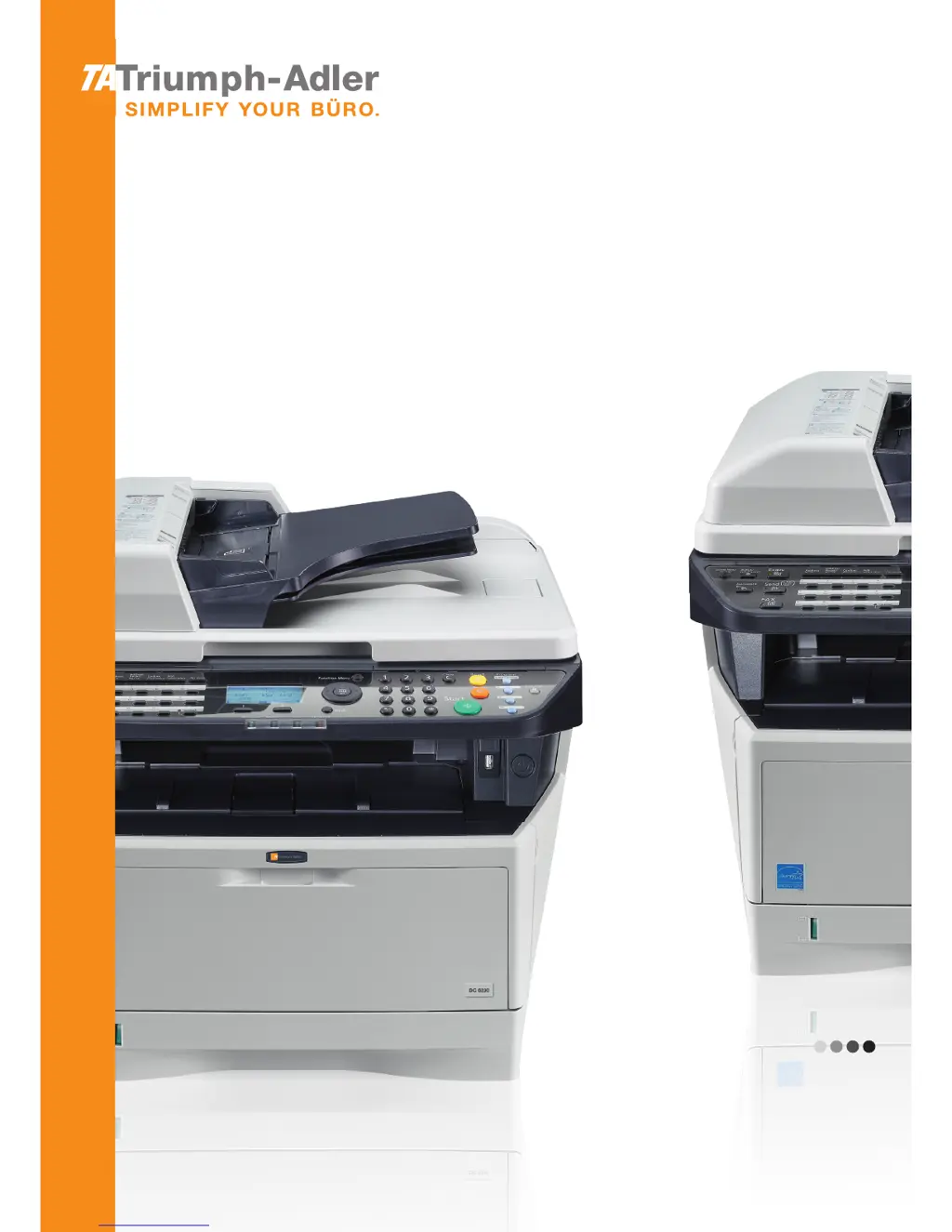
Triumph Adler DC 6230 - User Manual

Triumph Adler DC 6230
177 pages
Print Icon
To Next Page IconTo Next Page
Loading...
Fax System
User Manual
DC 6230/6235
Fax System
Copy / Print / Scan / Fax
DIN A4

Table of Contents

Questions and Answers

  • D
    Dawn KrauseSep 8, 2025
    Why is there no print output after reception on Triumph Adler DC 6230?
    • G
      Gabrielle LevineSep 8, 2025
      If there is no print output after reception on your Triumph Adler All in One Printer, check the forwarding destination, as memory forwarding might be activated.
  • C
    Crystal JohnsonAug 23, 2025
    How to fix 'Add paper in cassette' error on Triumph Adler DC 6230 All in One Printer?
    • J
      Jennifer ChapmanAug 23, 2025
      If the Triumph Adler All in One Printer displays 'Add paper in cassette 1 (~3). or Add paper in MP tray', it means the indicated cassette or MP tray is out of paper. Add paper of the same size as indicated. Alternatively, if a specific type of printing paper is required but the corresponding cassette isn't available, press the [Paper] key, select a different paper source, and then press the OK key. Finally, ensure the cassette is securely loaded by removing it and reloading it completely.
  • S
    skruegerAug 25, 2025
    What to do if Triumph Adler DC 6230 All in One Printer 'Cannot send document'?
    • L
      Lori StoneAug 25, 2025
      If your Triumph Adler All in One Printer displays 'Cannot send document', ensure the modular cord is correctly connected. If a communication error is displayed, resolve the error and try sending again. Also, check if TX (transmission) restriction is activated and, if so, cancel it.
  • J
    Jason WoodAug 27, 2025
    What to do if Triumph Adler All in One Printer 'Cannot receive document'?
    • J
      jacksonsamanthaAug 27, 2025
      If your Triumph Adler All in One Printer says 'Cannot receive document', ensure the modular cord is correctly connected. If a communication error is displayed, resolve the error and ask the sender to retry. Also, check if RX (reception) restriction is activated and, if so, cancel it.
  • M
    Mrs. Erin PatelAug 27, 2025
    Why does my Triumph Adler DC 6230 All in One Printer say 'Job Accounting restriction exceeded'?
    • T
      tyler42Aug 28, 2025
      The 'Job Accounting restriction exceeded' message on your Triumph Adler All in One Printer means that the preset limit for paper use has been exceeded. Press the OK key to cancel the job. To proceed, either print or delete data in the polling box, or reset the limit for paper use.
  • M
    Mrs. Penny Morris DVMSep 22, 2025
    Why Triumph Adler All in One Printer cannot use sub address bulletin board communication?
    • A
      Amy ReedSep 22, 2025
      If you cannot use sub address bulletin board communication on your Triumph Adler All in One Printer, verify that the other party's fax machine has the same sub address bulletin board communication function. If not, it cannot receive faxes via a sub address bulletin board. Also, ensure that the entered sub address or sub address password is correct. If your entry is correct, check with the recipient.
  • L
    Laura MartinSep 16, 2025
    What to do if Triumph Adler DC 6230 'Cannot output from a Sub Address Box'?
    • C
      Christopher LeeSep 16, 2025
      If you cannot output from a Sub Address Box on your Triumph Adler All in One Printer, ensure that you have entered the correct box password.
  • C
    christiangutierrezSep 18, 2025
    Why I cannot use polling reception on Triumph Adler All in One Printer?
    • W
      William JonesSep 18, 2025
      If you cannot use polling reception on your Triumph Adler All in One Printer, verify with the recipient that polling transmission is being used correctly on the sending machine.
  • U
    ugonzalesSep 7, 2025
    Why I cannot use the remote switching function on Triumph Adler All in One Printer?
    • J
      Janet KingSep 7, 2025
      If you cannot use the remote switching function on your Triumph Adler All in One Printer, and you are using a pulse line, some phones may transmit tone signals using buttons. Refer to the operation manual of your phone set. Also, verify that the remote switching number is correct; the default is 55.
  • J
    jay04Sep 4, 2025
    Why Triumph Adler All in One Printer cannot perform broadcast transmission?
    • P
      Paul GraySep 4, 2025
      If your Triumph Adler All in One Printer cannot perform broadcast transmission, it may be due to insufficient free space in the memory. Try sending after the memory has free space, or create free space in the memory.

Summary

Safety Conventions in This Guide

Safety Information

About this Operation Guide

Explains the content and purpose of this user guide.

Power supply;Grounding the machine

Provides instructions for safe power connection.

General Notice

Legal Notice

States limitations of liability and disclaimers.

Trademark Information

Lists registered trademarks of Adobe and other companies.

IMPORTANT SAFETY INSTRUCTIONS

Basic safety precautions for telephone equipment.

Declarations to European Directives

Technical regulations for terminal equipment

Network Compatibility Declaration

Introduction

About This Guide

Describes the structure and content of the manual.

Conventions in This Guide

1 Part Names and Functions

Operation Panel

Explains the keys and indicators on the machine's operation panel.

Machine

Identifies and describes the main parts of the fax machine.

2 Preparation Before Use

Selection of Telephone Line (Inch version only)

Guides on selecting the correct telephone line type for fax.

Selection of Transmit Terminal Identification (TTI)

Explains how to set up TTI for fax transmission.

Setting the TTI information

Details on registering local FAX name and number for TTI.

Date and Time Entry

Instructions for setting the machine's internal clock.

Connection to PBX (Private Branch Exchange) (Europe only)

Configuration for connecting to a PBX system.

3 FAX Operation (Basic)

Automatic Send

Explains general fax transmission using numeric keys.

FAX Automatic Reception

Describes how to set the machine for automatic fax reception.

Cancelling Communication

Details methods for canceling fax transmissions or receptions.

Using the Address Book

Instructions for registering and using destinations in the address book.

Using One-touch Keys

How to register and use one-touch keys for quick dialing.

Dialing the Same Receiving System (Redial)

Explains the redial function for the last dialed number.

4 FAX Operation (Advanced)

Delayed Transmission

How to schedule fax transmissions for a later time.

Broadcast Transmission

Sending the same document to multiple destinations in one operation.

Standby Transmission

Scheduling next transmission while current one is in progress.

Interrupt Send

Sending a fax by interrupting current operations.

Chain Dial

Dialing by linking fax numbers with a common chain number.

Manual Send

Sending originals after confirming telephone line connection.

Manual Reception

Receiving faxes manually after confirming connection.

Remote Switch Function

Starting fax reception remotely via a connected telephone set.

Printing;Forwarding Received Documents (Memory Forwarding)

Options for printing or forwarding received faxes.

Sub Address Communication

Using sub addresses for advanced communication.

Sub Address Box Function

Storing received originals in personal sub address boxes.

Program Dial

Registering and recalling transmission requirements as programs.

Polling Communication

Communication mode controlled by the receiving machine.

Account Management

User and job accounting for tracking fax usage.

Other Convenient Functions

Introduces other useful fax functions.

5 Checking Transmission Results and Registration Status

Checking FAX Job History

How to view past send/receive job logs.

Printing Administrative Reports

Printing various reports for fax results and setup status.

Reporting FAX Receipt Result by E-mail

Configuring email notifications for fax receipts.

6 Setup and Registration

FAX;TEL Auto Switch Reception

Setting to receive both fax and telephone calls on one line.

FAX;Answering Machine Auto Switch Reception

Setting to use fax and answering machine functions.

FAX Country Code

Consult dealer for this menu setting.

Rings

Adjusting the number of rings before answering.

Volume Adjustment

Adjusting speaker and monitor volume.

Retry Times

Setting the number of automatic retries for transmission.

Receiving Mode

Selecting the appropriate mode for receiving faxes.

Reception Date;Time

Adding date/time information to printed received faxes.

Media Type for Print Output

Specifying the paper type for received fax output.

DRD Reception

Using Distinctive Ring Pattern service for multiple numbers.

Transmission Restriction

Limiting communication based on registered numbers.

Encryption

Securing fax communication using encryption keys.

Duplex Print Output

Printing received faxes on both sides of the paper.

2 in 1 Reception

Printing two pages on one sheet of paper.

Print all at once [Batch Print]

Printing multi-page faxes in a batch.

Select Key Set

Assigning functions to soft keys for quick access.

Remote Diagnostics

Enabling remote access for service checks.

Prohibiting FAX Printing at Specified Times (Unusable Time)

Setting periods when fax printing is disabled.

7 About Network FAX

What is Network FAX?

Explains the features and benefits of Network FAX.

Setup

Describes the preparation needed to use Network FAX.

8 Troubleshooting

Indicators During Sending;Receiving Operation

Explains the meaning of machine indicators during fax status.

Precautions When Turning Power OFF

Safety guidelines for powering down the machine.

Error Messages

Lists common error messages and their corrective actions.

Troubleshooting

General guide for resolving operational problems.

Appendix

Character Entry Method

Details on how to enter characters using the machine's interface.

Specifications (Fax function)

Technical specifications related to the fax functionality.

Menu List

A hierarchical list of the machine's menu options.

Received FAX Sizes and Paper Priority (Inch Model)

Table showing paper selection priority for received faxes.

Received FAX Sizes and Paper Priority (Metric Model)

Table showing paper selection priority for received faxes.

Error Code List

A list of error codes and their possible causes/actions.

Triumph Adler DC 6230 Specifications

General IconGeneral
BrandTriumph Adler
ModelDC 6230
CategoryAll in One Printer
LanguageEnglish

Related product manuals