EasyManua.ls Logo

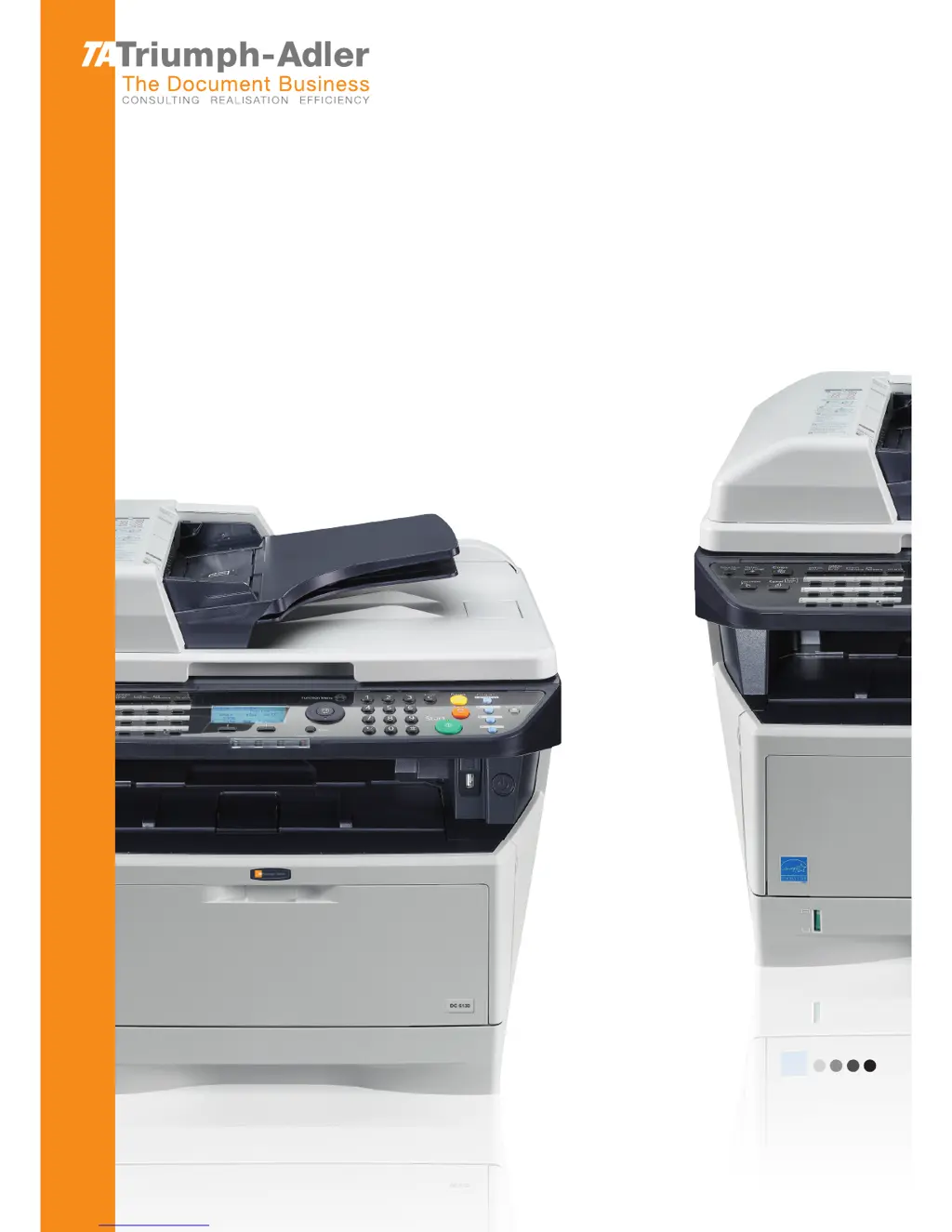
Triumph Adler DC 6235 - User Manual

Triumph Adler DC 6235
438 pages
Print Icon
To Next Page IconTo Next Page
Loading...
User Manual
DC 6130/P/6135/6230/6235
Digital Multifunctional System
Copy / Print / Scan / Fax
A4

Table of Contents

Other manuals for Triumph Adler DC 6235

Questions and Answers

  • R
    Robert PerezSep 8, 2025
    Why won't my Triumph Adler All in One Printer feed originals?
    • L
      leslie26Sep 8, 2025
      If your Triumph Adler All in One Printer won't feed originals, make sure the originals are placed correctly in the document processor. Align the original width guides securely before placing the originals.
  • R
    Robert GalvanAug 25, 2025
    How to fix 'Add paper in cassette' error on Triumph Adler DC 6235 All in One Printer?
    • S
      Samantha GutierrezAug 25, 2025
      If the Triumph Adler All in One Printer displays 'Add paper in cassette 1 (~3). or Add paper in MP tray', it means the indicated cassette or MP tray is out of paper. Add paper of the same size as indicated. Alternatively, if a specific type of printing paper is required but the corresponding cassette isn't available, press the [Paper] key, select a different paper source, and then press the OK key. Finally, ensure the cassette is securely loaded by removing it and reloading it completely.
  • S
    Shawn SmithAug 25, 2025
    What to do if Triumph Adler DC 6235 'Cannot send document'?
    • E
      eileen91Aug 26, 2025
      If your Triumph Adler All in One Printer displays 'Cannot send document', ensure the modular cord is correctly connected. If a communication error is displayed, resolve the error and try sending again. Also, check if TX (transmission) restriction is activated and, if so, cancel it.
  • D
    davidthomasSep 22, 2025
    What does 'Paper jammed' mean on my Triumph Adler All in One Printer?
    • A
      Adrienne RuizSep 22, 2025
      If a paper jam occurs in your Triumph Adler All in One Printer, the machine will stop, and the location of the jam will be indicated on the Message Display. Leave the machine on and follow the instruction to remove the jammed paper.
  • P
    Patricia YoungSep 9, 2025
    What to do if my Triumph Adler All in One Printer copies have a moire pattern?
    • P
      phillip27Sep 9, 2025
      If copies from your Triumph Adler All in One Printer have a moire pattern, and the original is a printed photograph, set the image quality to [Photo].
  • T
    Tyler Mitchell MDSep 14, 2025
    What to do if my Triumph Adler All in One Printer documents are printed improperly?
    • C
      christina66Sep 14, 2025
      If documents are printed improperly by your Triumph Adler All in One Printer, verify that the application software settings at the PC are set properly. Check that the printing system driver and application software settings are correctly configured.
  • M
    Megan LoveSep 3, 2025
    What to do if Triumph Adler DC 6235 All in One Printer 'Cannot output from a Sub Address Box'?
    • J
      Jesse RussoSep 3, 2025
      If you cannot output from a Sub Address Box on your Triumph Adler All in One Printer, ensure that you have entered the correct box password.
  • S
    Shannon AdamsSep 4, 2025
    Why I cannot use polling reception on Triumph Adler DC 6235?
    • C
      Christine BurnsSep 4, 2025
      If you cannot use polling reception on your Triumph Adler All in One Printer, verify with the recipient that polling transmission is being used correctly on the sending machine.
  • H
    hpetersonSep 23, 2025
    What does 'Unknown toner Installed. PC' mean on my Triumph Adler All in One Printer?
    • B
      Brittany HopkinsSep 23, 2025
      If your Triumph Adler All in One Printer displays 'Unknown toner Installed. PC', it means the installed toner container's regional specification doesn't match the machine's. Install the specified container.
  • A
    arhodesAug 29, 2025
    Why Triumph Adler All in One Printer cannot perform broadcast transmission?
    • P
      Pamela ClarkeAug 29, 2025
      If your Triumph Adler All in One Printer cannot perform broadcast transmission, it may be due to insufficient free space in the memory. Try sending after the memory has free space, or create free space in the memory.

Summary

Part Names

Operation Panel

Identifies the keys and indicators on the machine's control panel for user interaction.

Machine

Details the external and internal components of the multifunctional machine, including trays and covers.

Preparation before Use

Check bundled items

Verify the included items and documents in the product library for initial setup.

Connecting Cables

Connect the machine to a PC or network device using the appropriate cables.

Installing Software

Install necessary drivers and software from the provided DVD onto your computer.

Loading Paper

Instructions for loading paper into the machine's cassettes and multi-purpose tray.

Loading Originals

Procedures for placing originals on the platen or in the document processor for scanning.

Basic Operation

Login;Logout

Steps for accessing the machine's functions via user login and logging out.

Copying

Step-by-step guide for performing basic copying functions on the machine.

Sending

Instructions for scanning and sending documents via email, network folders, or other methods.

Checking Remaining Toner and Paper

How to check the current levels of toner and paper in the machine's various supplies.

Copying Functions

Original Size

Specify the size of originals being scanned for the copying process.

Paper Selection

Select the paper source that contains the required paper size for copying.

Combine Mode

Allows copying 2 or 4 originals combined onto a single page.

Continuous Scan

Scan originals in batches for copying as one job.

Sending Functions

Original Size

Select the size of originals that will serve as the basis for scanning.

Sending Size

Select the output size of the scanned image to be sent.

File Format

Select the file format for the scanned image data to be sent.

Scan Resolution

Select the fineness of scanning resolution for the image data.

Document Box

Printing Documents Stored in USB Memory

Print files directly from USB memory without using a computer.

Saving Documents to USB Memory (Scan to USB)

Store scanned image files in USB memory connected to the machine.

Removing USB Memory

Procedure for safely removing USB memory from the machine.

Printing from a Job Box

Print documents stored in a Job Box using the machine's operation panel.

Status; Job Cancel

Checking Job Status

Check the status of jobs being processed or waiting to be printed.

Checking Job History

Review the history of completed print, send, and store jobs.

Canceling of Jobs

Procedures for canceling any print or send job that is currently running.

Device;Communication

Check the status of connected devices and communication interfaces.

Default Setting (System Menu)

Common Settings

Customize language, sound, display, date/time, and other general machine settings.

Copy Settings

Configure default options for copying, including paper, orientation, and image quality.

Printer Settings

Configure default settings for printing, such as emulation, duplex, and orientation.

Network Setup

Configure network interface settings, including TCP/IP, NetWare, and AppleTalk.

Maintenance

Cleaning

Procedures for cleaning the glass platen, document processor, and internal machine components.

Toner Container Replacement

Step-by-step guide for replacing the toner container and related maintenance.

Troubleshooting

Solving Malfunctions

Guide to diagnosing and fixing common printing and operational issues.

Responding to Error Messages

Interpreting and resolving specific error codes and messages displayed by the machine.

Clearing Paper Jams

Detailed instructions and precautions for removing paper jams from all machine locations.

Management

User Login Administration

Configure user access levels, authentication methods, and properties for secure operation.

Job Accounting and Counters

Configure and track job accounting, set limits, and manage page counts.

Checking the Counter

View page counts for printed and scanned jobs, broken down by function or paper size.

Appendix

Optional Equipment

Details on available optional equipment like paper feeders and expansion memory.

Paper

Information on supported paper sizes, types, and specifications for optimal printing.

Specifications

Technical specifications for common functions, printer, scanner, and document processor.

Triumph Adler DC 6235 Specifications

General IconGeneral
Print Resolution1200 x 1200 dpi
Copy Resolution600 x 600 dpi
Scan TypeFlatbed, ADF
Duplex ScanningYes
Max Paper SizeA4
Duplex PrintingYes
Fax transmission speed33.6 kbps
TypeAll in One Printer
FunctionsPrint, Copy, Scan
Print TechnologyLaser
ConnectivityUSB
Operating System CompatibilityWindows, macOS
Copier resize25% - 400%
Standard paper tray media typesPlain, Recycled
Standard interfacesUSB 2.0
DisplayLCD
Warm-up time25 seconds

Related product manuals