
 To Next Page
T
Tracy WaltonSep 10, 2025
What does 'Add paper in cassette #' mean on my Triumph Adler All in One Printer?
- ZZachary MosleySep 10, 2025
Load paper into the cassette as displayed in place of #.

What does 'Add paper in cassette #' mean on my Triumph Adler All in One Printer?
Load paper into the cassette as displayed in place of #.
How to fix light copies from Triumph Adler All in One Printer?
If your copies are too light, it could be due to several factors. First, if the auto density adjustment mode is set, perform the auto density adjustment procedure. If the manual density mode is set, use the Lighter or Darker key to adjust the density. Make sure the toner is evenly distributed by shaking the toner container horizontally about 10 times. Ensure EcoPrint mode is not enabled. If the copy paper is wet, replace it. Finally, if the electrical charge section is dirty, open the front cover and clean it with the charger cleaner rod.
How to adjust the darkness of copies on my Triumph Adler DC 2118 All in One Printer?
If your copies are too dark, and the auto density adjustment mode is set, perform the auto density adjustment procedure. If the manual density mode is set, use the Lighter key or the Darker key to adjust the density level properly. You can also adjust the overall density by performing the relevant density adjustment procedure in each image quality mode.
How to clean Triumph Adler DC 2118 copies?
If your copies are dirty, the platen or the original cover might be dirty. Clean the platen and/or the original cover.
Why is the copy image skewed on my Triumph Adler DC 2118?
A skewed copy image may occur if the originals were not set correctly. When using the platen, ensure the original is securely placed along the original size indicator plates. Also, check the width guide plate position in the cassette to ensure the paper is set correctly.
What to do if Triumph Adler All in One Printer copies are curled?
If the copies are curled, the copy paper might be wet; replace it with dry, new paper. Also, if 'Middle 2' is set at the Paper type (Paper Weight) setting, change it to 'Middle 1'.
What to do if there is a paper jam in Triumph Adler All in One Printer?
If a paper misfeed has occurred, remove the jammed paper.
What does 'Cannot duplex this paper size' mean on Triumph Adler All in One Printer?
If you see the message 'Cannot duplex this paper size', it means a size that cannot be copied on both sides has been specified. Specify a paper size that can be used.
How to remove black lines from Triumph Adler DC 2118 copies?
It is also possible to use the black line correction function to make any black lines on the copies less apparent.
Why are the copies blurred on my Triumph Adler DC 2118?
If the copies are blurred, and the machine is used at high humidity, perform drum refresh.
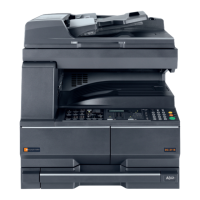
Identifies and describes the main physical components of the machine.
Details the buttons, displays, and indicators on the machine's operation panel.
Explains status and error messages shown on the operation panel.
Describes the function that automatically switches between cassettes.
Instructions for loading paper into the machine's trays.
Step-by-step guide for loading paper into the machine's cassette.
How to set the machine to detect the loaded paper size in the cassette.
Instructions for loading paper into the multi-purpose tray.
Guide for loading postcards and envelopes into the multi-purpose tray.
Adjusting paper size and media type settings for the multi-purpose tray.
Steps to select standard paper sizes for the multi-purpose tray.
Selecting non-standard paper sizes from a list for the multi-purpose tray.
How to register non-standard paper sizes manually for the multi-purpose tray.
Choosing specific media types for special papers like thick paper.
General instructions for loading originals for copying or sending.
How to place books, magazines, or single sheets on the flatbed scanner.
Instructions for loading originals into the document processor.
Lists the types of originals compatible with the document processor.
Lists types of originals that cannot be used with the document processor.
Identifies the different parts of the document processor unit.
Detailed steps for arranging and setting originals for scanning.
Instructions on how to switch the machine's power on and initiate warm-up.
Guide to selecting the preferred language for the display messages.
Step-by-step guide for performing a standard copy job.
How to reduce or enlarge images using zoom functions.
Manually setting the zoom ratio for copying between 25% and 400%.
Instructions for making two-sided copies.
How to change the rotation setting for the reverse side of 2-sided copies.
Copying two facing pages onto separate sheets of paper.
Producing multiple collated copy sets.
Copying two or four originals onto a single sheet.
How to copy two originals onto one sheet of paper.
How to copy four originals horizontally onto one sheet.
How to copy four originals vertically onto one sheet.
Temporarily stopping a job to perform an urgent copy.
Puts the machine into a resting state to save energy.
Automatically puts the machine into sleep mode after a set period of inactivity.
Manages copy numbers per department using Department ID Codes.
Steps to operate and configure job accounting features.
How to register department ID codes for tracking copies.
Procedure to remove registered department ID codes.
How to reset all accumulated copy counts.
How to print a report of copies per department.
Enabling or disabling the Job Accounting feature.
How to perform copy operations when Job Accounting is active.
Describes the automatic feeding and scanning of multiple originals.
Information about adding extra paper feeding capacity.
Details the optional unit for making two-sided copies.
Used to track and manage machine usage.
Enables using the copier as a printer.
Increases scanning capacity and improves data handling.
Visual guide to all available optional equipment for the machine.
Instructions for cleaning external parts like the original cover and platen.
How to clean slit glasses to prevent soiled copies.
Procedure for cleaning the separation needle.
Steps for cleaning the transfer roller using a brush.
Step-by-step guide to replace the toner container and waste toner box.
Guide to diagnose and resolve common machine issues.
Actions to take based on specific error messages displayed on the panel.
Procedures for removing jammed paper from various locations.
Technical specifications for the main unit of the machine.
Performance details like copying speed, resolution, and magnification.
Technical details for the optional document processor.
Technical details for the optional paper feeder.
Technical details for the optional duplex unit.
Operating temperature, humidity, and altitude limits.
Details system menu items for configuring machine settings.
Step-by-step guide to navigate and change settings in the System Menu.
 General
| Zoom capability | 25 - 400 |
|---|---|
| Maximum print size | A3 (297 x 420 mm) |
| Grayscale levels | 256 |
| Maximum resolution | 600 x 600 DPI |
| Time to first page (black, normal) | 5.7 s |
| Print speed (black, normal quality, A4/US Letter) | 18 ppm |
| Standard interfaces | USB 2.0 |
| Built-in processor | DP-420 |
| Internal memory | 32 MB |
| Compatible operating systems | Windows 2000, XP, Vista |
| Power requirements | 220 - 240 V, 50 - 60 Hz |
| Certification | GS/TÜV, CE |
| Dimensions (WxDxH) | 568 x 564 x 502 mm |
| Type | Digital copier |
| Full duplex | Yes |
 Weight and Dimensions
| Weight | 33000 g |
|---|