EasyManua.ls Logo

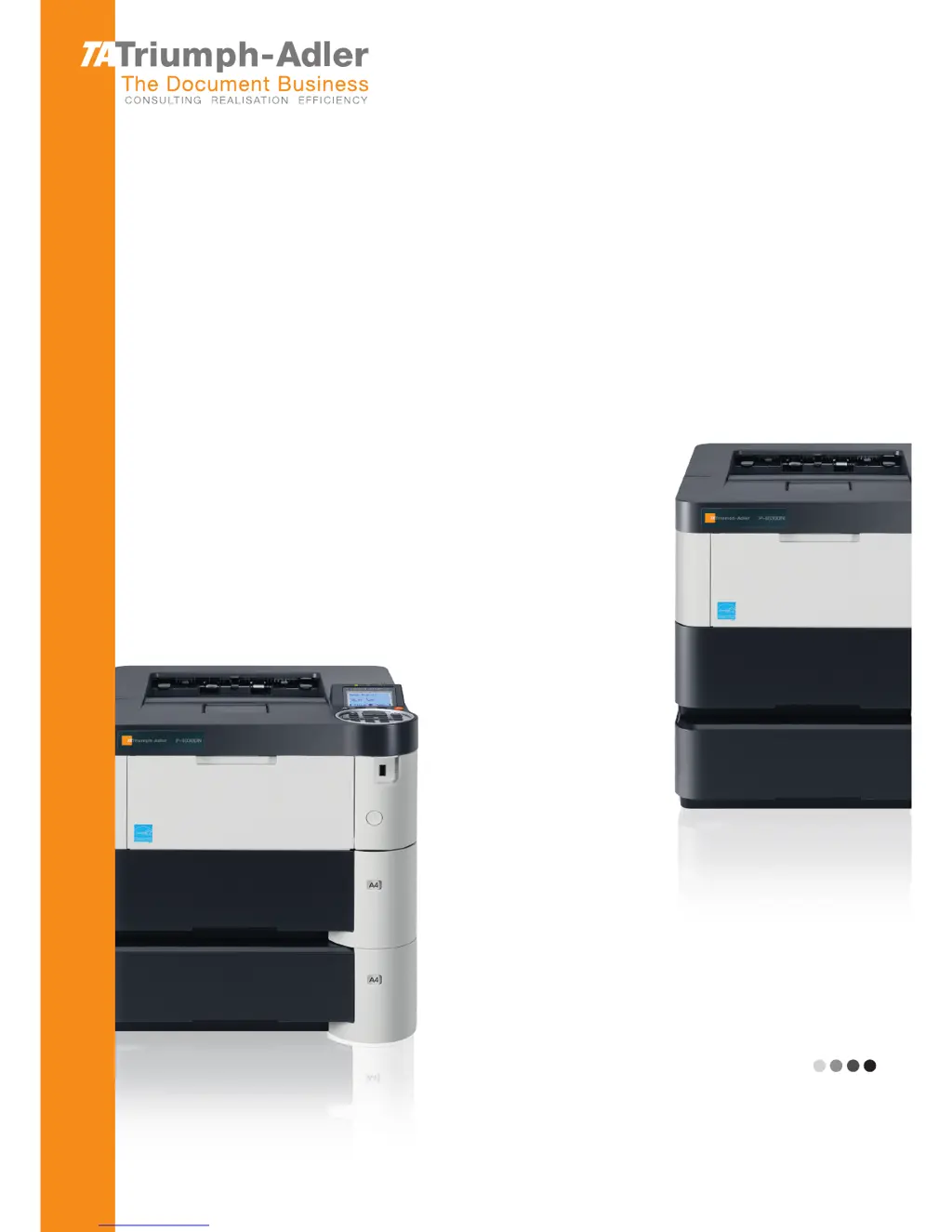
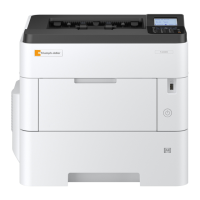
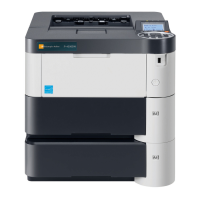
Triumph Adler P-4030D - User Manual

Triumph Adler P-4030D
312 pages
Print Icon
To Next Page IconTo Next Page
Loading...
P-4030D/4030DN/4530DN/5030DN/6030DN
User Manual
P-4030D / 4030DN / 4530DN / 5030DN / 6030DN
Laser Printer b / w
Print
A4
EN

Table of Contents

Questions and Answers

  • A
    Amber PrattSep 23, 2025
    What to do if Triumph Adler Printer says 'Drum unit is not installed'?
    • J
      Justin LewisSep 23, 2025
      If your Triumph Adler printer displays 'Drum unit is not installed', it indicates that the drum unit is either not installed or incorrectly inserted. Insert the drum unit securely and contact your Service Representative.
  • M
    Margaret LawrenceAug 23, 2025
    How to fix 'Add paper in casset' error on Triumph Adler Printer?
    • J
      jeremiah28Aug 23, 2025
      When your Triumph Adler printer shows 'Add paper in casset', it means the paper has run out in the indicated paper source. You should supply paper to the paper cassettes, MP tray, or optional paper feeders, as indicated on the display.
  • C
    Carl GallegosAug 25, 2025
    What to do if Triumph Adler Printer says toner is running out?
    • R
      Robert BrowningAug 25, 2025
      If your Triumph Adler printer displays the message 'Toner is running out', it means the toner is low. Make sure you have a new toner container available for replacement without delay.
  • H
    hsimmonsAug 26, 2025
    How to fix 'Close left cover' message on Triumph Adler Printer?
    • U
      ukiddAug 27, 2025
      If your Triumph Adler printer shows a 'Close left cover' message, it indicates that the left cover of the printer is open. Simply close the left cover to resolve the issue.
  • E
    espencerAug 27, 2025
    What does 'Paper path error. Set cassette' mean on Triumph Adler Printer?
    • M
      Mary DodsonAug 28, 2025
      The 'Paper path error. Set cassette' message on your Triumph Adler printer means that there is no paper cassette in the feeder, or the cassette is not inserted properly. Reinsert the paper cassette correctly to resolve the issue and resume printing.
  • C
    Cheyenne HillSep 18, 2025
    What to do if Triumph Adler Printer says 'Developer unit is not installed'?
    • D
      Dr. Walter ThomasSep 18, 2025
      If your Triumph Adler printer shows the message 'Developer unit is not installed', it means the developer unit is either not installed or incorrectly inserted. Insert the developer unit securely and contact your Service Representative.
  • M
    Matthew HansonSep 15, 2025
    What to do if Triumph Adler Printer access point was not detected?
    • T
      Tracy MccormickSep 15, 2025
      If your Triumph Adler printer displays 'Access point was not detected', it means it was not possible to connect to the network with the optional wireless network interface kit. Check the settings of the wireless network interface.
  • B
    Billy NicholsSep 16, 2025
    What to do if Triumph Adler Printer shows 'Incorrect account ID'?
    • J
      james79Sep 16, 2025
      If your Triumph Adler printer displays 'Incorrect account ID', it means that the Account ID you entered does not match the registered ID. Check the registered Account ID.
  • R
    Robert ThomasSep 6, 2025
    Why is my Triumph Adler Printer emitting steam?
    • J
      James HernandezSep 6, 2025
      If your Triumph Adler printer is emitting steam from the top tray area, it's likely due to the heat generated during printing causing moisture in the paper to evaporate, especially in a low room temperature or if damp paper is used. This is normal and you can continue printing. If the steam is a concern, raise the room temperature or use newer, dryer paper.
  • S
    Savannah CobbSep 4, 2025
    How to resolve faint or blurred printing on Triumph Adler Printer?
    • C
      Carolyn DanielSep 4, 2025
      If you are experiencing faint or blurred printing with your Triumph Adler printer, first check the EcoPrint settings and turn it off if it's on. Also, ensure that the paper type setting matches the paper you are using. If the problem persists, try replacing the paper with a newer, dryer paper.

Summary

Included Guides

Safety Guide

Provides safety and cautionary information for installation and use.

Safety Conventions in This Guide

WARNING

Indicates serious injury or death from non-compliance with points.

CAUTION

Indicates personal injury or mechanical damage from non-compliance.

Safety Symbols

Explains symbols indicating warnings, prohibitions, and required actions.

Chapter 1 Machine Parts

Chapter 2 Preparation before Use

Installing Software

Guides users on installing printer drivers and utilities from the Product Library disc.

Chapter 3 Printing

Printing from Applications

Provides basic instructions for printing documents from computer applications.

Printer driver print settings screen

Details the interface for configuring print jobs.

Chapter 4 Operation Panel

Chapter 5 Document Box

Chapter 7 Maintenance

Chapter 8 Troubleshooting

Clearing Paper Jams

Detailed instructions and diagrams for clearing paper jams from various printer locations.

Triumph Adler P-4030D Specifications

General IconGeneral
Print Resolution1200 x 1200 dpi
Duplex PrintingYes
Print TechnologyLaser
ConnectivityUSB 2.0, Ethernet
Paper FormatsA4, A5, A6, B5, Letter, Legal
Standard InterfacesUSB 2.0, Ethernet
Optional ConnectivityWi-Fi
Supported Operating SystemsWindows, Linux, Mac OS

Related product manuals