TRIUMPH BOARD a.s. Page 24 of 27
b) RM Easiteach
Installation of RM Hotkeys Driver
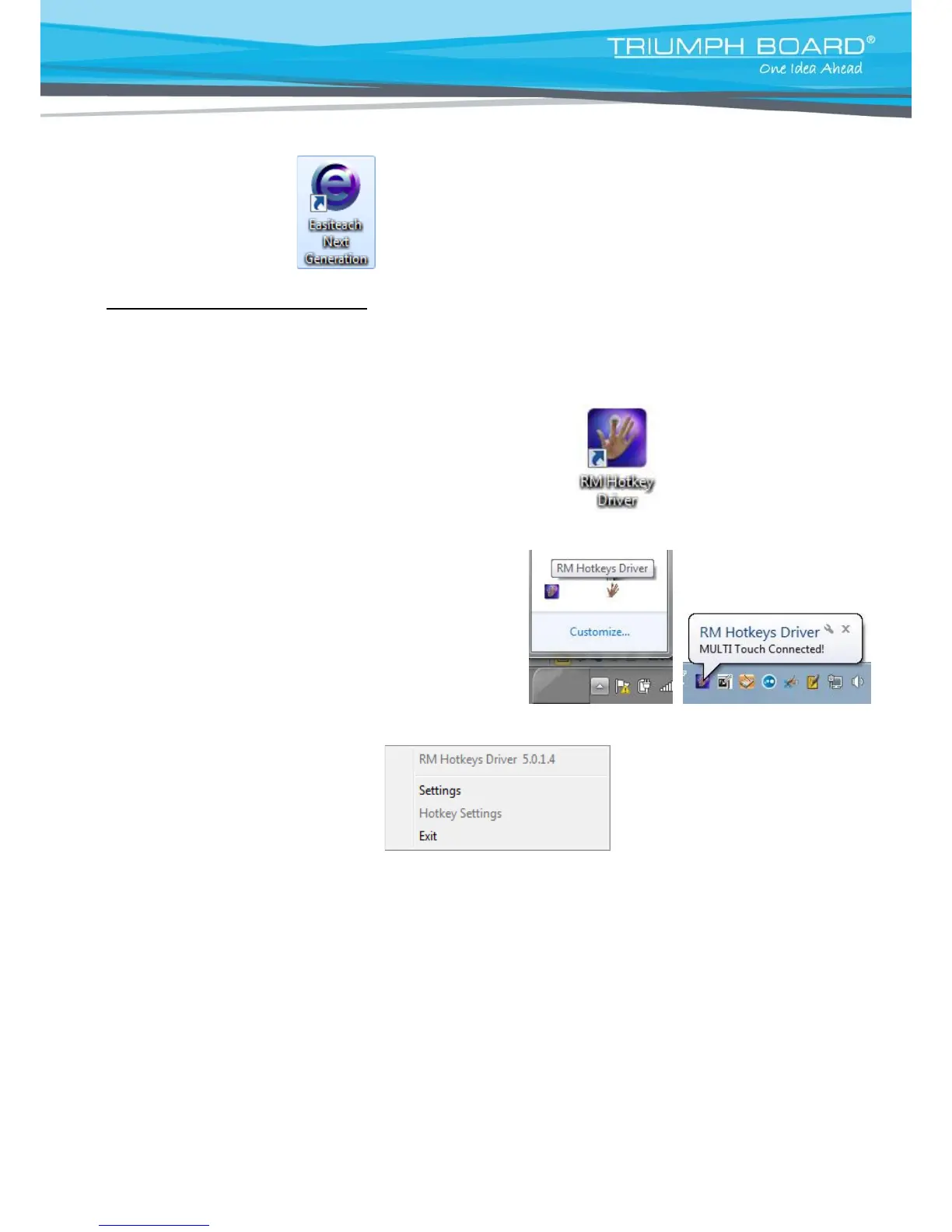
Install the RM Hotkeys Driver by double-click on RM Hotkeys Driver.msi. After installation run RM
Hotkeys Driver by double-clicking on RM Hotkeys Driver icon on the desktop.
The RM Hotkeys Driver icon displays in Windows system tray.
Click the right mouse button in the toolbar to display a context menu.
Calibration steps are as follows:
Make sure that RM Hotkeys Driver v5 is running (RM Hotkeys Driver v5 icon is displayed in the system
tray). If not run it by double clicking on the RM Hotkeys Driver icon on your Desktop.
If MULTI Touch Driver is running (TB Comenius Driver icon is displayed in system tray), click the right
mouse button or hold electronic pen on driver´s icon and select Exit to cancel it.


 To Next Page