3. NIT Searching.
Enable this option to allow receiver looking for
information about new transponders broadcasted in
satellite signal. This allows increase number of
searched channels. It is advice to enable this option
even if this will increase searching time.
When option will be chosen, press
OK to start
searching.
When searching finish, receiver will back to full
screen mode.
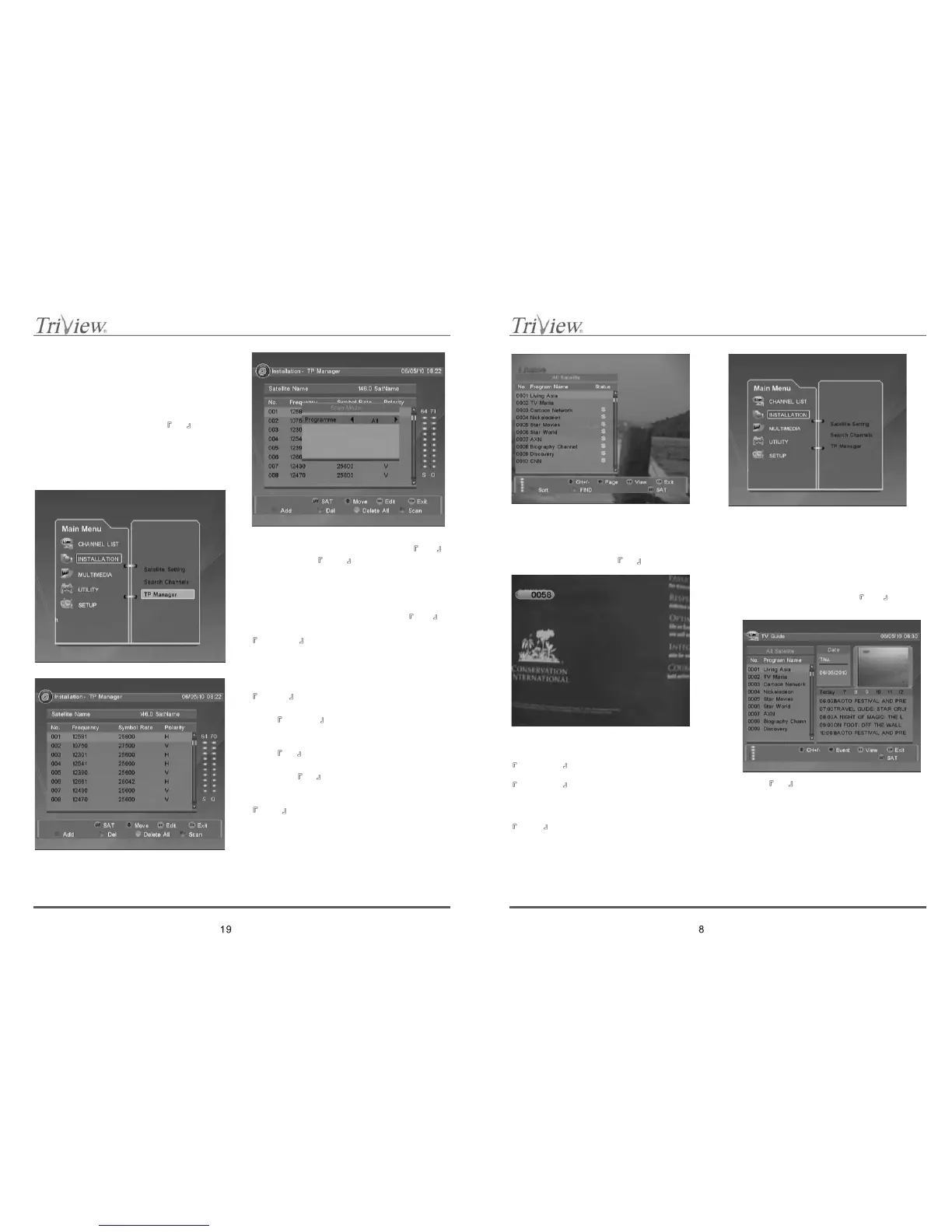
11.3 TP Manager
This menu allows managing transponders from active
satellite. If you want change satellite press
SAT .
When you press
BLUE special button in this
position, “SAT Setting” window will be displayed.
TP Manager allows adding, deleting, editing and
scanning certain transponders:
1. Add.
To add new transponder to the list, press
RED
special button. In displayed window use
▲,▼,◄,► and numeric keys to 0~9, to enter TP
parameters like: Frequency, Symbol Rate and
Polarity.
2. Delete.
To delete actually selected transponder press
GREEN special button. When you want delete all
transponders valid for actually selected satellite,
press
YELLOW special button.
3. Edit.
To change settings of actually selected transponder
press
OK . In displayed window, to enter new TP
settings; Frequency, Symbol Rate and Polarity.
Confirm by
OK .
4. Scan.
To scan actually selected transponder press
BLUE special button. In opened window to
choose what type of channel you want search; All or
Free only.
12. MULTIMEDIA
Multimedia sheet allow to use receiver as picture
browser or MP3 Player for files stored on USB stick.
8.9 Numeric Keys
When receiver is in full screen mode you can choose
channel by enter channel number by numeric keys
and wait a while for change. When you enter channel
number and confirm this by
OK button, channel
will change immediately.
8.10 TV / RADIO Mode
When receiver is in TV mode, press button
TV/RADIO to switch to Radio mode.
When receiver is in Radio mode, press button
TV/RADIO to switch to TV mode.
8.11 Menu
When receiver is in full screen mode, press the button
MENU to enter to receivers menu.
8.12 Electronic Program Guide
1. Receiver have implemented EPG function which
allow enter into TV or Radio program guide and
display information about actual and future
programs which will be transmitted. This function
is working only with channels which broadcast in
signal EPG information. Press
EPG button to
display EPG window.
2. Press OK button to display details about
actual and next program transmitted by channel.



 To Next Page