Go to Table of Contents
12
Xbox One™ setup
Color depth
36 bits per pixel
Color space
PC (RGB full)
Sound mixer Stereo uncompressed
Chat mixer
Allow 50 Hz refresh rate Setup TV & A/V control
Change volume with voice by
3 steps
Off
VIDEO FIDELITY CONSOLE VOLUME CONSOLE
Display & sound
Bitstream out
Color depth
36 bits per pixel
Color space
PC (RGB full)
Sound mixer
Chat mixer
Allow 50 Hz refresh rate Setup TV & A/V control
Change volume with voice by
3 steps
DTS Digital Sound
VIDEO FIDELITY CONSOLE VOLUME CONSOLE
Display & sound
Dolby Digital
About me
Network
Add to family Remove accounts
Closed
captioning
Display &
sound
Set up your family to
manage your
children’s Xbox
experiences.
Power &
startup
TV & OneGuide System
CC
Disc & Blu-ray
Kinect Preferences
TESTING LAB CONSOLE FAMILY OTHER PEOPLE
Privacy & online safty
Payment & billing
Subscriptions
My home Xbox
Sign-in, security &
passkey
Settings
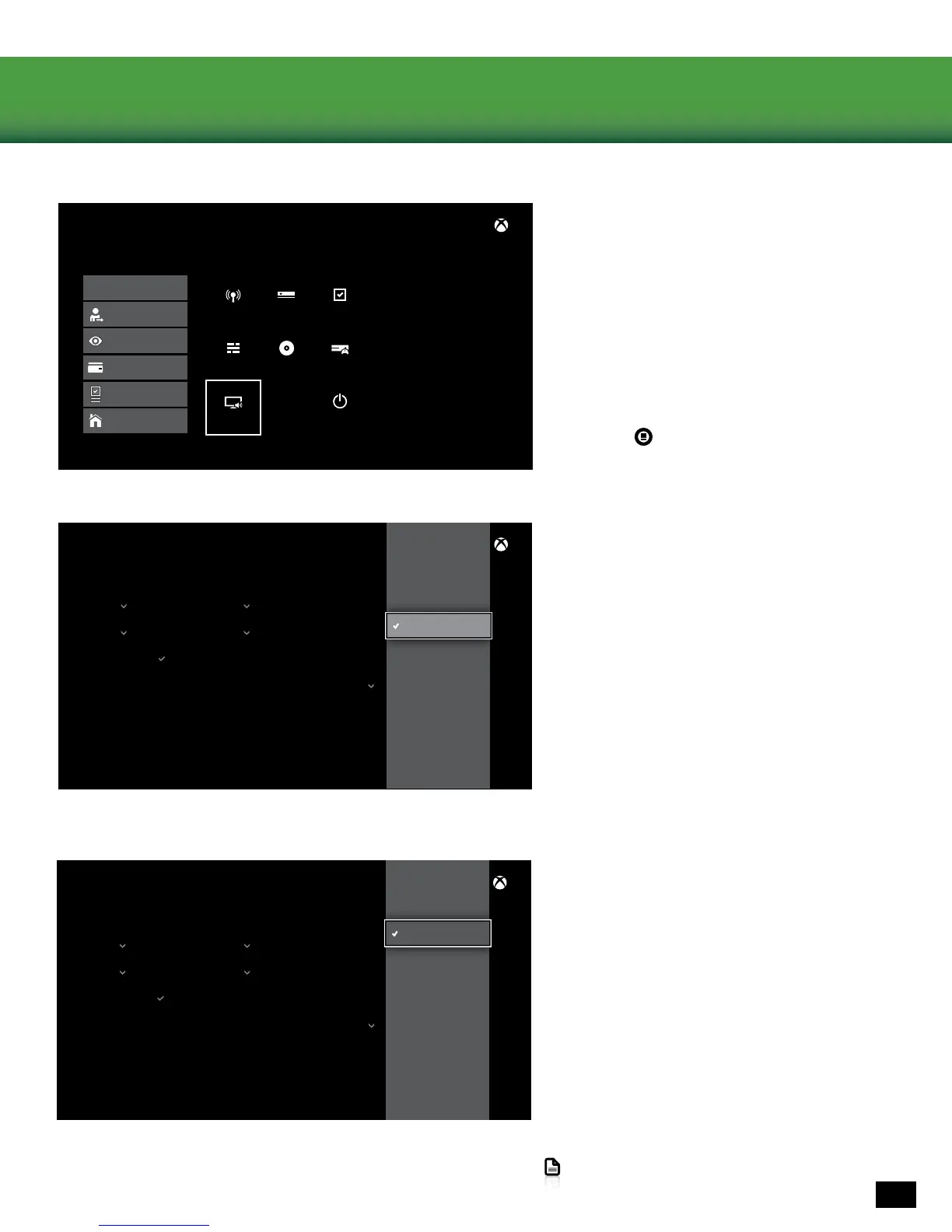
5. Go to Settings > Display & Sound > Optical
Audio.
6. Select Bitstream Out.
7. Go to Settings > Display & Sound > Bitstream
Format.
8.SelectDolbyDigital.
Note: Do NOT select DTS Digital Sound.
4. Go to the Xbox One Home Screen and
Press the button on the Xbox
One Controller.






 To Next Page