VIDEOSTUDIO HELP
Table of Contents | Index Back 24
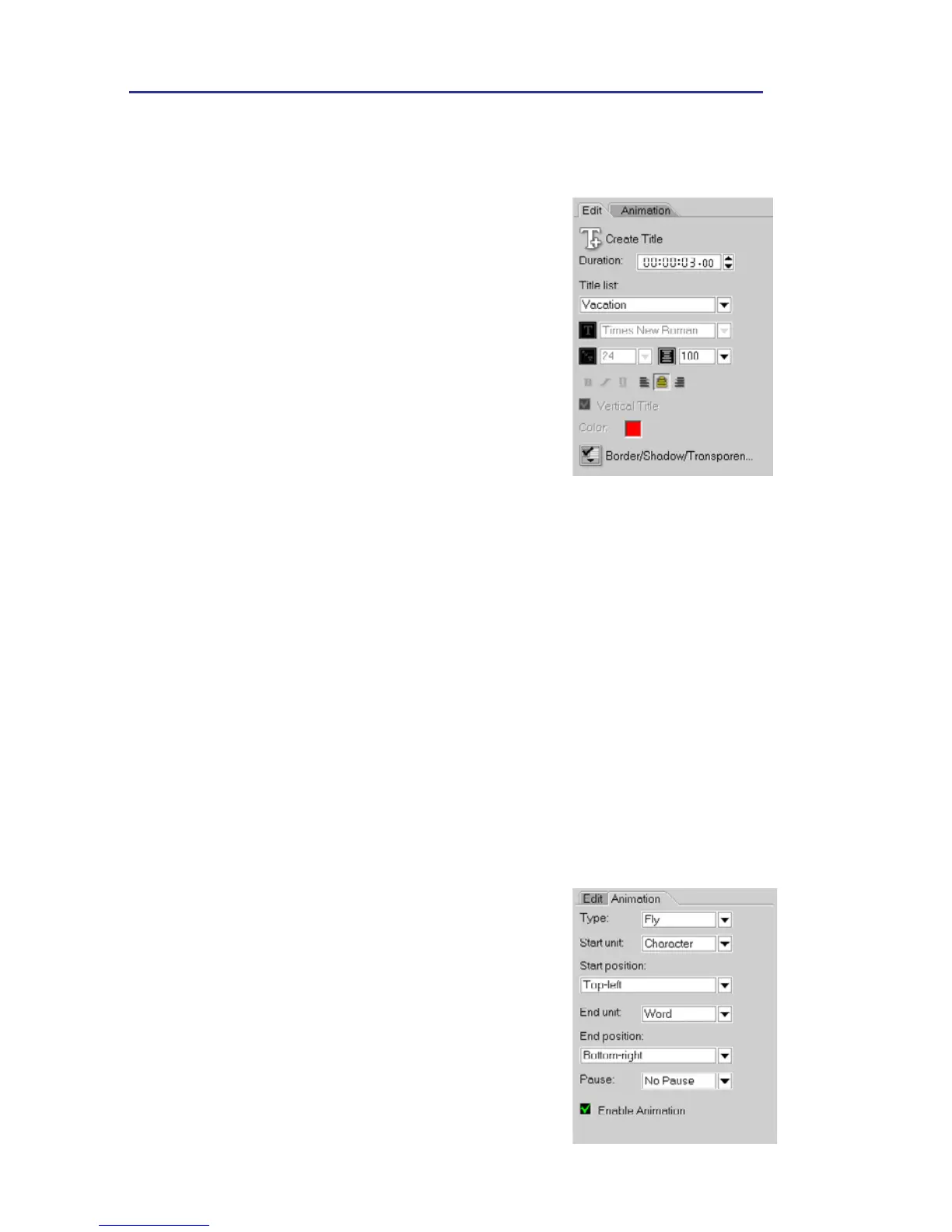
Title Options Panel
Edit tab
• Create/Update Title: What you click to enter a
title on an underlying video.
• Duration: Displays the duration of the selected
clip in hours:minutes:seconds:frames. You can
adjust the duration by changing the timecode
values.
• Title list: Shows the title clips that you created.
To modify a title clip, select it from the drop-
down list and click on the Preview Window.
• Font face: Where you select your desired font
style.
• Font size: Where you set your desired font size.
• Line spacing: Sets the spacing, or leading,
between lines of text.
• Font style: Bold, italic and underline.
• Alignment: Aligns horizontal text to the left,
center, or right. Or, aligns vertical text to the
top, center, or bottom.
• Vertical Title: Makes the orientation of the title
vertical or horizontal.
• Color: Click on this to specify your preferred
font color.
• Border/Shadow/Transparency Allows you to
add shadow and border as well as adjust the
transparency for your title.
Animation tab
• Type: Where you can select your preferred
animation effect for your title.
• Start unit: Determines how the title enters the
scene.
• Start position: Denotes the trail from where
the motion of the title will start.
• End unit: Determines how the title exits the
scene.



 To Next Page