VIDEOSTUDIO HELP
Table of Contents | Index Back
65
Using video filters
Video filters are effects which you can apply to clips in order to
change their style or appearance. For example, you can improve the
color balance of a clip, or make it look like a painting.
To apply a video filter to a clip
(video or image) in the Timeline:
1. Select a clip in the Timeline.
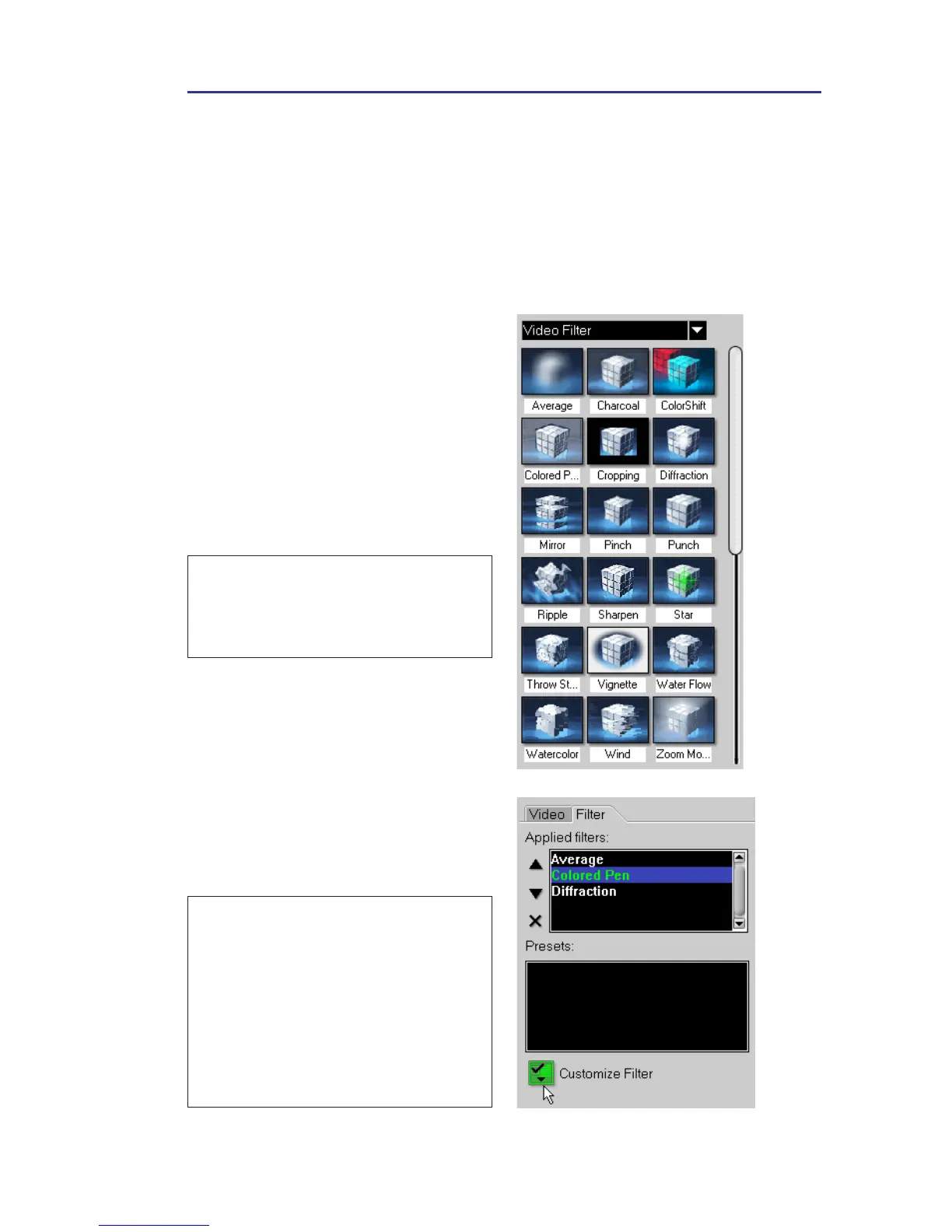
2. Select the Video Filter folder in
the Library drop-down menu.
3. Choose a video filter to apply
to your clip (by clicking the
thumbnail).
4. Drag and drop the video filter
onto your clip in the Timeline.
Note: The Options Panel
automatically switches to the Filter
Tab after you drop the video filter
onto your clip.
5. Click Customize Filter in the
Options Panel to customize the
attributes of the video filter.
Available options depend on
the selected filter.
6. Preview how your clip looks
with the video filter applied to
it using the Navigator.
Notes:
• VideoStudio allows you to apply a
maximum of five filters to a single
clip.
• When there is more than one video
filter applied to a clip, you can change
the order of filters by clicking the
Shift up/down video filter buttons.
Changing the order of the video filters
will have drastic effects on your clip.



 To Next Page