VIDEOSTUDIO HELP
Table of Contents | Index Back
33
You can also begin by creating an empty project file using New
Project.
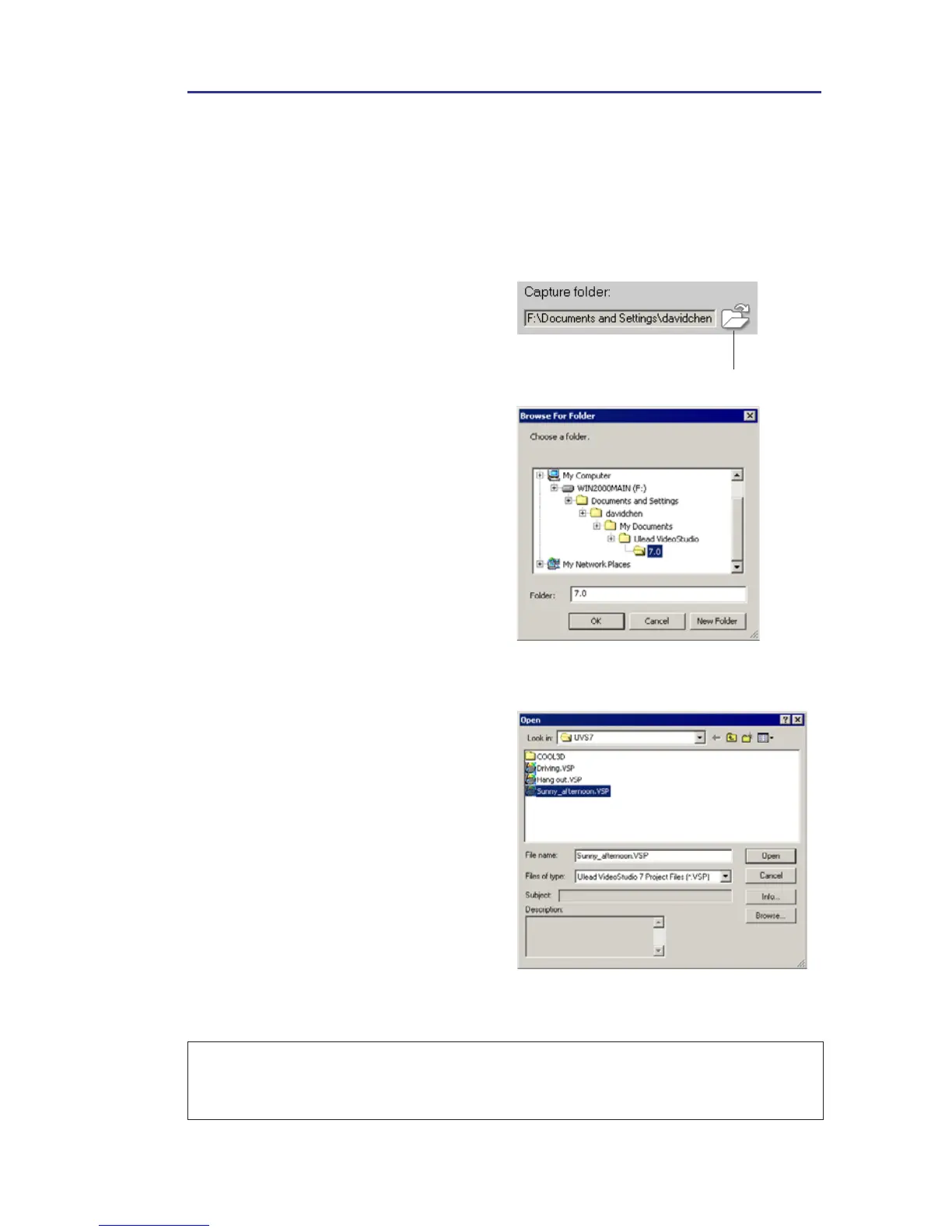
To create a new project using
New Project:
1. Click File: New Project or
simply press [Ctrl + N].
2. Click Capture folder under the
Capture Settings Tab of the
Options Panel to select a
working folder where all your
captured/project files will be
located. This will launch the
Browse For Folder dialog box.
Click Make New Folder to
create a new folder. You can
also click File: Preferences [F6]
and select from the available
folders in the Working folders
drop-down list.
3. Click OK.
Capture folder
Note: A faster way to open an existing project is to click File then select the
project you want to open in the Recent file list. VideoStudio, however, cannot
open a project that has been moved or removed.
To open an existing project:
1. Click File: Open Project or
press [Ctrl + O]. The Open
dialog box will appear,
showcasing a list of available
folders.
2. Select the project file (*.VSP)
you want to open. If you are
not sure where the file is, click
Browse and then click Scan.
This finds all *.VSP files under
your assigned folder or drive.
3. Click Open.



 To Next Page