VIDEOSTUDIO HELP
Table of Contents | Index Back
97
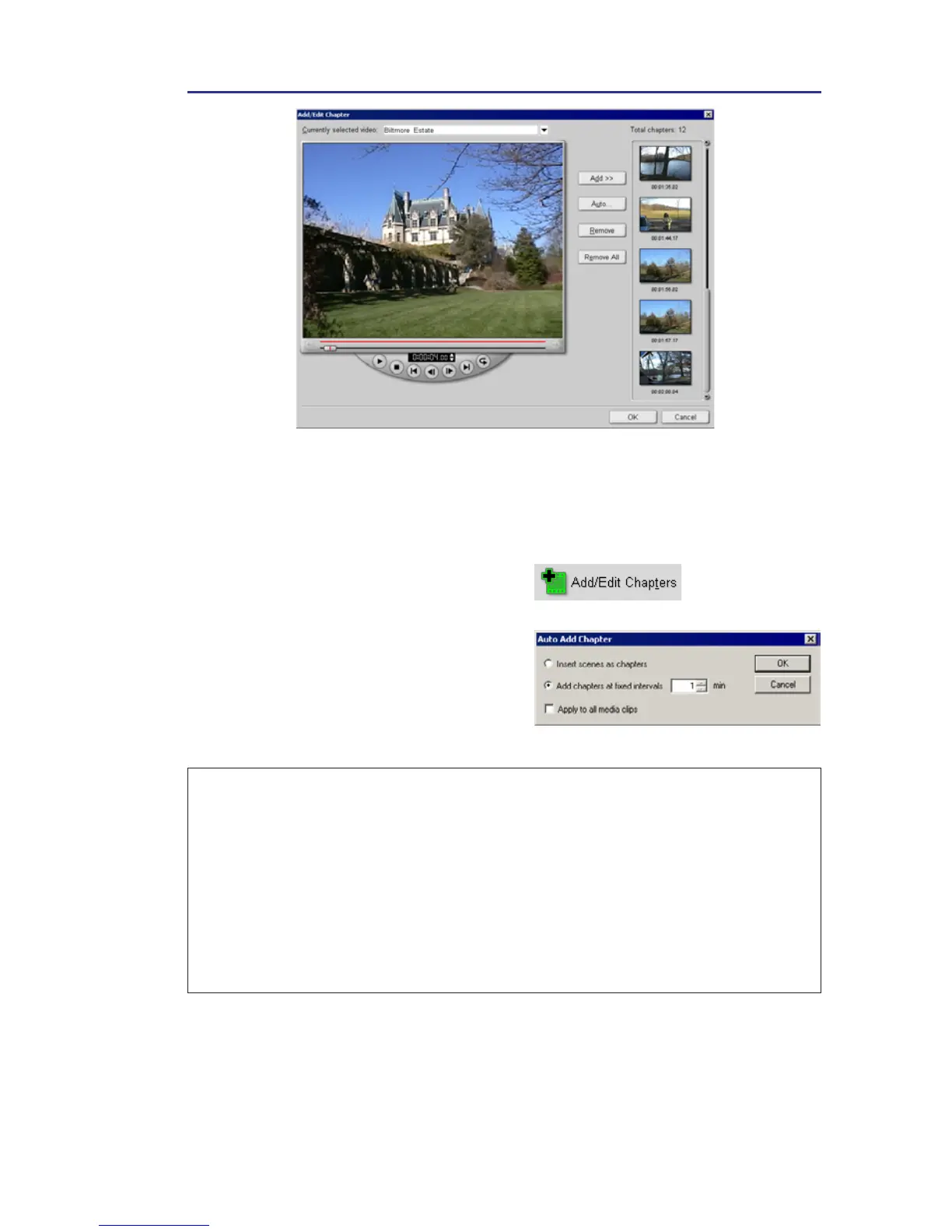
To create or edit chapters linked to a
video clip:
1. Select a video in the Media clip
list.
2. Click Add/Edit Chapters.
3. Click Auto to let Ulead
VideoStudio help you select
chapters (such as at fixed
intervals), or drag the Jog Bar to
move to a scene as the first frame
of a chapter, and then click Add.
Tips:
• If you want to use Auto, your video must be at least one minute long or the
video has scene change information.
• If you click Auto and your video is a DV-formatted AVI file captured from a DV
camcorder, Ulead VideoStudio can automatically detect scene changes and add
chapters accordingly.
• If the selected video is an MPEG-2 file with scene change information, Ulead
VideoStudio automatically generates these chapters for you when you click
Auto.
4. Repeat Step 3 as needed. You can
also use Remove or Remove All
to delete unwanted chapters.
5. Click OK.



 To Next Page