8
Can I connect to my speaker via NFC?
No, BOOM 3 and MEGABOOM 3 don’t support NFC pairing.
9
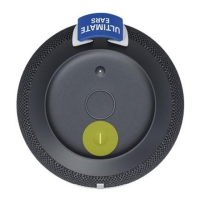
How to use the Magic Button
Standard music controls You can use the magic button to pause, play, or skip
tracks for music you’re currently playing from any music provider*:
Pause: Single-press the Magic Button to pause music that is currently
playing
Play (Resume): Single-press the Magic Button to resume music that you
paused.
Skip song/track: Double-press the Magic Button to skip to the next track of
the current playlist
One Touch To Your Playlist You can also use the magic button to directly access
your playlists from select streaming music providers. To use this feature, you must
setup it up in the BOOM & MEGABOOM app (see Setting up the app):
Play (first playlist): Long press — hold for 3 seconds — the Magic Button to
start playing the first playlist you selected.
Skip (to next playlist): Long press — hold for 3 seconds — the Magic Button
to play the next playlist you selected.
o If the last playlist is playing, then the first playlist you selected will
begin to play when you long press the Magic Button.
Pause/Play/Skip song in any of your playlist is the same as described above.
10
I can’t connect to my device
If your Bluetooth device won’t connect to your Ultimate Ears speaker, try the
following:
Make sure your speaker is turned on.
Make sure your device is paired with your speaker and Bluetooth is active.
Place your Bluetooth device closer to the speaker — it might be out of
range.



 To Next Page