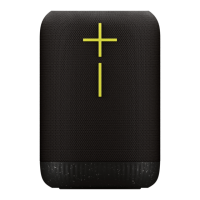
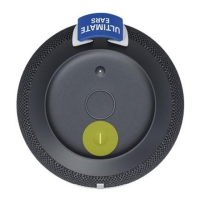
When someone's ready to go, you can drag their speaker back
to the drawer and it's instantly out of your party and ready for
something else. Or you can go old school and just turn the
speaker off. It's up to you.
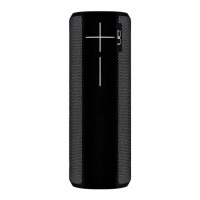
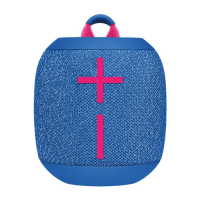
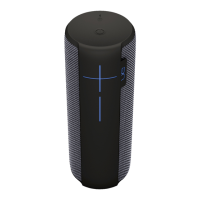
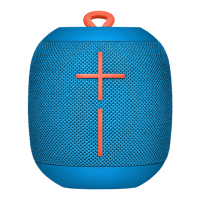
Pro Tip: You can Party Up with: BOOM, BOOM 2, BOOM 3,
MEGABOOM and MEGABOOM 3. Just make sure each speaker
is updated to the latest and greatest firmware, otherwise, they
won't be able to join the party and, really, no one wants to be
left out.
o EQ: You Control the Sound: Want to bump up the bass for your next
party? Customize your audio settings in the app. You control the
atmosphere with the recommended presets or customize the EQ to
your listening preferences.
One Touch To Your Playlist: You can also use the magic button to directly
access your playlists from select streaming music providers. To use this
feature, you must set it up in the BOOM & MEGABOOM app (see Setting up
the app):
o LONG PRESS TO LAUNCH PLAYLISTS Press and hold for 3 seconds.
Your speaker will play the playlists you set.
o TAP ONCE TO PAUSE / PLAY When music is streaming on the
speaker, tap once to pause/play the music.
o DOUBLE TAP TO SKIP When music is streaming on the speaker, tap
twice on the button to skip the song.
o LONG PRESS AGAIN TO SKIP PLAYLISTS Long press again to skip the
current playlist.



 To Next Page