EN
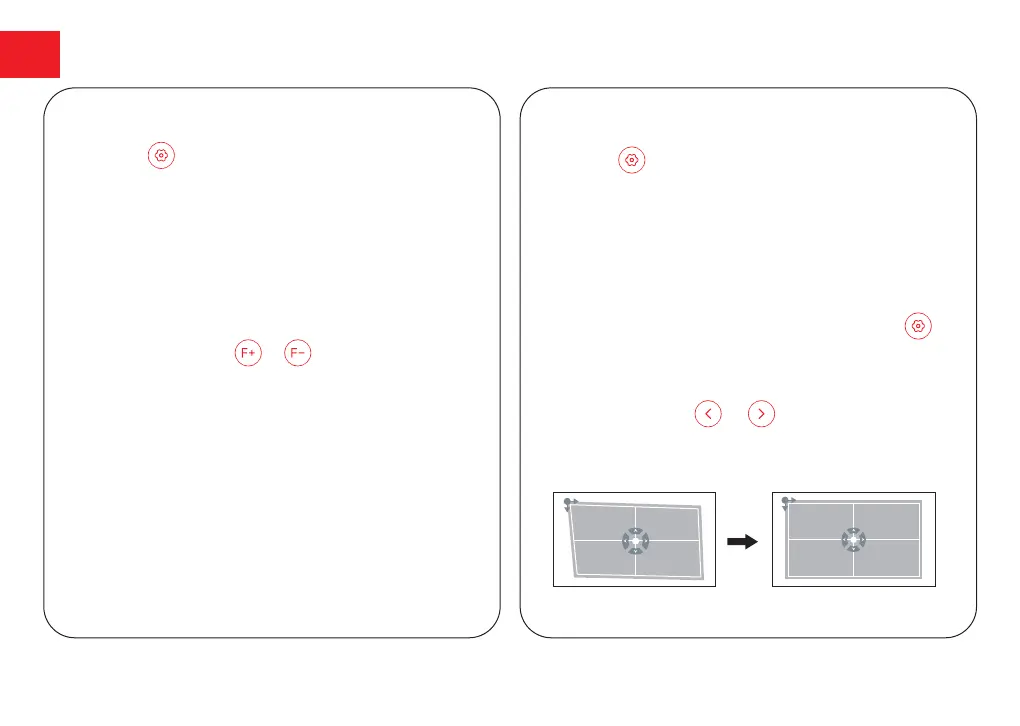
Automatic Keystone Correction
Manual Four-point Keystone Correction
09
Press the button, select [More Settings]->[Projection
Settings]->[Keystone Correction]->[Auto Keystone
Correction], select on. When the projector image is
skewed, it will perform auto keystone correction to
restore the image to a rectangle.
●
If the projected image is stretched or distorted along
both axes due to the projection angle, press the
button, select [More Settings]->[Projection Correc-
tion]->[Keystone correction]->[Auto Keystone], select off.
●
Select [4-Corner Correction], select the corner you
want, and press the or button on the remote
control to adjust.
Auto Focus
Manual Focus
Keystone Correction
●
Press the button, select [More Settings]->[Projec-
tion Settings]->[Autofocus Settings]->[Autofocus when
moving], select on.
●
Place the projector on a suitable projection surface or
wall, and the projector will perform autofocus until it gets
a clear image.
You can also manually focus through the remote control,
press the focus button or on the remote control,
and observe the focus icon to adjust the picture until the
picture is clear.
The projector supports automatic keystone correction
and manual four-point keystone correction.


 To Next Page