EasyManua.ls Logo

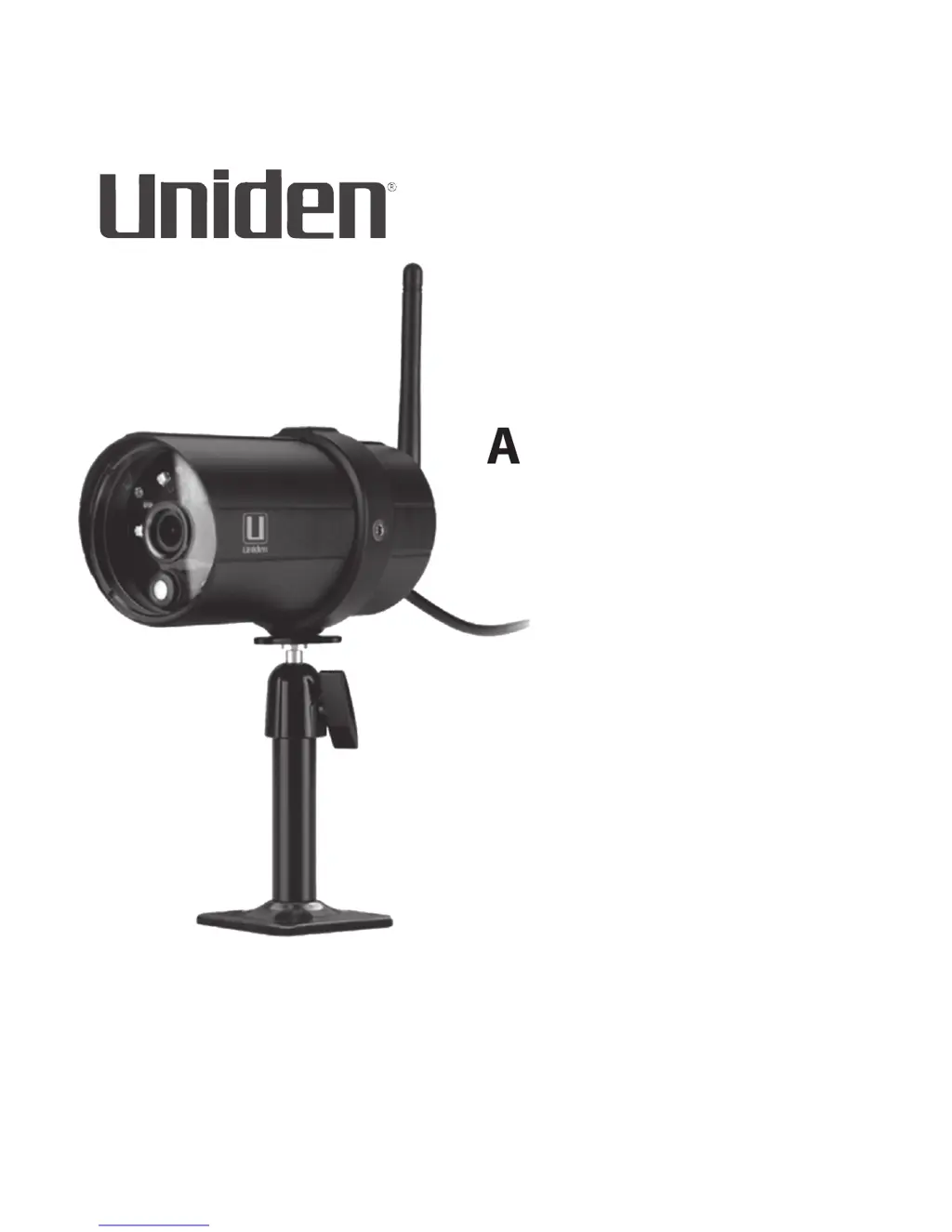
Uniden AppCam 25HD - User Manual

Uniden AppCam 25HD
38 pages
Print Icon
To Next Page IconTo Next Page
Loading...
AppCam 25HD
Users Manual
Issue 1, September 2014

Questions and Answers

  • M
    Michelle McbrideAug 14, 2025
    Why Uniden AppCam 25HD app cannot find the camera?
    • S
      Susan MurphyAug 15, 2025
      If the Uniden Security Camera app cannot find the camera, ensure your network supports DHCP protocol and that the DHCP option is turned on. Verify that the camera and your mobile device are connected to the same WiFi router and that the WiFi router is activated. Also, ensure the camera is properly powered on. If problems persist, use the “ADD CAMERA” function to manually add the camera.
  • S
    staceyhuangAug 17, 2025
    Why my smartphone cannot find Uniden AppCam 25HD Security Camera during setup?
    • M
      Michele ComptonAug 18, 2025
      If your smartphone or wireless device cannot find the Uniden Security Camera during setup, make sure the router is turned on. Refresh the connection and ensure your smartphone is connected to the same network as the camera. Check that the camera’s green LED is blinking in a 3-flash/pause pattern. If it isn’t, reset the camera by pressing and holding the Reset button on the cord until the LEDs begin to flash.
  • P
    Preston CooleyAug 21, 2025
    What to do if motion detection is not working on Uniden AppCam 25HD?
    • L
      Lisa FieldsAug 21, 2025
      If motion detection is not working on your Uniden Security Camera, ensure that the sensitivity setting is not turned OFF and adjust the sensitivity of the motion sensor. Remember that a moving object within the camera's viewing angle is necessary to trigger the motion sensor for recording. Also, confirm that the system date and time have been correctly set.
  • B
    brendawilliamsAug 25, 2025
    How to fix if no image appears on Uniden Security Camera?
    • M
      Mark DunnAug 26, 2025
      If no image appears on your Uniden Security Camera, first ensure the power adaptor is not damaged or defective and is plugged into an electrical outlet with power. Then, relocate the camera to obtain the best reception of wireless signals. Finally, make sure the camera is properly configured in the app.
  • A
    Amy BentleyAug 28, 2025
    How to improve weak router signal strength for Uniden AppCam 25HD?
    • B
      brettfosterAug 28, 2025
      To improve weak router signal strength for your Uniden Security Camera: 1. Change the relative position of the router and camera. 2. Use the Ethernet cable to physically connect the AppCam 25HD camera to your router. 3. Use a Wi-Fi repeater/extender to maximize the service range of your Wi-Fi router. 4. Switch your router to 11b/11g mode to improve router service range.
  • D
    Dorothy DouglasAug 31, 2025
    What to do if Uniden AppCam 25HD Security Camera does not find the router?
    • P
      Patricia HarveyAug 31, 2025
      If the Uniden Security Camera does not find the router to connect to, make sure you selected the correct router in the Manage WiFi Network box. Also, ensure you entered the correct password for the router you selected in the Manage WiFi Network box.
  • J
    Jamie BarreraSep 3, 2025
    What to do for memory card error on Uniden AppCam 25HD Security Camera?
    • M
      Melanie CastroSep 3, 2025
      If you encounter a memory card error with your Uniden Security Camera, ensure the memory card is correctly inserted and formatted. It is recommended to backup the data before formatting, as this Format function will erase all data on the memory card.
  • A
    Anthony SullivanSep 7, 2025
    How to correct wrong date and time on Uniden Security Camera?
    • C
      cantuashleySep 7, 2025
      If the wrong date and time are displayed on your Uniden Security Camera, ensure you’ve selected the correct time zone. Also, confirm the system date/time of the mobile device to ensure correct operation.
  • S
    samanthabauerSep 10, 2025
    Why bright white spots appear at nighttime on Uniden AppCam 25HD Security Camera?
    • V
      varmstrongSep 10, 2025
      Bright white spots may appear at nighttime on your Uniden Security Camera because the camera’s infrared LEDs produce invisible light that reflects off surfaces such as glass. To resolve this, install the camera on the other side of windows or place the lens flush against the surface to improve the night vision. Please check the environment rating (Ingress) of the camera(s) before installing outdoors.

Summary

PLEASE READ BEFORE YOU START

IMPORTANT SAFETY PRECAUTIONS

Critical safety warnings to prevent damage, injury, and voiding warranty.

NETWORK SETUP AND CAMERA INSTALLATION

STEP 1 - SET UP CAMERA AND SMARTPHONE;TABLET

Instructions for downloading the app and initial camera connection.

STEP 2 - CONNECT CAMERA AND MOBILE DEVICE

Guide to connecting the camera to your smartphone or tablet via WiFi.

STEP 3 - CONNECT CAMERA AND WIFI ROUTER

Steps to connect the camera to your home WiFi network.

STEP 4 - SET TIME ZONE;DAYLIGHT SAVINGS TIME

Configuring the correct time zone and DST settings.

INSTALL CAMERAS

Mount the AppCam 25 HD Base

Step-by-step instructions for mounting the camera base securely.

Attach the AppCam 25 HD Camera

Detailed guide on how to attach the camera unit to the mounting stand.

USING THE APP

ACCESSING YOUR CAMERAS

Instructions on how to find and view your connected cameras within the app.

SNAPSHOT SCREEN OVERVIEW

System Settings

Accessing and configuring advanced system settings for the camera.

System Information - Advanced Screen Details

System Information - Advanced Screen Details

Navigating the advanced settings screen for camera configuration and notifications.

ADVANCED SETTINGS

Time Zone

Setting the correct time zone and daylight saving time for video timestamps.

CONFIGURATION SETTINGS

DELETE CAMERA CONNECTION

EVENT LIST DETAILS

LIVE VIDEO SCREEN OVERVIEW

COMMON OPERATIONS

MAINTAINING YOUR SYSTEM

Managing and Copying Recorded Files

Advice on managing files and transferring them from the microSD card to a computer.

TROUBLESHOOTING

Improving Wireless Signal Quality

Tips for enhancing wireless signal strength and resolving connection issues.

Camera Detection and Connection Issues

Troubleshooting steps when the mobile device cannot detect or connect to the camera.

Image and Motion Detection Problems

Solutions for poor image quality and non-working motion detection.

SPECIFICATIONS

ONE-YEAR LIMITED WARRANTY

Uniden AppCam 25HD Specifications

General IconGeneral
Night VisionYes
ConnectivityWi-Fi
AudioTwo-way audio
Motion DetectionYes
Weather ResistanceIP65
Mobile AppUniden AppCam
StorageMicroSD card (up to 128GB)

Related product manuals