EasyManua.ls Logo

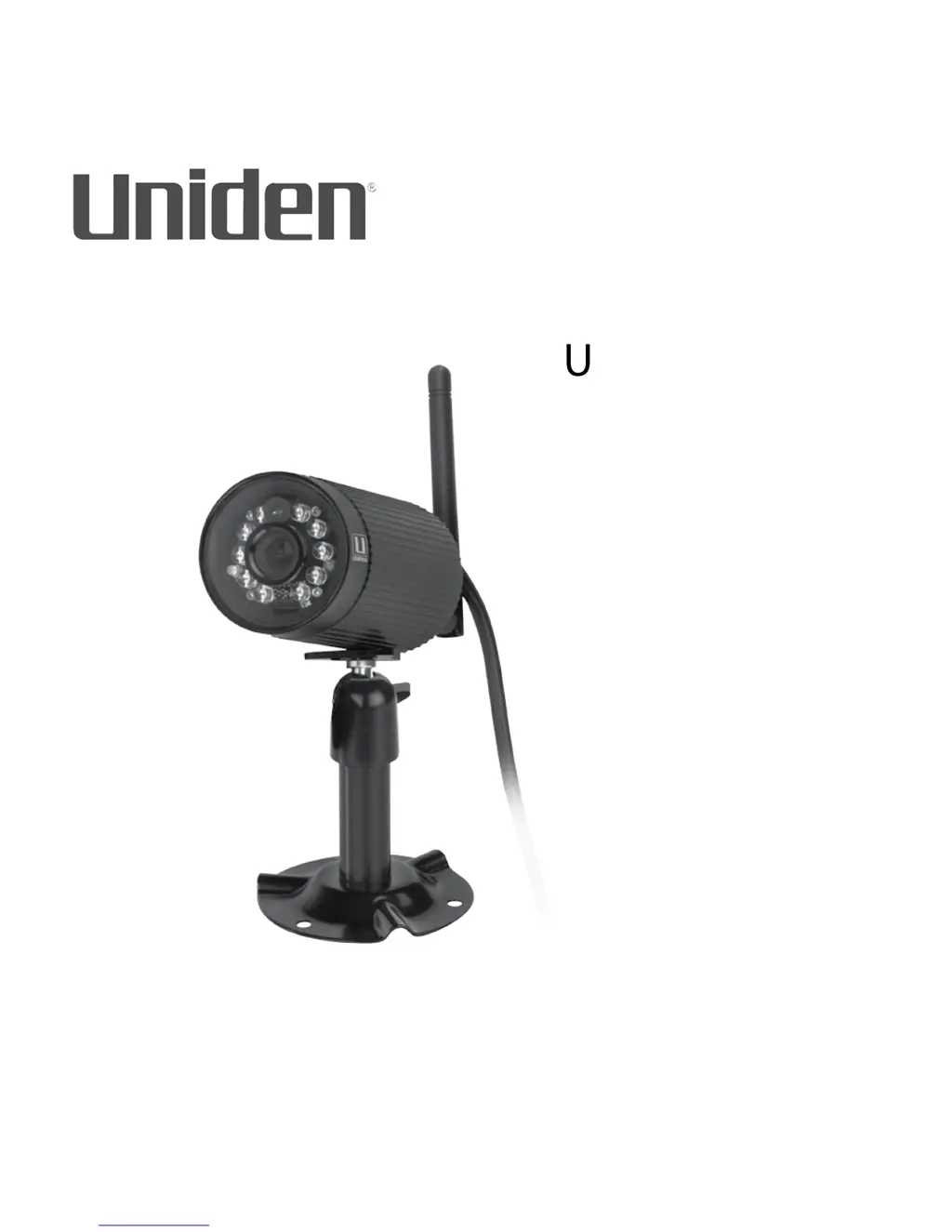
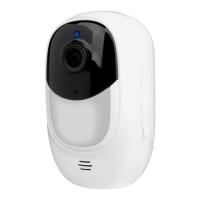
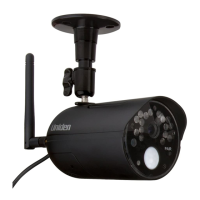
Uniden APPCAM23 - User Manual

Uniden APPCAM23
40 pages
Print Icon
To Next Page IconTo Next Page
Loading...
AppCam 23
Users Manual

Other manuals for Uniden APPCAM23

Questions and Answers

  • A
    Aaron MathisAug 21, 2025
    Why is motion detection not working on my Uniden APPCAM23?
    • M
      Mark AndersonAug 21, 2025
      If motion detection is not working on your Uniden Security Camera, first ensure that the sensitivity setting is not turned OFF. Try adjusting the sensitivity of the motion sensor. Remember that a moving object within the camera's viewing angle is necessary to trigger the motion sensor for recording in motion detection mode. Also, verify that the system date and time have been correctly set.
  • K
    kimberly69Aug 23, 2025
    What to do if my smartphone cannot find the Uniden APPCAM23 Security Camera during setup?
    • A
      Anna WintersAug 23, 2025
      If your smartphone or wireless device cannot find the Uniden Security Camera during setup, make sure the router is turned on. Try refreshing the connection and ensure your smartphone is connected to the same network as the camera.
  • J
    Jeremiah GarciaAug 26, 2025
    Why is my Uniden APPCAM23 Security Camera image quality poor with low wireless signal?
    • B
      Brian PetersonAug 26, 2025
      Poor image quality and low wireless signal can occur if wireless devices are interfering with the signal. Increase the space between the camera/mobile device and other wireless devices. Also, clean the camera lens with a lens cleaning cloth to remove any spots or dust that might be affecting image quality.
  • M
    Marco WilsonAug 27, 2025
    What to do if no image appears on my Uniden APPCAM23?
    • G
      Gwendolyn KellyAug 27, 2025
      If no image appears on your Uniden Security Camera, ensure the power adapter is not damaged or defective and is plugged into a working electrical outlet. Try relocating the camera to improve wireless signal reception. Also, verify that the camera is properly configured in the app.
  • C
    Christine ClarkAug 29, 2025
    How to fix wrong date and time shown on Uniden APPCAM23?
    • N
      Nicole OneillAug 30, 2025
      To correct the wrong date and time shown on your Uniden Security Camera, first make sure you’ve selected the correct time zone. Then, confirm the system date/time of your mobile device to ensure correct operation.
  • S
    schneiderbenjaminSep 1, 2025
    How to resolve memory card error on Uniden APPCAM23?
    • Y
      ymartinSep 1, 2025
      To resolve a memory card error on your Uniden Security Camera, make sure the memory card is correctly inserted and formatted.
  • S
    Steven KellySep 3, 2025
    Why does my Uniden APPCAM23 show bright white spots at nighttime?
    • J
      James JonesSep 3, 2025
      To improve night vision and eliminate bright white spots on your Uniden Security Camera at nighttime, install the camera on the other side of windows or place the lens flush against the surface.
  • S
    Scott MorrisSep 5, 2025
    How to improve poor image quality on Uniden APPCAM23?
    • N
      Nicholas MckinneySep 5, 2025
      To improve poor image quality on your Uniden Security Camera, clean the camera lens using a lens cleaning cloth.
  • R
    robinsonpatriciaSep 7, 2025
    What to do if motion detection is not working on my Uniden APPCAM23?
    • T
      teresafitzgeraldSep 7, 2025
      If motion detection isn't working, first ensure the sensitivity setting isn't turned off. Then, adjust the sensitivity of the motion sensor. Remember that a moving object within the camera's view is necessary to trigger the motion sensor for recording. Also, verify that the system date and time have been correctly set up.
  • K
    Kathryn HaneySep 9, 2025
    How to fix a Uniden Security Camera when no image appears?
    • R
      Russell MullinsSep 10, 2025
      If no image appears on your Uniden Security Camera, ensure the power adapter is not damaged and is plugged into a working electrical outlet. Relocate the camera to improve wireless signal reception. Also, verify that the camera is properly configured in the app.

Summary

BEFORE YOU START

Important Safety Precautions

Crucial safety guidelines to prevent damage, voiding warranty, and ensure user safety during operation.

WHATS INCLUDED

CAMERA COMPONENTS

QUICK START GUIDE

Setup Prerequisites

Lists the necessary conditions and requirements before starting the camera setup process.

Connect and Set Up Camera

Steps for connecting the camera to the network and initial setup via the app.

Install Camera

Guidance on physically installing the camera at the desired location.

OPERATION OVERVIEW

SETUP AND INSTALLATION

Detailed Setup Procedures

Comprehensive step-by-step instructions for setting up the AppCam system.

Connect AppCam to Network

Detailed procedure for connecting the AppCam camera to the network.

Set Up Camera

Detailed steps for configuring the camera via the Uniden AppCam mobile application.

Install Cameras

Instructions for physically mounting and installing the AppCam cameras.

APPCAM 23 INSTALLATION

USING THE APP

LIVE VIDEO SCREEN OVERVIEW

SYSTEM MAINTENANCE

TROUBLESHOOTING

Improve Wireless Signal Quality

Tips for resolving wireless signal issues and improving camera connectivity.

Camera Not Found

Solutions for when the mobile app cannot detect or connect to the camera.

No Image or Poor Quality

Steps to take if no video feed is displayed or if video quality is poor.

Motion Detection Issues

Troubleshooting steps if the motion detection feature is not functioning correctly.

Night Vision and Card Errors

Solutions for night vision issues and errors related to the microSD card.

Setup Connection Issues

Steps to resolve issues where the smartphone cannot locate the camera during initial setup.

SPECIFICATIONS

WARRANTY INFORMATION

Uniden APPCAM23 Specifications

General IconGeneral
Field of View120 degrees
ConnectivityWi-Fi
AudioTwo-way audio
Motion DetectionYes
Pan/TiltNo
Weather ResistanceIP65
TypeWireless Security Camera
Resolution1080p
StorageMicroSD card, Cloud
CompatibilityiOS, Android

Related product manuals