EasyManua.ls Logo

Uniden UBCT8 - User Manual

Uniden UBCT8
68 pages
Print Icon
To Next Page IconTo Next Page
Loading...
250 Channels
12 Bands
Programmable
Trunk Tracker lll
with Close Call RF Capture
OWNER'S MANUAL
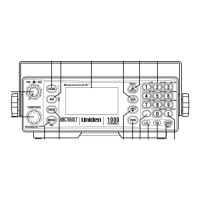
UBCT8 Scanner

Table of Contents

Questions and Answers

  • P
    Parker MurphyAug 16, 2025
    How to fix Uniden UBCT8 that won't turn on?
    • G
      gevansAug 16, 2025
      If your Uniden Scanner isn't working, try these steps: 1. Ensure the AC adapter is properly connected at both ends. 2. Check if the wall outlet is controlled by a switch and ensure it's turned on. 3. Try plugging the AC adapter into a different wall outlet.
  • P
    Pedro JohnsonAug 19, 2025
    Why is my Uniden Scanner reception so bad?
    • A
      April GonzalesAug 19, 2025
      If you're experiencing poor reception on your Uniden Scanner: 1. Verify the antenna connection is secure. 2. Try moving the scanner to a different location. 3. If you are in a remote area, you might need a multi-band antenna. Consult with your dealer or a local electronics store.
  • V
    Vanessa RobinsonAug 22, 2025
    What to do if my Uniden Scanner won't stop scanning?
    • H
      hopkinsjohnAug 22, 2025
      If your Uniden Scanner won't stop scanning, consider these possible solutions: 1. Adjust the squelch threshold. 2. Check the antenna connection. 3. Examine whether many channels are locked out, as this reduces the scanner's ability to find an active channel. 4. Review each channel's frequency to confirm it is correctly stored in memory. 5. It's possible that none of the programmed frequencies are currently active.
  • R
    robertsonjasonAug 26, 2025
    Why is my Uniden UBCT8 Scanner not tracking?
    • J
      Joshua HeathAug 26, 2025
      If your Uniden Scanner is failing to track properly: 1. The Data Frequency might be missing. 2. Try changing to a Type 1 Scanner setup.
  • S
    Sean JohnsonAug 28, 2025
    Why won't my Uniden UBCT8 start scanning?
    • J
      jenna20Aug 28, 2025
      If your Uniden Scanner is not starting the scan, here are a few things to try: 1. Press the SCAN key again. 2. Adjust the SQL control. 3. Check if all channels are locked out.
  • J
    joel70Aug 31, 2025
    What causes Uniden UBCT8 to not acquire data channel?
    • D
      Donna HaasAug 31, 2025
      If your Uniden Scanner isn't acquiring the data channel: 1. Adjust the squelch for Trunking mode. 2. Ensure you have the correct frequency for the data channel. Double-check your frequency list.
  • A
    Alan GonzalezSep 3, 2025
    Why am I missing replies on my Uniden Scanner?
    • C
      Corey HoldenSep 4, 2025
      If you are missing replies to conversations on your Uniden Scanner: 1. Try changing to a Type 1 scanner setup. 2. Try another Preset Fleet Map, or program your own Fleet Map. 3. Make sure that all of the system's frequencies have been entered.
  • W
    williamsjoelSep 6, 2025
    Why won't my Uniden Scanner stop in Scan List mode?
    • C
      Crystal BakerSep 6, 2025
      If your Uniden Scanner doesn't stop during Scan List mode: 1. No IDs might have been programmed. 2. The IDs you have stored might not be active.
  • J
    Jennifer SimmonsSep 9, 2025
    How to fix Uniden UBCT8 not tracking EDACS system?
    • D
      Diana JohnsonSep 9, 2025
      If your Uniden Scanner is not properly tracking an EDACS system: 1. Ensure logical channel numbers (frequencies) for the system are programmed in the correct order. Check frequency resources and reprogram if needed. 2. Verify that all frequencies for the system are programmed. Check frequency resources.
  • S
    Sarah SchmidtSep 12, 2025
    Why does my Uniden UBCT8 Scanner flash but have no sound?
    • G
      guerravalerieSep 13, 2025
      If the Channel Activity Indicators are flashing on your Uniden Scanner, but you're not hearing any sound: 1. It might be a telephone interconnect call, which your scanner intentionally blocks. 2. The ID on your display might not be active.

Summary

Precautions

Feature Highlights

Installing the UBCT8

For Home Use (Desktop Installation)

Steps for setting up the scanner for stationary use at home.

For Mobile Use (In-Car Installation)

Instructions for installing the scanner in a vehicle.

Applying Power for Vehicle Installation

DC power Installation

Procedures for powering the scanner from a vehicle's DC power source.

Applying Power Using Standard AC Power

Scanning Overview

Close Call RF Capture

Feature to detect and display nearby strong radio frequencies.

How Squelch Works

Setting the Squelch

How to adjust the squelch control to filter out noise and receive desired signals.

State Scanning

Selecting the State

How to choose a specific state for State Scanning.

Close Call RF Capture

Set Close Call Mode

Options to configure when and how the Close Call feature operates.

Close Call Operation

Private Bank Scanning

Programming Frequencies into Channels

Step-by-step guide to enter frequencies into the scanner's memory banks.

Hold;Resume

Channel Lockout

How to prevent the scanner from monitoring unwanted channels.

Priority Scan

Changing the Priority Channel

Service Scanning

Setting a Search Band

Trunk Tracking

Setting the Squelch

Recommended squelch setting for optimal trunked reception.

Programming Trunking Frequencies

STEP 1: Selecting Trunking System Type

Choosing the type of trunked system to track.

STEP 2: Programming Trunking Frequencies

Programming Talk Group ID;Scan Lists

How to program talk group IDs and create scan lists for trunked systems.

ID Scan Mode

ID Search Mode

How to scan for any active IDs in a trunked system.

ID Lockout

Setting Priority in Trunking Mode

Multi-Track

EDACS Reception

EDACS Tracking

How the scanner tracks EDACS systems using transmission frequencies.

Programming EDACS System Frequencies

An EDACS Trunked system

Special EDACS Features

AFS Partial Entry Feature

Feature allowing flexible talkgroup programming using Agency-Fleet-Subfleet codes.

LTR Tracking

Motorola Tracking

Motorola Reception

Understanding Motorola Type I and Type II trunking system differences.

Fleet Map Programming

Programming a Hybrid System

Setting the Base, Spacing Frequencies and Offset Channel for Motorola VHF;UHF Trunked Systems

Control Channel Only Mode

Remote Interface

PC Control mode

Programming and controlling the scanner via PC software.

Clone mode

Transferring scanner settings to another UBCT8 unit.

To connect the Scanner to Scanner

Troubleshooting

Scanner wont work.

Steps to resolve issues where the scanner does not power on or function.

Trunk Tracker Mode Troubleshooting

Specifications

User Defined Fleet Maps

One Year Limited Warranty

Uniden UBCT8 Specifications

General IconGeneral
Power Supply13.8V DC
Memory Banks10
Display TypeLCD
Modulation TypesAM, FM
TypeMobile/Base Scanner

Related product manuals