The UNITRON® TCS Pro500 is a precision instrument designed for touch, capture, and share functionalities, primarily used as a tablet and camera for microscopy applications. It integrates a digital camera with a multi-point capacitance touch screen, offering a comprehensive solution for image acquisition, management, and sharing.
Function Description:
The TCS Pro500 serves as a versatile imaging device compatible with various microscopes, including monocular, binocular, and trinocular heads. It captures still images and video, allowing users to preview, edit, and share their observations. The device operates on an Android platform, providing access to various applications and settings for enhanced functionality.
Important Technical Specifications:
- Screen: 5-point capacitance touch screen.
- Image Resolution: Default 5M Pixels (5MP) or 2592 x 1936. Other selectable image sizes include 1920x1080, 1280x720, and 640x480.
- Video Resolution: Default 720P (1280 x 720). Lower setting of 640x480 (D1) is also available.
- Connectivity:
- Mini USB 2.0 port for PC connection and file transfer.
- Wi-Fi for network configuration.
- HDMI port.
- SIM Card Slot.
- Micro SD Card Slot for expandable storage.
- Headphone Jack.
- External AC Power Jack for charging.
- Power: Rechargeable battery, charged via an A/C power adapter. Full charge takes approximately 12-15 hours.
- Operating Environment: Temperature between 10-35° C (50-95° F) with humidity 20-80%.
- Adapters: Compatible with standard C-type interface. C-mount adapters (0.5x and 1x) and Eyepiece Adapter Kits (0.5x adapter with Ø23mm, Ø30mm, and Ø30.5mm adapter rings) are available separately.
Usage Features:
- Touch Screen Operation: Supports one-touch, continuous touch, and glide operations for intuitive navigation.
- Power Management:
- Power On: Press the power button for 5 seconds.
- Sleep Mode: Press the power button once to enter/exit ready mode.
- Power Off: Press the power button for 5 seconds, then touch "OK" on the pop-up screen.
- Reset: Press the power button for 8 seconds to reset date and time (use with caution to avoid data loss). A dedicated reset button (requiring a fine-shaped object) is also available for system freezes.
- Navigation Buttons:
- Return Button: Press once to return to the previous screen; press and hold to return to the Home Screen.
- Volume Decrease (-) / Menu Button: Press once to bring up the settings menu; press and hold for 5 seconds to bring up the Volume Menu. Press for 0.5 seconds to lower volume by one increment.
- Volume Increase (+) / Search Button: Press once to enter Search mode; press and hold for 5 seconds to bring up the Volume Menu. Press for 0.5 seconds to raise volume by one increment.
- Screen Rotation On/Off Button: Slide to enable or disable screen rotation.
- Image Capture Software (TCS Pro500 Camera App):
- Unlocking: Drag the lock icon upwards from the lock screen.
- Camera Access: Touch the "Camera" icon to launch the Image Capture software.
- Preview: Touch the "PREVIEW" icon to access the photo gallery for viewing, sharing, deleting, and editing images/videos.
- White Balance:
- Auto White Balance: Automatically adjusts color and brightness based on lighting.
- Manual White Balance: Two methods for reflected light (place white paper on microscope) and transmitted light (position blank slide section). Touch the "WHITE BALANCE" icon, then the "Set" icon to save.
- Photo & Video Functions: Slide the setting on the "CAMERA/VIDEO" icon to switch between photo and video modes.
- Shutter: Touch the "SHUTTER" icon to capture an image (photo mode) or start/stop recording (video mode). Images/videos are automatically saved to the internal memory gallery.
- Exposure Set: Select "Auto Mode" for automatic exposure adjustment or "Manual Mode" for manual control. Note: Manual mode for exposure and white balance should be used together, keeping exposure time as low as possible for better frame rate.
- Contrast & Saturation: Adjust values by dragging the rectangles icon on the parameter menu bar. A "Contrast" value of 4 or less is recommended.
- Grid Function: Toggle the grid/crossline on/off via the Grid menu.
- Picture Size (Pixel) Selection: Choose from 5M Pixels, 1920x1080, 1280x720, or 640x480.
- Power Frequency Selection: Select 50 Hz or 60 Hz based on regional electrical standards to avoid noise waves.
- Image Gallery: Access from the Applications screen. Long-press a photo/video, then touch the top-right pane to select for sharing, deleting, or editing.
- Image Zoom: Double-tap an image to enlarge; double-tap again to reduce. Drag to view different areas when enlarged.
- File Storage:
- Local Storage: DCIM (sdcard/DCIM) folder.
- Micro SD Card: extsd folder (card must be installed).
- External USB Flash Drive: udisk folder (drive must be connected).
- ES File Explorer: Access storage types via the "ES File Explorer" icon.
- Connecting to PC (USB 2.0 Interface):
- Connect via mini USB cable.
- On PC, click "Cancel" on the "Windows needs to install driver software" pop-up.
- On TCS Pro500, slide down the top black pull-down menu (USB Connect Menu).
- Touch "USB connected" bar, then "Turn on USB storage" button.
- Touch "OK" on the pop-up warning about application interruption.
- On PC, click "Continue without scanning" for the Sd Card.
- On PC, click "Open folder to view files" to access files for drag-and-drop transfer.
- When finished, on TCS Pro500, touch "Turn off USB storage."
- Touch the Home or back button, then disconnect the USB cable.
- Screen Incline Adjustment: The screen can be adjusted from 0-90° incline. CAUTION: Do not rotate beyond this range to prevent damage. Frequent rotation may also cause damage.
Maintenance Features:
- Battery Maintenance: Charge at least once per month if not used for a long period. Avoid depleting the battery completely.
- Cleaning:
- Lens: Use canned air or an air bulb for dust/dirt. Consult a UNITRON distributor for persistent dirt.
- Screen: Use a lint-free cloth. DO NOT use alcohol, diluents, or benzol. DO NOT use sharp objects on the screen.
- Environmental Care:
- Keep away from electromagnetic fields and electrical instruments.
- Avoid direct sunlight, high temperatures (above 60°C/140°F for battery), and humid/dusty environments.
- Avoid liquids and operating when wet.
- Handling: Handle as a precision instrument. Turn off and remove power cords/adapters before moving.
- Power Cord: Use only the included A/C adapter. Ensure correct voltage and ground connection. Do not place heavy objects on the cord. Plug into a surge protector for maximum protection.
- LCD Screen: Mercury is present. If damaged and liquid contacts eyes/skin, wash immediately with water.
- Safety: Keep out of reach of children.

 Need help?
 General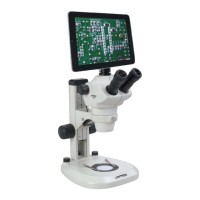

 To Next Page