EasyManua.ls Logo

Universal Audio Apollo - User Manual

Universal Audio Apollo
40 pages
Print Icon
To Next Page IconTo Next Page
Loading...
Hardware Manual
UA Part Number 65-40424
Revision A
Customer Service & Technical Support:
+1-877-MY-UAUDIO (+1-877-698-2834)
International: +1-831-440-1176
www.uaudio.com
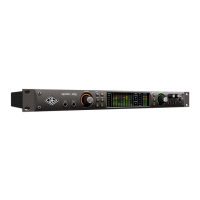
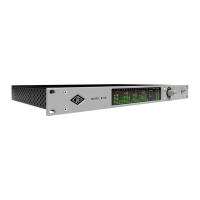
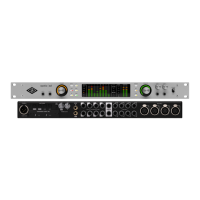
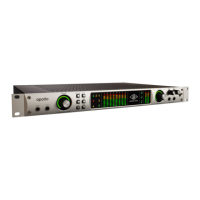
H I GH- R ESO L U T I O N IN TER F A C E
with Realtime UAD Processing

Questions and Answers

  • R
    Roy HamiltonSep 23, 2025
    What causes undesirable echo or phasing with Universal Audio Accessories?
    • B
      Brandon MaddenSep 23, 2025
      Undesirable echo or phasing with your Universal Audio Accessories can occur if input monitoring is enabled in both Console and your DAW. Confirm input monitoring is not enabled in both Console and DAW.
  • C
    Curtis KnappAug 25, 2025
    What to do if my Universal Audio Recording Equipment won’t power on?
    • A
      Amy StewartAug 25, 2025
      If the unit doesn’t power on: * Confirm the power supply connections at the power supply input and the back of the unit. * Confirm that the power switch is not in the "OFF" position. * Confirm that AC power is available at the wall socket by plugging in a different device.
  • D
    dburnsAug 25, 2025
    Why is there static or white noise when nothing is plugged into my Universal Audio Recording Equipment?
    • J
      James WoodardAug 26, 2025
      If you hear static or white noise when nothing is plugged in: * Mute or lower the preamp gain to minimum on all unused preamp channels. Mic preamps can emit noise even when nothing is plugged in. * Some UAD plug-ins model the noise characteristics of the original equipment; defeat the noise model in the UAD plug-in GUI or mute the channel containing the plug-in to temporarily mute the noise.
  • A
    Amy SchneiderAug 26, 2025
    What to do if my Universal Audio Recording Equipment is behaving unexpectedly?
    • N
      Nicholas Thomas DVMAug 27, 2025
      As a last resort, perform a hardware reset on the unit by following these steps: 1. Power off Apollo. 2. Press and hold the PREAMP, LOW CUT, and POLARITY controls. 3. Power on Apollo while continuing to hold all three controls. 4. After all front panel LEDs flash rapidly (after several seconds), release the controls.
  • J
    Jamie JacksonAug 27, 2025
    Why is there no monitor output from my Universal Audio Recording Equipment?
    • S
      Stephen FisherAug 27, 2025
      If there is no monitor output: * Confirm the connections, power, and volume of the monitoring system. * Confirm that the monitor knob is turned up. * Confirm that the monitor outputs are not muted (push the monitor knob). * Confirm that the monitor LEDs are active (check signal flows).
  • T
    Teresa MartinezSep 14, 2025
    Why can't I adjust input channels 1-4 on my Universal Audio Accessories?
    • F
      fandersonSep 14, 2025
      You can only adjust input channels 1-4 on your Universal Audio Accessories because signal levels for all other inputs, including digital inputs, are adjusted at the device connected to those inputs.
  • M
    Michael MillerSep 12, 2025
    What to do if I can't hear anything from channels 1-4 on my Universal Audio Accessories?
    • F
      fryedanielleSep 12, 2025
      If you cannot hear audio from channels 1-4 on your Universal Audio Accessories, make sure the preamp gain is turned up for the affected channel(s).
  • K
    Kimberly White MDSep 13, 2025
    What to do if I can't hear anything from my mic or line inputs on Universal Audio Accessories?
    • B
      Brandy SheltonSep 13, 2025
      If you're not getting any sound from the mic or line inputs on your Universal Audio Accessories, check these: * Confirm the mic/line switch setting is correct for the channel you are using. * Ensure that nothing is plugged into the channel's Hi-Z input.
  • G
    Glenda McbrideSep 4, 2025
    Why preamp controls have no effect on channel of my Universal Audio Recording Equipment?
    • C
      Carolyn PorterSep 5, 2025
      If the preamp controls have no effect on the channel: * Confirm that the desired channel is selected for control (push the PREAMP knob to select). * Note that preamp controls are available for channels 1 – 4 only.
  • T
    Timothy SimpsonSep 2, 2025
    What to do if I can’t hear mic input(s) on my Universal Audio Recording Equipment?
    • B
      bnorrisSep 2, 2025
      If you can’t hear the mic inputs, confirm that +48V phantom power is on (if required by the microphone).

Summary

Front Panel Overview

Rear Panel Connections

Analog and Digital I;O

Describes analog inputs/outputs, monitor outputs, and digital interfaces like ADAT and S/PDIF.

Clocking and Host Connectivity

Covers Word Clock I/O, termination, and host connections via FireWire and Thunderbolt.

Software Installation and Authorization

Software Installation Procedure

Provides simplified steps for installing Apollo hardware and UAD software.

Registration and Authorization Process

Outlines the essential steps for registering and authorizing the Apollo unit online.

Interconnections and Setups

Installation Notes and Basic Setup

Provides installation advice and a basic setup diagram for recording and mixing.

Typical and Advanced Connection Examples

Illustrates typical and complex interconnection scenarios using Apollo with other audio gear.

Digital Clocking Basics

Clock Synchronization Essentials

Explains the importance of clock sync for digital conversion and transmission, master/slave concepts.

Apollo Specifications

System, Analog, and Digital I;O Specs

Details I/O complement, sample rates, analog and digital interface specifications.

Hardware Block Diagram

Troubleshooting Guide

Universal Audio Apollo Specifications

General IconGeneral
TypeAudio Interface
Bit Depth24-bit
ConnectivityThunderbolt
Input ChannelsVaries by model
Output ChannelsVaries by model
CompatibilityMac, Windows
Sample RateUp to 192 kHz

Related product manuals