EasyManua.ls Logo

Universal Audio Arrow - User Manual

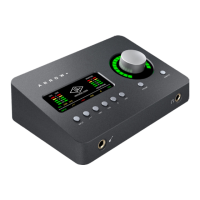
Universal Audio Arrow
272 pages
Print Icon
To Next Page IconTo Next Page
Loading...
Arrow Manual
Thunderbolt 3-Powered Audio Interface
www.uaudio.com
Manual Version 180131
UAD Software Version 9.5

Table of Contents

Questions and Answers

  • C
    Chelsea FosterAug 17, 2025
    What to do if Universal Audio Arrow Recording Equipment is not recognized by computer?
    • J
      Justin EdwardsAug 17, 2025
      If your Universal Audio Recording Equipment is not being recognized by your computer, make sure the Thunderbolt 3 cable is fully inserted at both ends. Also, confirm that the latest software is installed (reinstall if necessary). Finally, check that you are using a Thunderbolt 3 port on your computer and not a USB 3.1 port via USB-C.
  • M
    michaelandersonAug 20, 2025
    How to fix Universal Audio Arrow Recording Equipment that won't power on?
    • S
      sanfordlaurieAug 20, 2025
      If your Universal Audio Recording Equipment won't power on, try the following: Ensure the Thunderbolt 3 cable is securely connected to the device and to the built-in Thunderbolt 3 port on your computer. Make sure your computer is powered on. Try using a different Thunderbolt 3 cable, keeping in mind that not all USB-C cables are Thunderbolt 3 cables.
  • B
    Brenda SchneiderAug 22, 2025
    Why is there no monitor output from my Universal Audio Arrow Recording Equipment?
    • J
      Joseph SandovalAug 22, 2025
      If there's no monitor output from your Universal Audio Recording Equipment, first, check the connections, power, and volume of your monitoring system. Then, ensure that the device's monitor level is turned up and that the monitor outputs are not muted (push the MUTE button when in monitor mode). Finally, confirm that the monitor LEDs are displaying signal activity by checking signal flows.
  • M
    Michelle CannonAug 26, 2025
    What to do if I can't hear mic or line input(s) on my Universal Audio Arrow?
    • M
      Mark CallahanAug 26, 2025
      If you can't hear mic or line inputs on your Universal Audio Recording Equipment, verify that the mic/line switch setting is correct for the channel. Also, make sure the preamp gain is turned up for the channel(s). If you're using channel 1, ensure that nothing is plugged into the Hi-Z input.
  • I
    icollierAug 28, 2025
    How to resolve audio glitches during DAW playback with Universal Audio Arrow Recording Equipment?
    • J
      John BondAug 28, 2025
      If you are experiencing audio glitches or dropouts during DAW playback with your Universal Audio Recording Equipment, try increasing the hardware I/O buffer size value in your DAW (on Mac) or Console (on Windows).
  • A
    Amber GardnerAug 30, 2025
    Why can’t I hear mic input(s) on my Universal Audio Arrow Recording Equipment?
    • R
      Ruth ClaytonAug 30, 2025
      If you can't hear mic inputs on your Universal Audio Recording Equipment, confirm that +48V phantom power is enabled if your microphone requires it.
  • M
    matthewdavisSep 2, 2025
    What to do if I can't hear Hi-Z input on my Universal Audio Arrow?
    • A
      Anne TuckerSep 2, 2025
      If you can't hear the Hi-Z input on your Universal Audio Recording Equipment, first, ensure the volume on the connected device is turned up. Second, confirm that the Hi-Z input cable is a 1/4” TS cable, as TRS cables cannot be used with the Hi-Z input.
  • T
    taylor93Sep 5, 2025
    How to fix undesirable echo/phasing with Universal Audio Arrow Recording Equipment?
    • M
      Martin SchultzSep 5, 2025
      If you are experiencing undesirable echo or phasing with your Universal Audio Recording Equipment, confirm that input monitoring is not enabled in both Console and your DAW.
  • K
    Kelly HintonSep 8, 2025
    Why is there static and/or white noise from my Universal Audio Recording Equipment?
    • R
      Rachael HernandezSep 8, 2025
      If you hear static or white noise from your Universal Audio Recording Equipment when nothing is plugged in, try muting or lowering the preamp gain to the minimum on unused preamp channels, as mic preamps can emit noise even when nothing is plugged in. Also, some UAD plug-ins model the noise characteristics of the original equipment. Defeat the noise model in the UAD plug-in interface, or mute the channel containing the plug-in to temporarily mute the noise.
  • A
    allisonalvaradoSep 12, 2025
    Why do preamp controls have no effect on a channel of my Universal Audio Arrow?
    • M
      mariafoleySep 12, 2025
      If the preamp controls have no effect on a channel of your Universal Audio Recording Equipment, confirm that the desired channel is selected for control by pushing the PREAMP button to select the channel when in PREAMP mode.

Summary

Introducing Arrow

Arrow Hardware Features

Details the physical components and capabilities of the Arrow audio interface.

Arrow Software Features

Outlines the functionalities of the Console application and associated software.

Getting Started

Hardware Setup

Steps for connecting and physically setting up the Arrow audio interface.

Software Setup

Instructions for installing the necessary software and drivers for Arrow.

Audio Setup

Guidance on connecting audio sources and monitoring systems to the Arrow interface.

Setting Hardware Input;Output Levels

How to adjust gain and volume levels for inputs and outputs.

Hardware Controls & Connectors

Top Panel

Explains the controls and indicators on the Arrow's top panel.

Display Panel

Details the information displayed on the Arrow's front panel display.

Arrow System Overview

Arrow Software

Overview of the Console application and its role in the Arrow system.

Working With Arrow

Setting the DAW to use Arrow I;O

Guide on configuring your Digital Audio Workstation to recognize Arrow's inputs/outputs.

Input Monitoring with the DAW

Explains how to monitor audio inputs while using a DAW with Arrow.

Using Console with the DAW

Describes how to integrate Console with your Digital Audio Workstation for optimal workflow.

Console Overview

Console Settings Overview

Outlines the global parameters configurable within Console Settings.

Console Reference

Console Plug-In Inserts

Presets Manager

How to save, load, and manage UAD plug-in and channel strip presets.

Console Settings

Hardware Settings Panel

Configures system-level I/O settings like sample rate and reference levels.

I;O Matrix Panel

Allows customization of I/O routings and channel names at the driver level.

Unison

Activating Unison

Steps to insert and enable Unison plug-ins in Console.

Gain Stage Mode

How to control individual gain stages of Unison plug-ins via hardware.

Console Recall Plug-In

How To Use Console Recall

Instructions for using the Console Recall plug-in for DAW integration.

UAD Meter & Control Panel

Using UAD Plug-Ins

Tempo Sync

UA Account & Store

UAD Authorization Procedure

Offline UAD Authorization

Latency & Arrow

Input Delay Compensation in Console

Explains Console's IDC for maintaining phase alignment.

Minimizing UAD Input Latency When Software Monitoring

Techniques to reduce input latency when using DAW software monitoring.

Device Drivers

Troubleshooting

Specifications

Notices

Important Safety Information

Crucial safety suggestions for operating the unit.

Technical Support

Universal Audio Arrow Specifications

General IconGeneral
TypeAudio Interface
ConnectivityThunderbolt 3
Input Channels2
Output Channels2
Simultaneous I/O2 x 4
Preamps2
Phantom PowerYes
A/D Resolution24-bit/192 kHz
Analog Inputs2 x XLR/TRS Combo
Headphones1 x 1/4"
Thunderbolt Ports1 x Thunderbolt 3
Power SupplyBus powered
SoftwareUAD Software
CompatibilityMac, Windows
Analog Outputs2 x 1/4" TRS

Related product manuals