Arrow Manual Console Plug-In Inserts 140
Inserts Signal Flow
Audio signals in a Console channel flow through the inserts serially from top to bottom.
Therefore, if more than one plug-in is inserted in a channel, the location of a plug-in
within the inserts processing chain can impact the sound of the channel.
Tip: Console plug-ins can be reordered to change the serial signal processing order
by dragging them to a different insert.
Inserting UAD Plug-Ins
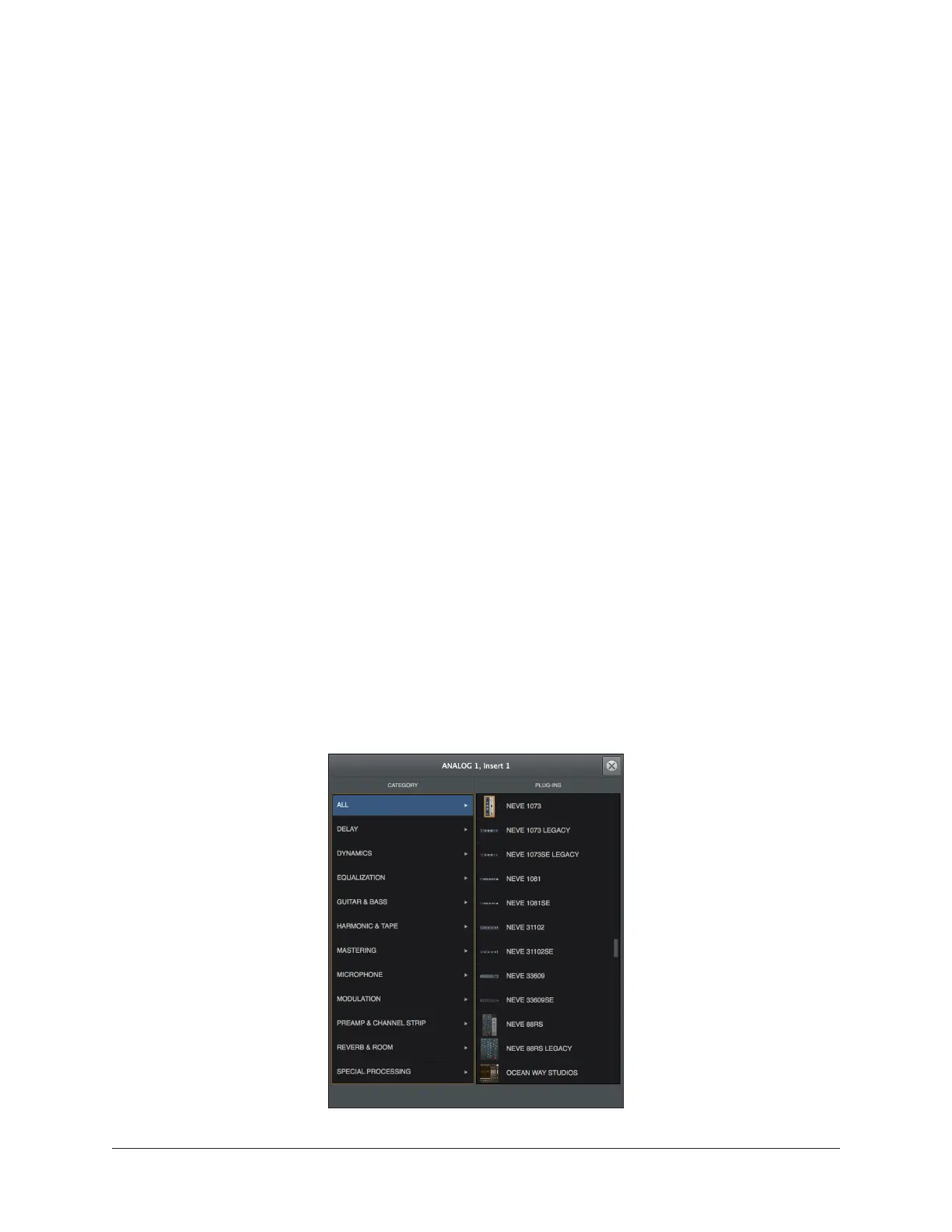
To insert a UAD plug-in within Console, click the “+” symbol in any empty insert slot to
display the Insert Assign Popover, where individual UAD plug-ins can be selected.
Removing UAD Plug-Ins
To remove UAD plug-ins from Console, right-click the insert containing the plug-in and
choose Remove from the Insert Options Menu, or click the Remove function icon in the
Insert Hover Options.
Editing UAD Plug-Ins
If the insert already contains an assigned plug-in, clicking the insert opens the Plug-In
Editor Window, where plug-ins can be adjusted and/or plug-in presets can be managed.
Insert Assign Popover
Clicking any empty insert slot displays the Plug-Ins Manager popover window. Click any
UAD plug-in from any category in the popover to load the plug-in into the insert.
Insert Assign popover




 To Next Page