EasyManua.ls Logo

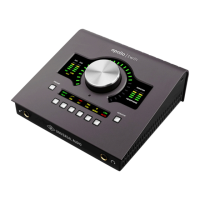
Universal Audio Apollo Twin - User Manual

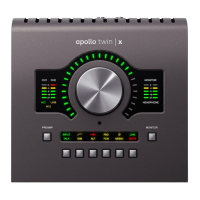
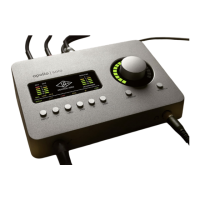
Universal Audio Apollo Twin
33 pages
Print Icon
To Next Page IconTo Next Page
Loading...
Apollo Twin Hardware Manual
Customer Service & Technical Support:
USA Toll-Free: +1-877-698-2834
International: +1-831-440-1176
www.uaudio.com
Manual Version 150408

Other manuals for Universal Audio Apollo Twin

Questions and Answers

  • M
    Marissa OconnellAug 18, 2025
    What to do if Universal Audio Recording Equipment is not recognized by computer?
    • R
      Rebecca MillerAug 18, 2025
      If your Universal Audio Recording Equipment is not being recognized by your computer: * Make sure the USB 3 SuperSpeed cable is fully inserted at both ends. * Confirm the latest Apollo Twin USB software is installed (reinstall if needed). * Power down your system, power on the Apollo Twin USB, and then start your computer. * Try using a different USB 3 SuperSpeed cable, as USB 2 cables are not compatible.
  • E
    erodriguezAug 20, 2025
    What to do if Universal Audio Apollo Twin unit won’t power on?
    • N
      Nicole MolinaAug 21, 2025
      If your Universal Audio Recording Equipment unit isn't powering on: * Ensure the power supply connector is fully inserted and locked by twisting the barrel. * Check that the power switch is in the “ON” position. * Verify AC power is available at the wall socket by plugging in another device.
  • M
    Miranda PerezAug 23, 2025
    What to do if I can't hear mic or line input(s) on Universal Audio Apollo Twin Recording Equipment?
    • J
      Jose NavarroAug 23, 2025
      If you can't hear mic or line inputs on your Universal Audio Recording Equipment: * Check that the mic/line switch setting is correct for the channel. * Make sure the preamp gain is turned up for the channel(s) you are using. * Ensure nothing is plugged into the Hi-Z input on channel 1.
  • A
    adamrothAug 26, 2025
    Why is there no monitor output from my Universal Audio Apollo Twin?
    • K
      Kellie Porter DVMAug 26, 2025
      If you're not getting any monitor output from your Universal Audio Recording Equipment, check the following: * Confirm the connections, power, and volume of your monitoring system. * Ensure the Apollo Twin USB monitor level is turned up. * Verify the monitor outputs are not muted by pushing the level knob when in monitor mode. * Confirm that the monitor LEDs are active, indicating signal flow.
  • M
    Melissa JordanAug 28, 2025
    What to do if Universal Audio Apollo Twin Recording Equipment is behaving unexpectedly?
    • A
      Amanda BenjaminAug 28, 2025
      If your Apollo Twin USB Recording Equipment is behaving unexpectedly, try performing a hardware reset: 1. Power off the Apollo Twin USB. 2. Press and hold the LEVEL KNOB, LOW CUT, and POLARITY controls. 3. Power on the Apollo Twin USB while continuing to hold all three controls. 4. After all front panel LEDs flash rapidly for several seconds, release the controls.
  • L
    Lawrence ThompsonAug 30, 2025
    What to do if I can't hear Hi-Z input on Universal Audio Apollo Twin Recording Equipment?
    • J
      Justin MillsAug 31, 2025
      If you can't hear the Hi-Z input on your Universal Audio Recording Equipment: * Make sure the volume on the connected device is turned up. * Confirm the Hi-Z input cable is a 1/4” TS cable, as TRS cables are not compatible with the Hi-Z input.
  • J
    Jennifer BondSep 2, 2025
    What to do if I experience audio glitches and/or dropouts during playback with Universal Audio Apollo Twin Recording Equipment?
    • G
      George MurraySep 2, 2025
      If you're experiencing audio glitches and/or dropouts during playback with your Universal Audio Recording Equipment: * Increase the Hardware Buffer value in Console Settings>Hardware panel. * If syncing to an external digital clock via optical input, confirm clocking setups, including optical cable connections, matching sample rates, and ensuring all devices are synchronized to one master clock device.
  • A
    Ariel DavisSep 5, 2025
    Why preamp controls have no effect on channel of Universal Audio Apollo Twin?
    • T
      taylorrobertSep 5, 2025
      If the preamp controls have no effect on a channel of your Universal Audio Recording Equipment, make sure the desired channel is selected for control by pushing the level knob to select the channel when in PREAMP mode.
  • A
    Angela HallSep 7, 2025
    Why is there static and/or white noise heard when nothing is plugged into Universal Audio Recording Equipment?
    • M
      Maurice DunnSep 7, 2025
      If you hear static and/or white noise when nothing is plugged into your Universal Audio Recording Equipment: * Mute or lower the preamp gain to the minimum on unused preamp channels, as mic preamps can emit noise even when nothing is plugged in. * Some UAD plug-ins model the noise characteristics of the original equipment. You can defeat the noise model in the UAD plug-in interface or mute the channel containing the plug-in to temporarily mute the noise.
  • L
    lisakennedySep 10, 2025
    Why is there undesirable echo/phasing on Universal Audio Apollo Twin?
    • M
      Mary HowardSep 10, 2025
      If you're experiencing undesirable echo or phasing on your Universal Audio Recording Equipment, make sure input monitoring is not enabled in both Console and your DAW simultaneously.

Summary

Chapter 1: Introduction

Technical Support

Provides contact information and methods for obtaining technical assistance.

Chapter 2: Quick Start

Hardware Setup

Guides on connecting and powering the Apollo Twin hardware unit.

Software Setup

Details system requirements, software installation, and registration processes.

Setting Hardware I;O Levels

Explains how to adjust input gain and output volume levels on the unit.

Chapter 3: Controls & Connectors

Preamp Input Controls and Settings

Details channel selection, input types (Mic, Line, Hi-Z), and preamp options.

Chapter 5: Notices

Important Safety Information

Crucial safety guidelines for using the unit, including water, heat, and ventilation.

Universal Audio Apollo Twin Specifications

General IconGeneral
TypeAudio Interface
Phantom PowerYes
A/D Resolution24-bit
DSPYes
Number of Preamps2
Line Inputs2
Line Outputs2
Output Channels6
Monitor Outputs2
Analog Outputs2 TRS
Headphones1
Sample Rates44.1kHz, 48kHz, 88.2kHz, 96kHz, 176.4kHz, 192kHz
Operating SystemMac, Windows
Preamps2
DSP ProcessingYes
ConnectivityThunderbolt
Analog Inputs2 XLR/TRS combo

Related product manuals