EasyManua.ls Logo

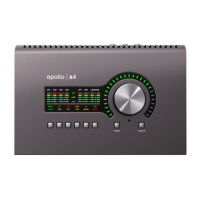
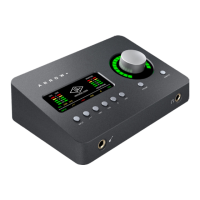
Universal Audio Apollo Twin X - User Manual

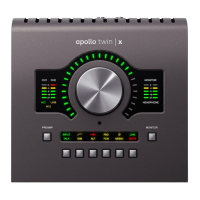
Universal Audio Apollo Twin X
40 pages
Print Icon
To Next Page IconTo Next Page
Loading...
Apollo Twin X Hardware Manual
www.uaudio.com
Manual Version 200714

Questions and Answers

  • D
    david25Aug 18, 2025
    What to do if my Universal Audio Recording Equipment unit is not recognized by computer?
    • J
      Jeffrey KingAug 18, 2025
      First, ensure the Thunderbolt 3 cable is fully inserted at both ends. Next, confirm the latest Apollo Twin X software is installed; reinstall if necessary. Power off the entire system, then power on the Apollo Twin X before starting the computer. Lastly, try using a different Thunderbolt 3 cable.
  • B
    brian06Aug 20, 2025
    What to do if my Universal Audio Apollo Twin X won’t power on?
    • A
      Andrew CopelandAug 20, 2025
      First, ensure the power supply connector is fully inserted and twisted to lock. Next, check that the power switch is in the “ON” position. Finally, verify AC power is available at the wall socket by plugging in another device.
  • N
    Nicole ThomasAug 23, 2025
    What to do if there is no monitor output from my Universal Audio Apollo Twin X Recording Equipment?
    • K
      Kathryn GuerraAug 23, 2025
      First, confirm the connections, power, and volume of your monitoring system. Then, check that the Apollo Twin X monitor level is turned up by pressing the MONITOR button first. Also, ensure the monitor outputs are not muted by pushing the MUTE button when in Monitor mode. Finally, confirm that the monitor LEDs are active to ensure signal flow.
  • M
    Michael MurphyAug 26, 2025
    Why can't I hear mic or line input(s) on my Universal Audio Apollo Twin X?
    • J
      Joshua HammondAug 26, 2025
      First, check that the mic/line switch setting is correct for the channel (CH1 or CH2). Next, ensure the mic/line setting matches the input plug for the channel (XLR or ¼”). Also, confirm the preamp gain is turned up for the channel(s). Finally, for channel 1, make sure nothing is plugged into the Hi-Z input.
  • E
    Emily JohnsonAug 28, 2025
    What to do if I can’t adjust digital input levels on my Universal Audio Apollo Twin X?
    • C
      carterdanaAug 28, 2025
      Signal levels for digital inputs are adjusted at the device connected to those inputs. If needed, UAD plug-ins in Console can be used to add or reduce signal gain.
  • D
    Daniel CoxAug 30, 2025
    How to fix audio glitches and dropouts during DAW playback with Universal Audio Apollo Twin X?
    • N
      Nicole TaylorAug 30, 2025
      Try increasing the I/O buffer size setting. On Mac, this is in the DAW settings; on Windows, it’s in Console settings. If syncing to an external digital clock via optical input, verify the clocking setups, including optical cable connections, matching sample rates, and that all devices are synchronized to one master clock device.
  • T
    tarawardSep 2, 2025
    How to stop undesirable echo or phasing on Universal Audio Apollo Twin X Recording Equipment?
    • R
      robertlongSep 2, 2025
      First, confirm input monitoring is not enabled in both Console and DAW. If monitoring via Console, disable software input monitoring, which is recommended. If using software input monitoring via DAW, mute all Console inputs.
  • Z
    zhallSep 4, 2025
    Why can't I hear mic input(s) on my Universal Audio Recording Equipment?
    • E
      Elizabeth PowellSep 5, 2025
      Make sure that +48V phantom power is enabled if your microphone requires it.
  • C
    curtishaleySep 7, 2025
    What to do if my Universal Audio Apollo Twin X Recording Equipment is behaving unexpectedly?
    • M
      Mary JohnsonSep 7, 2025
      As a last resort, perform a hardware reset on the unit. To do this: 1. Power off the Apollo Twin X. 2. Press and hold the PREAMP, FILTER, and POLARITY buttons. 3. Power on the Apollo Twin X while continuing to hold all three controls. 4. After all front panel LEDs flash rapidly for several seconds, release the controls.
  • M
    Maurice MaciasSep 9, 2025
    Why can't I hear Hi-Z input on my Universal Audio Recording Equipment?
    • K
      Kelly BrownSep 9, 2025
      First, make sure the volume on the connected device is turned up. Also, confirm the Hi-Z input plug is a 1/4” mono TS. Note that TRS cables cannot be used with the Hi-Z input.

Summary

Introduction to Apollo Twin X

Elite Conversion & Analog Processing

Covers A/D, D/A conversion and onboard analog emulation plug-ins for superior sound.

Apollo Twin X Features Overview

Operational Overview

Console Software and UAD Plug-Ins

Guides on Console application use, Realtime UAD Processing, and UAD plug-ins.

Quick Start Guide

Initial Setup and Installation

Outlines connecting, installing software, registration, and authorization.

Connection and Hardware Setup

Details Thunderbolt 3 connectivity, ports, cables, and power connection.

Controls & Connectors

Specifications

Troubleshooting

Common Troubleshooting Scenarios

Lists symptoms and items to check for common issues like power, recognition, and audio problems.

Important Safety Information

General Safety Precautions

Essential safety precautions for using the apparatus, including ventilation and power.

Universal Audio Apollo Twin X Specifications

General IconGeneral
TypeAudio Interface
ConnectivityThunderbolt 3
Headphones1 x 1/4"
AD/DA Conversion24-bit/192kHz
Simultaneous I/O10 x 6
Number of Preamps2
Input Channels2
Output Channels4
UAD Plug-in SupportYes
Monitor Outputs2
Inputs2 x XLR/TRS combo, 1 x Hi-Z Instrument
Outputs2 x Monitor, 2 x Line
Phantom PowerYes
Weight2.35 lbs
Digital Inputs1 x Optical Toslink (ADAT/SPDIF)
UAD Plug-in ProcessingRealtime UAD Plug-in Processing
Included SoftwareRealtime Analog Classics Plus plug-in bundle
Operating SystemMac, Windows
Thunderbolt ConnectivityYes (Thunderbolt 3)
DSP ProcessingUAD-2

Related product manuals