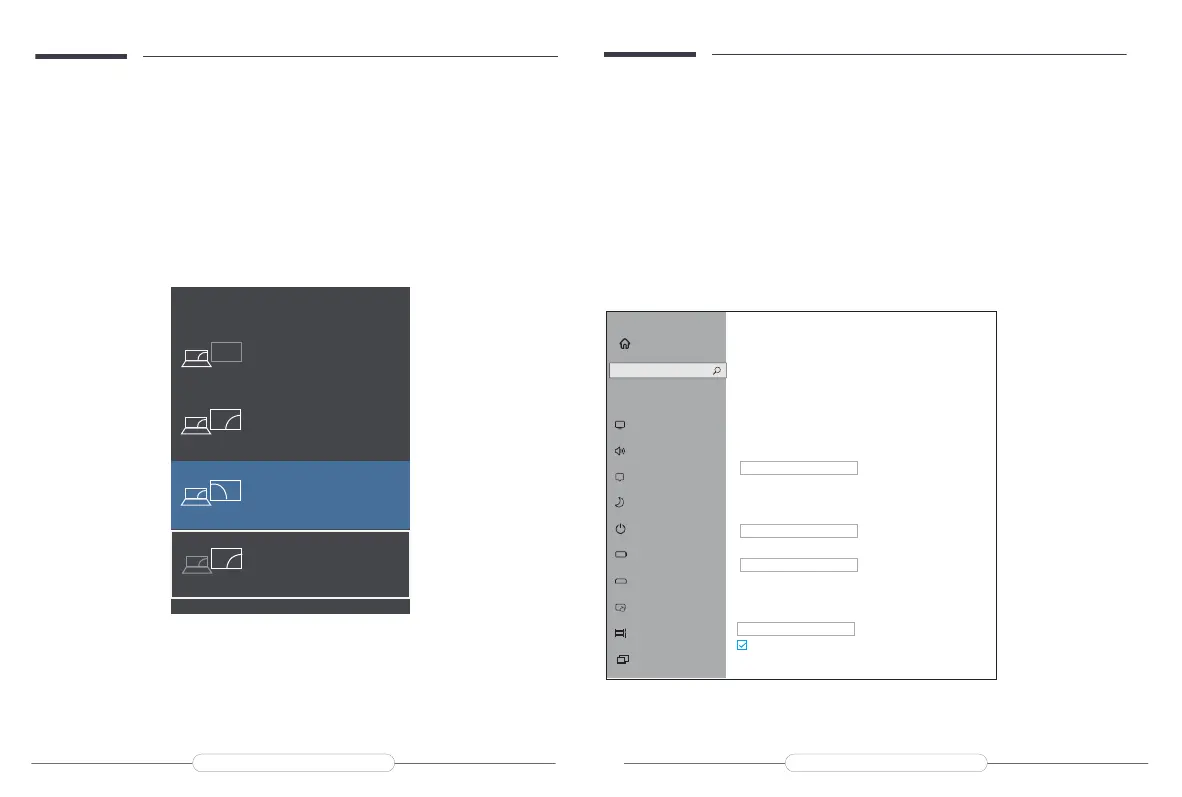
Rotate the Screen
Note: If you cannot see the additional monitor(s) listed, click Detect. If does
not work, try restarting your computer and do steps again.
Way2: Set via Windows key + Pkeyboard shortcut
A: Verify that your cables are connected properly to the new monitors.
B: Enter the “Windows” key and “P”keyboard at the same time.
C: select an option from the drop-down list to determine how your desktop will display across
your screens. For the largest work area, select Extend desktop.
Note: If you cannot see the additional monitor(s) listed, click Detect. If does
not work, try restarting your computer and do steps again.
1: Verify that your cables are connected properly to the new monitors.
2: Right-click anywhere on your desktop and select Display settings to open the Display page.
3: Under the "Select and rearrange displays" section, select the monitor that you want to adjust.
4: Under the "Scale and layout" section, use the Orientation drop-down menu to select
Landscape or Portrait screen.
PROJECT
PC screen only
Duplicate
Extend
Second screen only
Home
Find a setting
System
Settings
Display
Get a brighter and more vibrant picture for videos, games and apps that
support HDR
Windows HD Color settings
Scale and layout
Change the size of text , apps , and other items
125%
Advanced scaling settings
Display resolution
3840 × 2160(Recommended)
Display orientation
Landscape
Multiple displaysy
Multiple displays
Show only on 2
Make this my main display
Display
Sound
Notications & actions
Focus assist
Power & sleep
Battery
Storage
Tablet
Multitasking
Projecting to this pc
Email: help@uperfectmonitor.com Email: help@uperfectmonitor.com


 To Next Page