
 Need help?
Do you have a question about the US Robotics Sportster and is the answer not in the manual?
Explains COM ports and IRQs essential for modem configuration.
Guide to using ComTest for identifying available COM ports and IRQs.
Procedure to check settings of an already installed modem.
Advice on handling ComTest's suggested COM and IRQ settings.
Instructions for physically adjusting modem jumper settings for COM/IRQ.
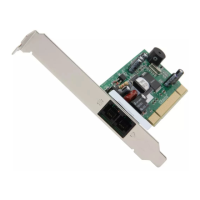
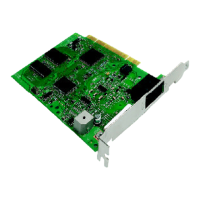
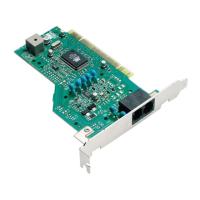
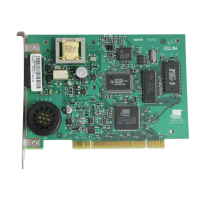
Step-by-step physical installation of the internal modem into the PC.
Overview of Windows 95 Plug and Play modem installation.
Steps to prepare the system and handle the modem before installation.
Physical insertion process for the internal modem into the computer.
Guide to navigating Windows 95 prompts for new hardware detection.
Guidance on selecting the correct RS-232 serial cable for PC connection.
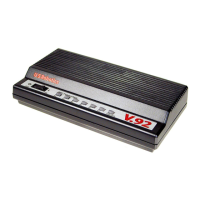
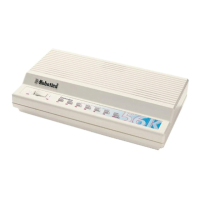
Steps to physically connect the external modem to the computer and power.
Guidance on selecting the correct RS-232 serial cable for PC connection.
Steps to physically connect the external modem to the computer and power.
Comprehensive guide to installing software and registering the modem via Setup Wizard.
Procedure for sending a test fax using the installed software.
How to select the correct modem type in communication software.
Setting the AT&F1 or AT&F2 initialization string for modem setup.
Configuring hardware (RTS/CTS) or software (XON/XOFF) flow control.
Determining UART type and its relation to serial port rates.
Explains the functionality and benefits of Modem Station utility.
Reasons for using Modem Station over manual commands.
Steps to install Modem Station from the Connections CD-ROM.
How to launch and access the Modem Station main menu.
Using Modem Station to scan for and identify installed modems.
Using the Terminal function for direct modem communication and commands.
Using the Modem Configurator for advanced settings and troubleshooting.
Configuring basic communication settings like port speed and parity.
Adjusting modem connection and transmission settings.
Controlling modem-computer communication and data display.
Configuring modem speeds and communication protocols.
Adjusting modem call initiation and reception settings.
Managing phone numbers stored in the modem's memory.
Accessing detailed modem information via specific screens.
Steps to install the Modem Update Wizard from the Connections CD.
Procedures for running the Modem Update Wizard to update modem code.
Troubleshooting steps when the modem is not detected by the system.
Diagnosing and resolving issues with garbled characters displayed on the monitor.
Solutions for modem dialing or answering failures.
Troubleshooting connection link establishment failures.
Resolving issues preventing x2 high-speed Internet connections.
Addressing connection issues at lower speeds with similar modems.
Troubleshooting garbled screen output and character display problems.
Diagnosing CRC errors and low data transfer rates in communication software.
Troubleshooting persistent errors during V.17 fax transmissions.
Resolving issues with RapidComm failing to initialize the modem.
Information on accessing online support and resources like the U.S. Robotics BBS.
Step-by-step guide to connect to the U.S. Robotics Bulletin Board System.
Instructions for downloading the Technical Reference Guide.
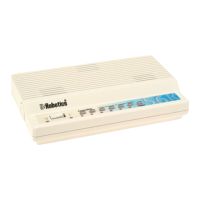
Explains the meaning and status of front panel lights on external modems.
Overview of AT commands for modem control and their syntax.
Details the function and settings of DIP switches on modems.
Lists and explains the function of various S-registers for modem configuration.
Explains the serial interface standard and pin definitions for modem connectivity.
Declaration of product compliance with FCC standards.
Warning regarding unauthorized modifications to the equipment.
Information on digital apparatus compliance with Canadian standards.
Details UL and CUL listing for IT equipment compatibility.
Guidelines for connecting the modem to the telephone network.
Requirements for fax message branding under the Telephone Consumer Protection Act.
Information on FCC compliance for radio and TV interference.
 General
| Model | Sportster |
|---|---|
| Category | Modem |
| Fax Transmission Rate | Up to 14.4 Kbps |
| Error Correction | V.42 |
| Data Compression | V.42bis |
| Interface | RS-232 |
| Protocols | V.34 |
| Power Supply | AC adapter |


 To Next Page