4.3 Personalisation with Grants
You need Grants to use “Personal Locker mode”.
A user can personalise a lock C with a Grant.
A user needs a locker on site for a long period of time
and wants to make sure that no one else can close or
open the lock. The user needs a Grant for this.
As Power User, you can assign the user the appropri-
Distributing Grants to users
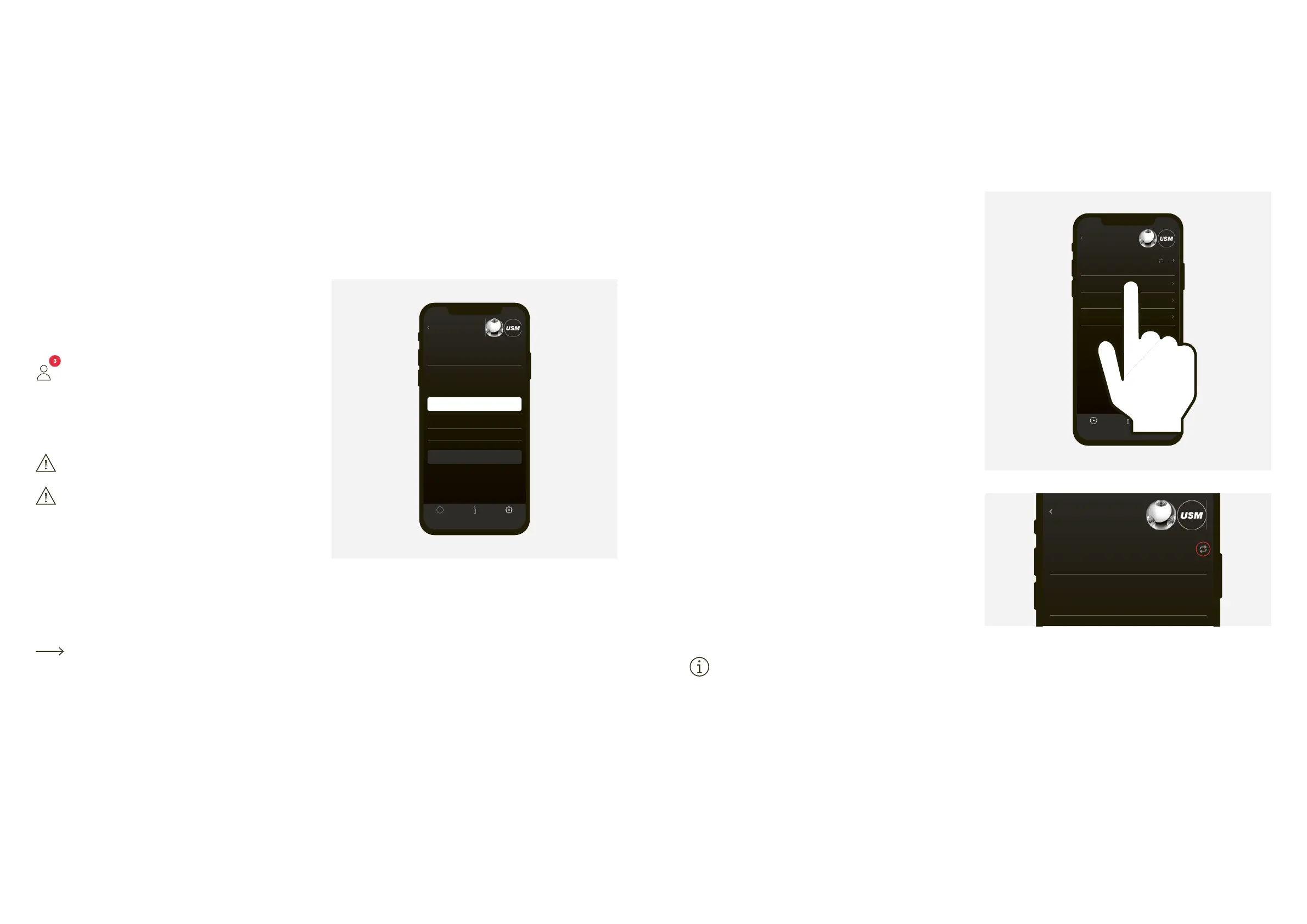
1. Go to “Grants” in the admin area.
2. Press “Distribute Grant(s) to user” and follow the instructions
Once one or more Grants have been successfully
distributed, the user will see this on his/her home
screen. A Grant is deducted as soon as a user
You can also revoke Grants.
Only distribute Grants if you intend to use “Personal
Always consult with the relevant lock C user before
revoking Grants. That way he/she can empty the
locker and depersonalise it him/herself. Revoke the
If a user wishes to grant access to his/her locker to another
user and thus use the lock C in “Shared Locker mode”, this is
possible just after a lock C has been personalised. The user
can do this him/herself in the app.
Now inform the users about the product and how to
If key cards are used for operating the locks, distrib-
ute them to the relevant users.
The “Lock settings” are displayed per lock. These
settings include additional functions as well as
maintenance and management tasks.
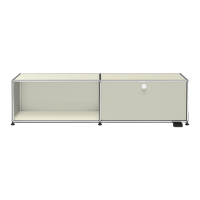
Displaying the lock settings
1. Tap on the desired lock. You will then be taken to the
“Lock settings” of the selected lock C.
2. Update the data by tapping on the “Update” icon and
following the instructions in the app.
If you don’t know which is the desired lock in the
list, don’t select any of the locks in the “Lock pool”
area and tap on the “Update” icon directly there,
then follow the instructions in the app.
With a Grant a user can personalise a lock C
(Personal Locker mode). Personalised lockers can be shared
with others.
Distribute Grants to user
Distribute Grants to user
Last Scan: 01-05-2022 08:15


 To Next Page