As the Power User, USM recommends that you
use the USM app in any event. With your Power User
account, you can easily manage and maintain the
locks via the admin area.
Registering as Power User
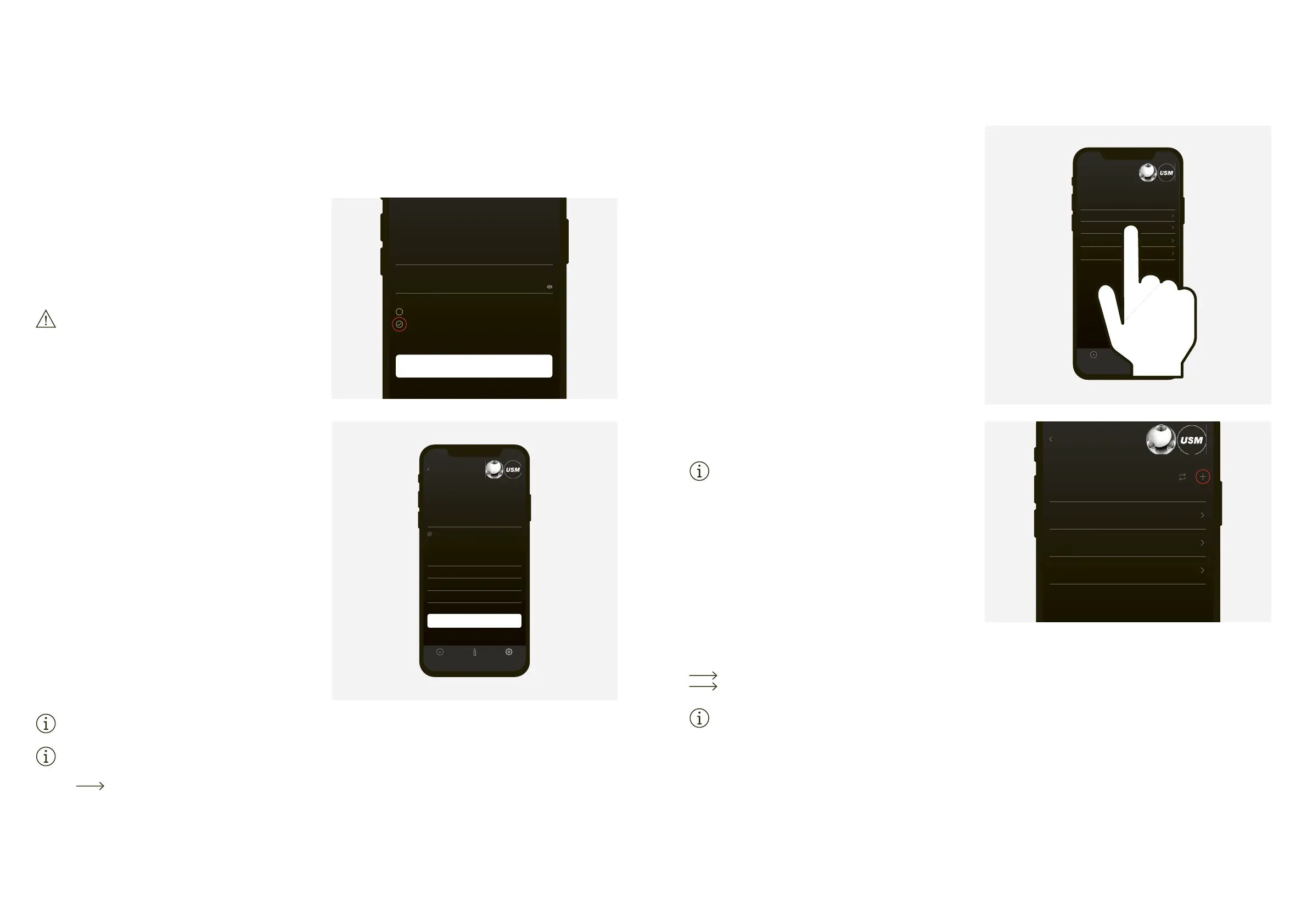
2. Select the desired language.
4. Once you have registered, log in to the app.
Before logging in, make sure that you tick the
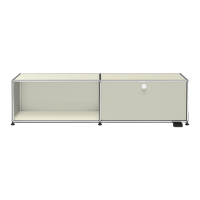
5. Once you have logged in, tap on “Change contact
information” in the admin area.
6. Fill in your details (e-mail, name, address, city, country).
Press “Update settings” to confirm.
You will then return to the admin area.
You are now the Power User with access to the admin
If, as Power User, you also wish to use a lock C
yourself, untick the “Power User” tick box when
logging in. That way you can log in as a user.
4 Management with the USM app
Under “Lock pool” you can see an overview of the
locks you manage as Power User. These locks are
linked to your Admin card and your admin area.
You can view the data and settings of each lock,
set additional functions or carry out actions per
Including a lock C in a lock pool
1. Press “Lock pool” in the admin area.
2. Then tap on the + symbol and follow the instructions in
The lock has been successfully included in the lock
pool and is displayed in the app.
3. Check if a firmware update is available in the relevant
“Lock settings” and if so, carry it out.
Repeat this procedure for all locks.
To become a power user, you must have at least
one admin card.
Change contact information


 To Next Page