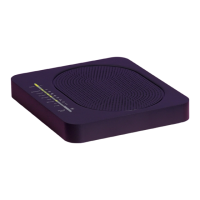
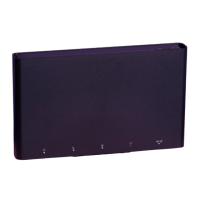
This document is a setup guide for the Utility Warehouse (UW) Value router, designed to help users get online quickly and optimize their broadband service.
Function Description:
The UW Value router serves as the central hub for your internet connection, enabling both wired and wireless access to the internet for various devices in your home or business. It connects to your telephone line (via a master socket or pre-filtered master socket) and distributes the internet signal. The router features indicator lights on its front panel to display the status of its various functions, including power, Ethernet, broadband connection, internet activity, TV service, upgrade status, wireless connectivity, and WPS (Wi-Fi Protected Setup).
Important Technical Specifications (inferred from the guide):
- Connectivity: Supports DSL (Digital Subscriber Line) for broadband connection.
- Ports: Includes a DSL port for connecting to the telephone line, multiple Ethernet ports (yellow) for wired connections, and a power input.
- Wireless: Features Wi-Fi connectivity with WPS for easy setup.
- Indicator Lights:
- Power: Indicates the router's power status (Green: ready; Blue: Wi-Fi disabled; Orange: starting up; Red: error; Off: no power).
- Ethernet: Indicates active wired connections.
- Broadband: Shows the status of the broadband connection (Green: detected and active; Green flashing: detected and synchronizing; Off: no connection).
- Internet: Displays internet activity (Green: connected with no traffic; Green flashing: connected with traffic; Red flashing: trying to connect; Off: no internet connection).
- TV: (Presence of this light suggests potential support for UW TV services, though not explicitly detailed in this guide).
- Upgrade: (Presence of this light suggests potential for firmware upgrades or service updates).
- Wireless: Indicates Wi-Fi status.
- WPS: Indicates WPS activity.
- Accessories: Comes with a stand, DSL cable (grey with grey ends), Ethernet cable (white with yellow ends), power supply, and a Wireless Settings Card. A microfilter is provided if requested and needed for standard master sockets.
Usage Features:
- Easy Setup: The guide provides clear, step-by-step instructions for connecting the router, whether you have a standard master socket (requiring a microfilter) or a pre-filtered master socket.
- Upright Positioning: The router is designed to be used in an upright position with the provided stand, likely for optimal signal dispersion and ventilation.
- Wireless Connectivity (Wi-Fi):
- Standard Connection: Users can connect to the Wi-Fi network by finding the network name (SSID) from the Wireless Settings Card or the back of the router and entering the wireless key (password).
- WPS (Wi-Fi Protected Setup): For compatible devices, a WPS button on the side of the router allows for automatic, secure connection without manually entering the password.
- Wired Connectivity (Ethernet): Multiple yellow Ethernet ports on the back of the router allow for stable, high-speed wired connections to devices like computers (indicated by a specific symbol on PCs and Macs).
- Troubleshooting Guide: The manual includes a comprehensive "Broadband problems solved" section with explanations for each indicator light status (Power, Broadband Signal, Internet) and corresponding actions to resolve common issues.
- Support Resources:
- Online Video Guide: A quick video walk-through for setup is available at
uw.link/router-set-up.
- Contact Information: Technical Support is available via phone (0333 777 0555 for residential, 0344 815 0040 for business) and email (
uw.co.uk/help/contact-us). Support hours are Monday-Friday 8am-8pm and Saturday 9am-4:30pm. Calls from UW landlines or mobiles (as part of an inclusive call bundle) are free.
Maintenance Features (inferred from the guide):
- Regular Checks: Users are advised to regularly check connections, power lights, Wi-Fi enablement, and wireless settings card details as part of troubleshooting.
- Restarting Equipment: A common troubleshooting step involves restarting the router by pressing the on/off button on the back, waiting 20 seconds, and then turning it back on. This can resolve many temporary connectivity issues.
- Microfilter Management: For standard master sockets, it is crucial to connect a microfilter to every telephone socket in use to prevent interference with the broadband signal. Additional microfilters can be ordered from UW.
- Firmware Updates (implied): The presence of an "Upgrade" indicator light suggests that the router may receive firmware updates to improve performance, security, or add new features. While not explicitly detailed as a user-initiated maintenance task, it implies the router is designed for ongoing software support.

 Need help?
 General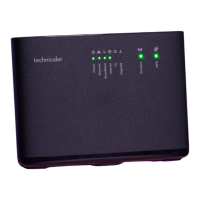

 To Next Page