EasyManua.ls Logo

V-TEK DF7 - User Manual

V-TEK DF7
12 pages
Print Icon
To Next Page IconTo Next Page
Loading...
-
1
-
DT-ENG-DF7-V1 20230921
DF7
DF7
2 Wire Intercom System
7” TFT Monitor
DF7-WS DF7-BS
Question and Answer IconNeed help?

Do you have a question about the V-TEK DF7 and is the answer not in the manual?

Summary

Parts and Function

Device Components and Controls

Details the various components of the DF7 monitor including the display, indicators, buttons, and speaker.

Connections

Mounting and Installation

Address Setup

Procedure for setting the monitor's address within the system using the monitor menu.

Setup Procedures

Call Activation

Steps to activate the system for incoming calls, either via the monitor or door station.

Master;Slave Setup

Instructions for configuring the system in a master/slave arrangement.

User Personalization

Ringtone Volume Adjustment

Guide to adjusting the ringtone volume to two selectable levels.

Operation

Status and Call Acceptance

Managing system status like 'Do Not Disturb' and accepting incoming calls.

Monitoring and Intercom

Monitor Door Station

Procedure to view the camera feed from a door station.

Intercom Call; Inner Call

Instructions for initiating internal or intercom calls between units.

Light Operation

System Management

Restore Factory Settings

Steps to reset the DF7 monitor to its original factory default settings.

Precautions

Important safety and handling guidelines for the DF7 monitor.

Specifications

Summary

Parts and Function

Device Components and Controls

Details the various components of the DF7 monitor including the display, indicators, buttons, and speaker.

Connections

Mounting and Installation

Address Setup

Procedure for setting the monitor's address within the system using the monitor menu.

Setup Procedures

Call Activation

Steps to activate the system for incoming calls, either via the monitor or door station.

Master;Slave Setup

Instructions for configuring the system in a master/slave arrangement.

User Personalization

Ringtone Volume Adjustment

Guide to adjusting the ringtone volume to two selectable levels.

Operation

Status and Call Acceptance

Managing system status like 'Do Not Disturb' and accepting incoming calls.

Monitoring and Intercom

Monitor Door Station

Procedure to view the camera feed from a door station.

Intercom Call; Inner Call

Instructions for initiating internal or intercom calls between units.

Light Operation

System Management

Restore Factory Settings

Steps to reset the DF7 monitor to its original factory default settings.

Precautions

Important safety and handling guidelines for the DF7 monitor.

Specifications

Overview

The DF7 is a 2-wire intercom system featuring a 7-inch TFT monitor, available in models DF7-WS and DF7-BS. This system is designed for communication with a door station and includes various user-friendly features for setup, operation, and personalization.

Function Description:

The DF7 monitor serves as the indoor unit for a 2-wire intercom system. Its primary functions include:

  • Video Display: A 7-inch TFT display shows video feed from the door station.
  • Two-Way Communication: Allows for talk with the door station, with adjustable speaker volume.
  • Door Release: Supports releasing up to two door locks.
  • Monitoring: Enables monitoring of the door station.
  • Intercom/Inner Call: Facilitates calls between indoor monitors or to a guard unit.
  • Status Management: Includes "Do Not Disturb" and "Divert to APP" functions.
  • Lighting Control: Can operate lights connected via DT-RLC/Mini RLC (with limited support for specific models).

Important Technical Specifications:

  • Power Supply: DC20 ~ 28 V
  • Power Consumption:
    • Standby: 9mA
    • Working: 127mA
  • Working Temperature: -15°C ~ +55°C
  • Wiring: 2 wires, non-polarity
  • Monitor Screen: 7-inch digital color LCD
  • Operation Dimension (DF7-WS, DF7-BS): 186.2mm (width) x 139.2mm (height) x 13.8mm (depth) (excluding metal support)

Usage Features:

Parts and Function:

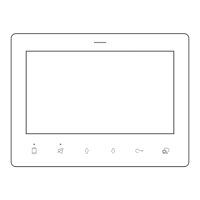
  • Front Panel:
    • Backlight LED: Indicates the monitor's status.
    • 7" TFT Display: Main screen for video and menu.
    • Mute Indicator: Shows if the microphone is muted.
    • Divert Indicator: Shows if the "Divert to APP" function is active.
    • MIC (bottom): Microphone for communication.
    • Touch Keys:
      • Talk/Monitor (speech bubble icon): Initiates or accepts calls, or monitors the door station.
      • Scroll down (down arrow icon): Navigates menus downwards.
      • Unlock (key icon): Releases door locks.
      • Mute (speaker with line through icon): Mutes the microphone.
      • Scroll up (up arrow icon): Navigates menus upwards.
      • Divert (phone icon): Activates/deactivates "Divert to APP."
  • Side Panel:
    • Speaker (side): Outputs audio.
    • Doorbell Button: Physical button for doorbell.
    • Talk Voice Volume Switch: Adjusts the speaker volume during a call (up for high, down for low).

Installation Setup:

  • Address Setup (By monitor menu):
    1. Tap Scroll down or Scroll up or Unlock to enter the main menu.
    2. In the main menu, long press the Unlock key.
    3. Tap Scroll up (refers to the phone icon) to set the monitor address.
    4. Tap Scroll down (refers to the phone icon) to set the monitor master/slave status.
  • Address Setup (By call activate):
    • From standby: When powered up and in standby (screen off), press and hold the Unlock key for 6 seconds until the Divert LED flashes.
    • From door station: Call from the door station with the designed address to activate the address. This can be done by dialing the desired number or pressing a specific button on the door station.
  • Master/Slave Setup: Refer to the address setup step 1.
  • Auto Call Back: After address and master/slave setup, the DF7 can simulate a call from the door station. When powered up and in standby (screen off), press and hold the Unlock key for 3 seconds until the Mute LED flashes.

User Personalization Setup:

  • Adjust Ringtone Volume:
    • Two levels adjustable. When in standby, enter the main menu, tap the Mute icon (refers to the bell icon) to switch the volume between large and small.
  • Change Ringtone Melody:
    • Three sets of ring tunes are selectable. When in standby, enter the main menu, tap the Scroll up icon (refers to the music note icon) to switch between the three melodies. After switching, the DF7 will play the selected melody for door station calls, inner calls, and ring button separately.

Operation:

  • Status Setup (Do Not Disturb):
    • When powered up and in standby (screen off), tap the Mute icon to enable "Do Not Disturb." The corresponding LED will be solid, indicating that the monitor will not ring for any calls.
    • Tap the Divert icon to enable/disable "Divert to APP." (Note: This is a reserve function requiring additional accessories or specific door stations and does not work with 2easy standard door stations).
  • Accept Calling:
    • When the DF7 rings, tap the Talk/Monitor icon to accept the call.
    • Tap the Unlock icon (refers to lock 1) to release door lock 1.
    • Tap the Unlock icon (refers to lock 2) to release door lock 2.
    • Tap the Scroll up icon (refers to the sun icon) to adjust image brightness (2 levels).
    • Tap the Scroll down icon (refers to the camera icon) to switch to other door station cameras (if available).
  • Monitor Door Station:
    • When powered up and in standby (screen off), or in the main menu, tap the Talk/Monitor icon to start monitoring door station 1. Refer to "Operation, point 2" for further operations during monitoring.
  • Intercom Call / Inner Call:
    • When powered up and in standby (screen off), enter the operate menu, tap the Unlock icon (refers to the intercom icon) to access the intercom/inner call menu.
    • Use Scroll up and Scroll down to scroll to the desired address (Guard Unit or Inner call to the same address).
    • Tap the Talk/Monitor icon to initiate the call, and tap it again to end the call.
  • Operating the Light (DT-RLC/Mini RLC):
    • When powered up and in standby (screen off), enter the main menu, tap the Scroll down icon (refers to the light bulb icon) to light up the RLC's light. The icon turns yellow when the light is on. (Note: Limited support for DT-RLC with DT607/608/821, DMR18S).

Maintenance Features:

Restore Factory Setting:

To restore to factory default settings:

  1. Disconnect the DF7 from the bus line, wait for 30 seconds, and then reconnect to the bus line.
  2. Within 10 seconds of powering up, press and hold the Unlock key for 12 seconds. Release when the Divert LED flashes.
  3. A long beep indicates that all settings have been restored to factory defaults.
    • Note: The address will remain, but the master/slave setting will be restored.

Precautions:

  1. All components should be protected from violent vibration and should not be impacted, knocked, or dropped.
  2. Clean the device with a soft cotton cloth. Do not use organic impregnants or chemical cleaning agents. If necessary, use a little pure water or diluted soap water to clean dust.
  3. Image distortion may occur if the video monitor is mounted too close to magnetic fields (e.g., microwaves, TVs, computers).
  4. Keep the monitor away from wet environments, high temperatures, dust, caustic substances, and oxidation gases to prevent unpredictable damage.
  5. Only use the correct adapter supplied or approved by the manufacturer.
  6. Be aware of high voltage inside the products. Refer service only to a trained and qualified professional.

V-TEK DF7 Specifications

General IconGeneral
BrandV-TEK
ModelDF7
CategoryIntercom System
LanguageEnglish

Related product manuals