Operation
Smart operation - Favourites
2
1
4
5
7
9
11
2
3
6
8
10
12
VELUX INTEGRA
®
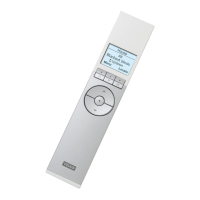
KLR 200
VELUX 33
Tap .
Tap "Product navigator".
Scroll down the display to find
the relevant product, in this
case "Window 4".
Note: The individual products
can be identified by tapping the
icon. See also the section Find-
ing products.
Tap
.
Tap "Order of products".
Tap
three consecutive times
to put Window 4 in front of
Window 1.
Tap
to finish.
Scroll down the display to find
the relevant product, in this
case "Window 5".
Note: The individual products
can be identified by tapping the
icon. See also the section Find-
ing products.
Complete the actions in items
5 and 6 for Window 5 to put it
beneath Window 4.
Tap
.
Tap "OK".
Window 4 and Window 5 are
now at the top of the product
navigator.
Editing order of products in the product navigator
If you use some products, groups or programs more often than others, it may be convenient to show them in another order in the product
navigator.
The example shows how to put the products Window 4 and Window 5 first in the product navigator.



 To Next Page
 Loading...