46
Smart TV (Cont.)
1. Wireless & Network
Select “System Settings” on the home page and press the OK button.
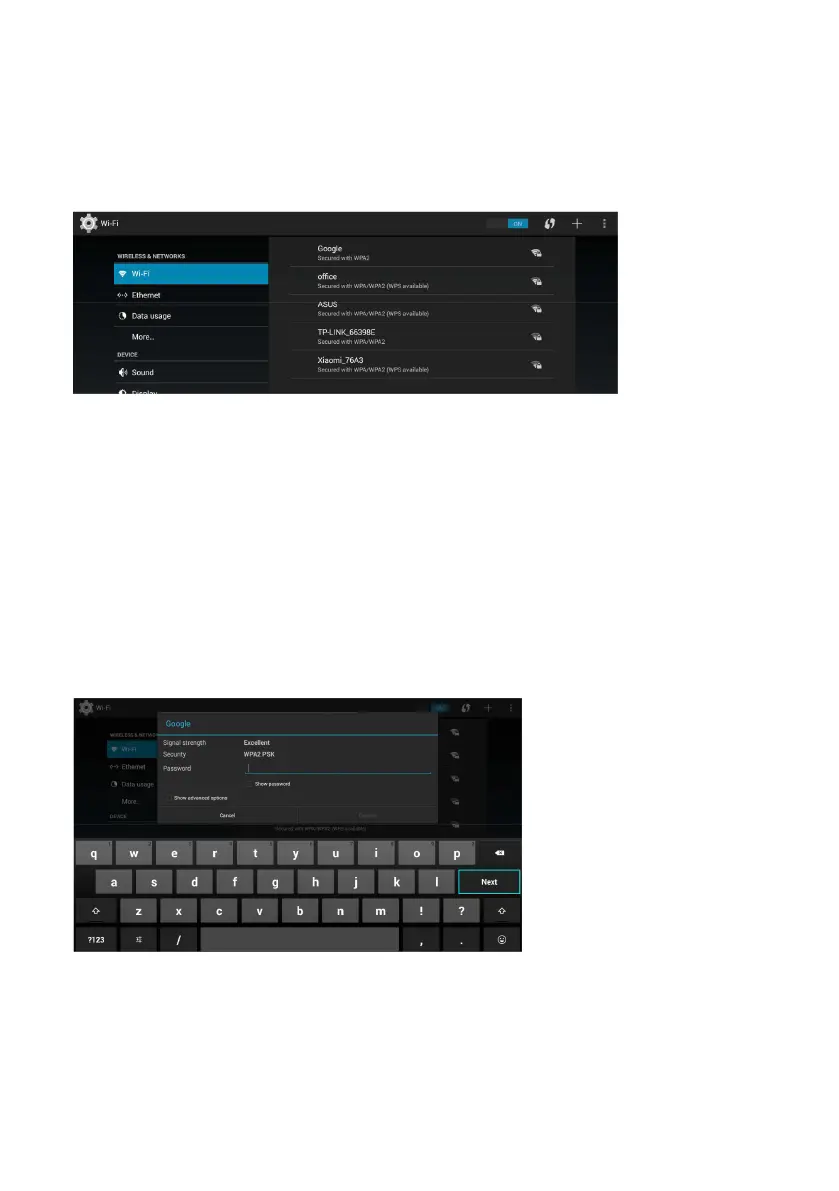
Wi-Fi:
• Turn on/off Wi-Fi and select an available Wi-Fi account. Then connect a
Wi-Fi ID following the on-screen instructions.
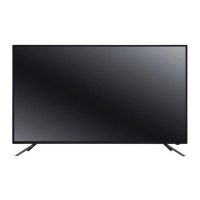
If a password is required:
• Use the navigation buttons to highlight a Wi-Fi account and then press
the OK button to enter it.
• Move the cursor to “Password” and press the OK button to open the on-
screen keyboard.
• Use the navigation buttons to type in a password and then select
“Connect” to submit it.
Ethernet:
• When LAN cable is connected successfully, the Users can set “Proxy & IP
settings” and PPPoE settings accordingly.
NOTE: Connect your LAN cable to “LAN” port on TV back first before
setting Ethernet.



 To Next Page