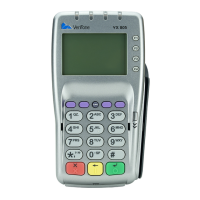
Open Tab
If desired selection is not displayed,
press key below [] until option appears
> Select [TAB]
> If prompted, input password and press
[ENTER]
> Select [OPEN TAB]
Optional Invoice Prompt:
> Input Invoice # and press [ENTER]
Optional Server ID Prompt:
> Input Server ID and press [ENTER]
> If the displayed amount is the desired
Tab amount press [ENTER]
> If the desired Tab amount is different,
Input amount and press [ENTER]
> If prompted, select [YES] or [NO] to
confirm amount
• If [NO] is selected, press [CLEAR]
to end transaction
> Swipe, tap or manually input account
number and press [ENTER]
> Select [CREDIT]
> If swiped or tapped, input last 4
digits of card # and press [ENTER]
> If manually keyed, enter expiration
date and press [ENTER]
> If manually keyed, imprint card and
press [ENTER]
> If prompted, input V-Code and press
[ENTER]
> Input V-Code and press [ENTER]
• If V-Code entry is bypassed, select
[NO] if the V-Code is not present
OR
• [X READ] if V-Code is present but
cannot be read
> If prompted, input Street Address and
press [ENTER]
> If prompted, input Zip Code and press
[ENTER]
> Approval code displays
> Select [CLEAR] to return to Tab menu
Close Tab
If desired selection is not displayed,
press key below [] until option appears
> Select [TAB]
> If prompted, input password and press
[ENTER]
> Select [CLOSE TAB]
> Select [INV#] or [ACCT#] to search
open Tabs
> Input (Invoice # or last 4 digits of
Account #) and press [ENTER]
> If desired Tab is displayed, press [YES]
• If desired Tab is not displayed,
select [NEXT] to review other Tabs
or [NO] to exit menu
> If Tab will be closed with the same
card, select [YES]
Optional Server ID Prompt:
> Input Server ID and press [ENTER]
• Input amount of final Tab and
press [ENTER]
> If prompted, select [YES] or [NO] to
confirm amount
• If [NO] is selected, press [CLEAR]
to end transaction
> If Tab will be closed with a different card,
select [NO]
Optional Invoice Prompt:
> Input Invoice # and press [ENTER]
Optional Server ID Prompt:
> Input Server ID and press [ENTER]
• Input amount of final Tab
and press [ENTER]
• Swipe, tap or manually input
account number and press
[ENTER]
• Select [CREDIT]


 To Next Page
 Loading...