1. At the Main Menu >
SCROLL
to
BATCH REVIEW
> F4.
2. Select option by which to retrieve the batch:
B “
CLERK
” (retrieve by Clerk) > Clerk ID > OK
B “
AMT
“ (retrieve by amount) > Amount > OK
B “
ACCT
” (retrieve by account #) > Last 4 Digits > OK
B “
INV #
” (retrieve by invoice #) > Invoice # > OK
3. Review transaction data > “
VOID
” (F1), “
PREVIOUS
”(F2) or
“
NEXT
” (F3).
Once the transaction is retrieved you may void the
transaction. You can also reprint the receipt for the retrieved
transaction using the
REPRINT
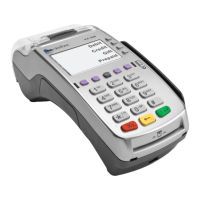
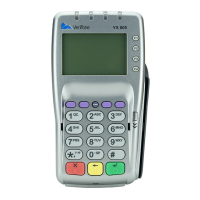
key (third purple key on the
terminal). You may also navigate to the next or previous
transaction in the current batch search using the gray
function keys.
When the clerk/server level password is used to access
the batch review process, only transactions related to that
particular clerk or server can be adjusted. To access the
batch review for all transactions, the password level must
be a supervisor or manager.
How to Settle a Batch
Once you have reviewed all the batch reports you are ready
to perform a Settlement transaction which, if the totals in
the terminal matches the host, the settlement is approved
and is deleted from the terminal.
If the totals do not match, call the Help Desk at 1-877-834-
7607 for assistance.
IMPORTANT: All Pre-Auths must first be either completed or
deleted before a settlement transaction can be processed.
Settlement
This function is performed if the terminal is set to manual
settlement.
1. At the Main Menu >
SCROLL
to Settlement > F3.
(If any Pre-Auths are in the batch, you may delete them
by pressing
YES
(F1).
2. Prints totals and/or detail report
3. Processing…
4.
YES
to settle
5. Processing…
Balancing and Settling a Batch
Before closing a batch to settle, be sure to verify the total
dollar amount for your sales and refunds. This card reviews
the reports that are used to verify that the batch is accurate,
followed by the procedures to settle a batch.
Totals Report
Before closing the batch, you should compare the total of
the paper receipts against the terminal totals. This will
confirm that the amount you transmit is correct, thereby
ensuring proper payment.
1. Press the
REPORTS
key (4th purple key).
2. Press
TOTALS REPORT
(F2).
3. A report will print listing the number of transactions by
Card type and the grand total.
Detail Report
The Detail Report will print the individual transaction total,
listing the last 4 digits of the card and the invoice number.
1. Press the
REPORTS
key (4th purple key).
2. Select
DETAIL REPORT
(F3).
3. A report will print all the transactions in the batch,
specifying the transaction type and the grand total.
In the event that you use Pre-Auth transactions in your
business, you can print a report of any open Pre-Auths
in your batch before you settle. The Pre-Auth report is
accessed from the Reports menu and prints details for
transactions that require completion.
4. Press the
REPORTS
key (4th purple key).
5.
SCROLL
until
PRE-AUTH REPORT
appears, then press F2.
Batch Totals
1. At the Main Menu >
SCROLL
to Batch Totals > F3.
2. Verify totals > OK.
Batch Review
This function enables you to review the transactions in the
current batch prior to submitting the batch for settlement.
B Clerk/Server #
B Transaction Amount
B Last 4 digits of Acct #
B Invoice #









 To Next Page