4. Enter
SERVER ID
to delete > OK.
5. Enter server password > OK
6. Terminal quickly displays
SERVER DELETED
7. Continue deleting Server/Clerk IDs
8. When complete, press red X Cancel key until the menu
appears.
Modify a Server/Clerk ID
This feature modifies an existing server/clerk password.
1. Press OK to access the Configuration Menu.
2. Select
SERVERS
using the gray key (F3).
3.
SCROLL
until
MODIFY SERVER
(F1) displays and select it.
4. Enter Server ID to modify > OK.
5. Enter old Server password > OK.
6. Enter new password (5-10 characters) > OK.
7. Re-enter new password > OK.
8. Terminal quickly displays
CLERK MODIFIED
.
9. When complete press red X Cancel key.
Server Reports
You can access reports that provide information relating to
the Server IDs setup in the terminal.
Totals Report
This report prints transaction count, tip total, sale total,
grand total and number of unadjusted tips by Server ID.
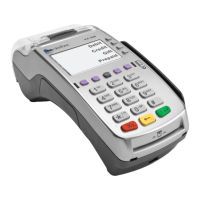
1. Press the
REPORTS
key (right-most) purple button.
2.
SCROLL
to access additional reports.
3. Press F1 to access Server Reports.
4. Press F2 to access Totals Report. The report prints.
Detail Report
This report prints detailed transaction information for each
server, by server number. You can select a single ID or all
IDs.
1. Press the
REPORTS
key (right-most) purple button.
2.
SCROLL
to access additional reports.
3. Press F1 to access Server Reports.
4. Press to access Detail Report.
Server/Clerk Setup
By activating the Server/Clerk feature and its display
prompts you can easily track transactions by server.
Activating the Server ID/Clerk Prompt
To add the Server Clerk Display prompt:
1. Press OK to access the Configuration Menu.
2. Select “
SETUP
”.
3. “
PASSWORD
”. Enter Password.
4.
SCROLL
to “
TERMINAL
” > F1.
5. Press “
NEXT
” (F2) until “
CLRK/ SRVR MODE
” appears (about
15 times).
6. Select “
EDIT
” (F3).
7. The following options display:
NONE, LOGON
and
PROMPT
,
select “
PROMPT
” (F3).
8. Then press “
EXIT
” (F4).
9. “
SAVE CHANGES?
” > OK (F2).
Once the prompt is turned on you MUST use a server ID for
each transaction.
Managing Server/Clerk IDs
The information below is intended to help management add,
modify or remove Server/Clerk IDs from the terminal as well
as print related reports. The terminal accepts up to 100 IDs.
Add a Server/Clerk ID
1. Press OK to access the Configuration Menu.
2. Select
SERVERS
using the gray key (F3).
3. Select
ADD SERVERS
(F4).
4. Create and enter a 1-4 digit clerk/server ID > OK.
5. Enter a 5 -10 digit password for the ID > OK.
Confirm the password by reentering it and pressing OK.
6. Terminal quickly displays
SERVER ADDED.
7. Continue entering Server/Clerk IDs and passwords.
When complete, press red X Cancel key until the Main
Menu appears.
Delete a Server/Clerk ID
1. Press OK to access the Configuration Menu.
2. Select
SERVERS
using the gray key (F3).
3.
SCROLL
until
DELETE SERVER
appears (F2).



 To Previous Page
 Loading...