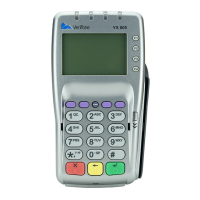
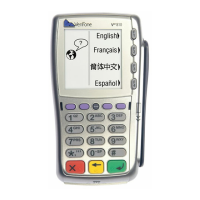
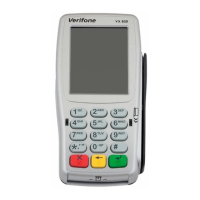
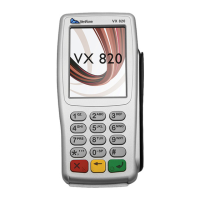
21. Select Run
22. Type in shell:startup and enter
23. In a separate File Explorer window, navigate to C://Drive
24. Select the Program Files (x86) folder
25. Select the Datacap Systems folder
26. Select the NETePay folder
27. Right click on the NETePay icon
28. Select Create Shortcut
29. Click and drag the NETePay shortcut to the shell:startup window
30. You can now close both windows
Running the software
1. Locate and open EMVUSClient on your desktop
2. Fill in the Merchant ID and Terminal ID fields (this will be different depending on who
your Merchant Provider is - WorldPay / TSYS Host / First Data)
3. Ensure the Com Port field is set to 9
4. Select the Pad/Processor (this will be different depending on who your Merchant
Provider is - WorldPay / TSYS Host / First Data)
5. Select Pin Pad reset
6. Select OK to pop up
7. Wait until the popup reloads - You should see a Success message
8. Select EMVParamDownload
9. Select OK to the popup
10. Wait until the popup reloads - You should see a Success message
Epos Now till app
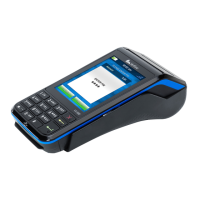
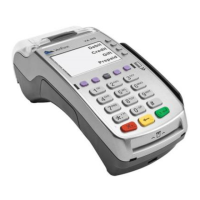
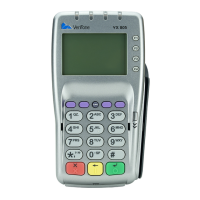
Enabling Verifone
You will now need to enable Verifone in the Front Till settings.
1. Log into your Front Till
2. Select the 3 lines (top left corner)
3. Select Cloud Sync (performing a cloud sync will sync all saved data/changes from the
Back Office to the Front Till)
4. Once synced, go back to the 3 lines (top left corner)
5. Select Settings
6. Select Peripherals along the top of the screen
7. You will see Mercury Payments, toggle this on (the toggle will appear blue when on)
8. Press the Download button next to Perform Payment Terminal Parameter
Download
9. Select the back arrow (top left corner) to save your changes


 To Next Page
 Loading...