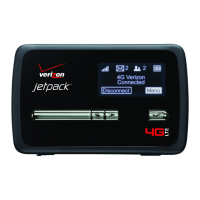
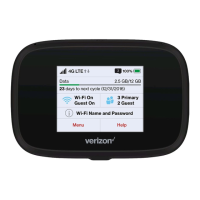
Using Your Jetpack
System Requirements
Your computer, tablet, or other wireless devices need Wi-Fi capability and Internet browser software
only.
Your Jetpack is compatible with all major operating systems and the latest versions of browsers.
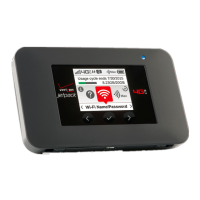
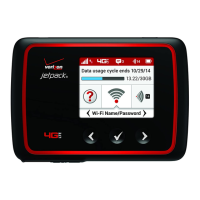
Wi-Fi Name/Password Menu
You can view your Jetpack’s Wi-Fi name (SSID) and password using the following steps.
1. Power on your Jetpack by pressing and holding the Power button for 2 seconds.
2. Open the Wi-Fi Name/Password menu
Connecting to the Internet
1. Power on the Jetpack.
2. Open the Wi-Fi application or controls on the computer or Wi-Fi–capable device you want to
connect to the Jetpack and find the Wi-Fi network (SSID) named “Verizon-791L-XXXX.”
3. Select Connect and enter the Wi-Fi password. Your Wi-Fi–capable device is now connected to the
Internet.
Resetting Your Jetpack
To restore your Jetpack to its factory settings, follow the steps below:
1. Verify the Jetpack is powered on.
2. Open the Settings menu and select the Factory Reset option. Follow the prompts.
Universal Charging
The universal charging cable allows you to charge other devices with your Jetpack such as
smartphones, to keep them powered and connected longer.
To charge an external device using the Universal Charging feature:
1. Verify the Jetpack is powered on. Connect the universal charging cable to the Jetpack.
2. Connect the other end of the charging cable to a USB cable, then connect the other end of the
USB cable to the device you wish to charge.
3. Select your charging preference: Continuous or Timed Charge.
Accessing Advanced Settings


 To Next Page
 Loading...