Text & call syncing
Keep your conversations moving when you’re
on the go
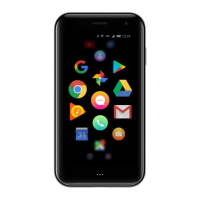
You can connect your Palm to your Verizon phone number with
NumberShare and Message+. You can text and call on your
Palm from the phone number you already use.
Text messaging
With Verizon’s Message+, you can sync all your text
conversations with your Palm. The setup wizard will walk you
through the steps to authenticate your phone number and
connect your devices.
If there are ever any issues and you need to set it up again or
reconnect, go to Settings > System > Setup Wizard.
Calling
Verizon will connect your Palm to your primary Verizon phone
number so you can place and receive calls from the phone
number you already use. If you are having any issues, contact
Verizon Customer Service at 1-800-922-0204.
Navigation simplified
Quickly navigate your Palm using the touch
button
Your Palm has a touch button below the screen to quickly
navigate around the device. To navigate:
Single-tap: Go back
Double-tap: Go home
Long-press: Open task-switcher
Your Palm also has a virtual navigation bar to navigate your
device for back, home and task-switcher. To maximize display
space, you can configure the bar to auto-hide:
1. Go to Settings > Advanced Features > Navigation
2. Turn on the switch for “Auto-hide Navigation Bar”
Don’t worry, you can always swipe up from the bottom of the
screen to quickly use the navigation bar!



 To Next Page